Loading playground
Input
Additional Settings
Customize your input with more control.
Result
Idle

Customize your input with more control.
Customize your input with more control.
You can type #{field} to reference a core field.
×Hint: Drag and drop files from your computer, images from web pages, paste from clipboard (Ctrl/Cmd+V), or provide a URL.
Customize your input with more control.
Your request will cost $0.05 per megapixel on both input and output side, rounded up to the nearest megapixel. For example, a 1024x1024 image will cost $0.05, and a 1920x1080 image will cost $0.10 ($0.05 × 2 megapixels). Similarly, a 512x512 output costs $0.05 for the output image (0.26 megapixels, rounded to 1 megapixel); input-image charges are additional.
Your request will cost $0.05 per megapixel on both input and output side, rounded up to the nearest megapixel. For example, a 1024x1024 image will cost $0.05, and a 1920x1080 image will cost $0.10 ($0.05 × 2 megapixels). Similarly, a 512x512 output costs $0.05 for the output image (0.26 megapixels, rounded to 1 megapixel); input-image charges are additional.
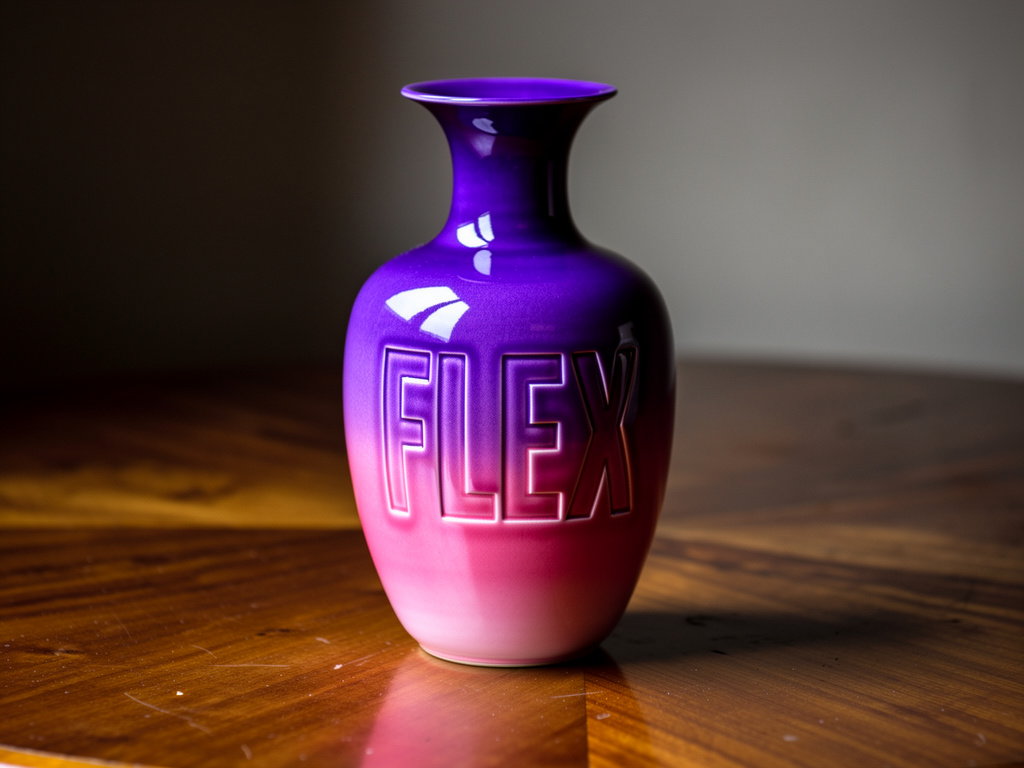
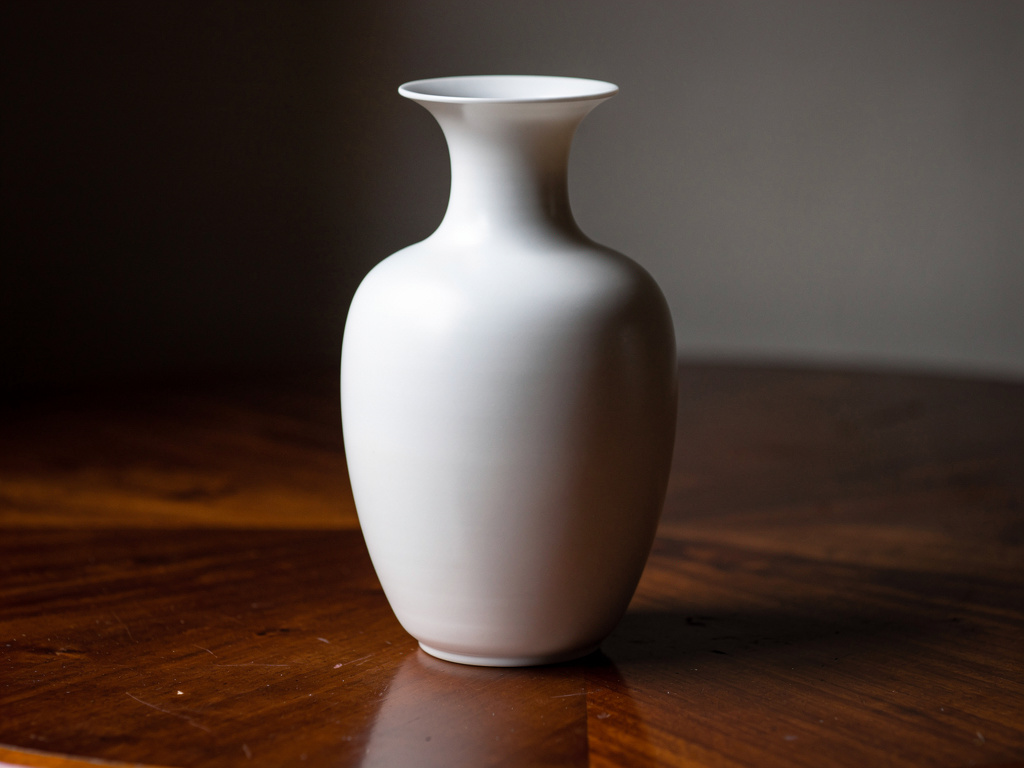
Customizable multi-reference editing with surgical control over transformation quality and prompt adherence. FLUX.2 [flex] combines up to 10 reference images with adjustable inference steps and guidance tuning for context-aware edits. Whether compositing multiple product shots, refining typography in existing designs, or blending style references, flex delivers professional editing with granular cost-quality control—dial up steps for final deliverables, adjust guidance for creative vs. literal interpretations.
Built for: Multi-image product compositions | Brand asset refinement with style references | Typography corrections | E-commerce visual development | Budget-conscious editing workflows
FLUX.2 [flex] extends its configurable generation pipeline to image editing, understanding relationships between multiple input images while giving you direct control over the transformation process. Combine reference images, specify exact edits through natural language, and tune generation parameters to balance speed with output quality.
What this means for you:
For precise control over complex generations, use structured JSON prompts instead of natural language. JSON prompting enables granular specification of scene elements, subjects, camera settings, and composition.
Basic JSON structure:
json{
  "scene": "Overall setting description",
  "subjects": [
    {
      "type": "Subject category",
      "description": "Physical attributes and details",
      "pose": "Action or stance",
      "position": "foreground/midground/background"
    }
  ],
  "style": "Artistic rendering approach",
  "color_palette": ["color1", "color2", "color3"],
  "lighting": "Lighting conditions and direction",
  "mood": "Emotional atmosphere",
  "composition": "rule of thirds/centered/dynamic diagonal",
  "camera": {
    "angle": "eye level/low angle/high angle",
    "distance": "close-up/medium shot/wide shot",
    "lens": "35mm/50mm/85mm"
  }
}
JSON prompts excel at controlling multiple subjects, precise positioning, and maintaining specific attributes across complex compositions.
Specify exact colors using HEX codes for precise color matching and brand consistency. Include the keyword "color" or "hex" before the code for best results.
Examples:
"a wall painted in color #2ECC71""gradient from hex #FF6B6B to hex #4ECDC4""the car in color #1A1A1A with accents in #FFD700"For enhanced accuracy, reference a color swatch image alongside the HEX code in your prompt.
Reference uploaded images directly in prompts using the @ symbol for intuitive multi-image workflows.
Usage patterns:
"@image1 wearing the outfit from @image2""combine the style of @image1 with the composition of @image2""the person from @image1 in the setting from @image3"The @ syntax provides a natural way to reference multiple images without explicit index notation, while maintaining support for traditional "image 1", "image 2" indexing.