Resize and crop any image, free.
Drop an image, pick an exact size or a social preset, and drag the frame over what you want to keep. Everything runs in your browser, so your image never leaves your device. No signup, no watermark.
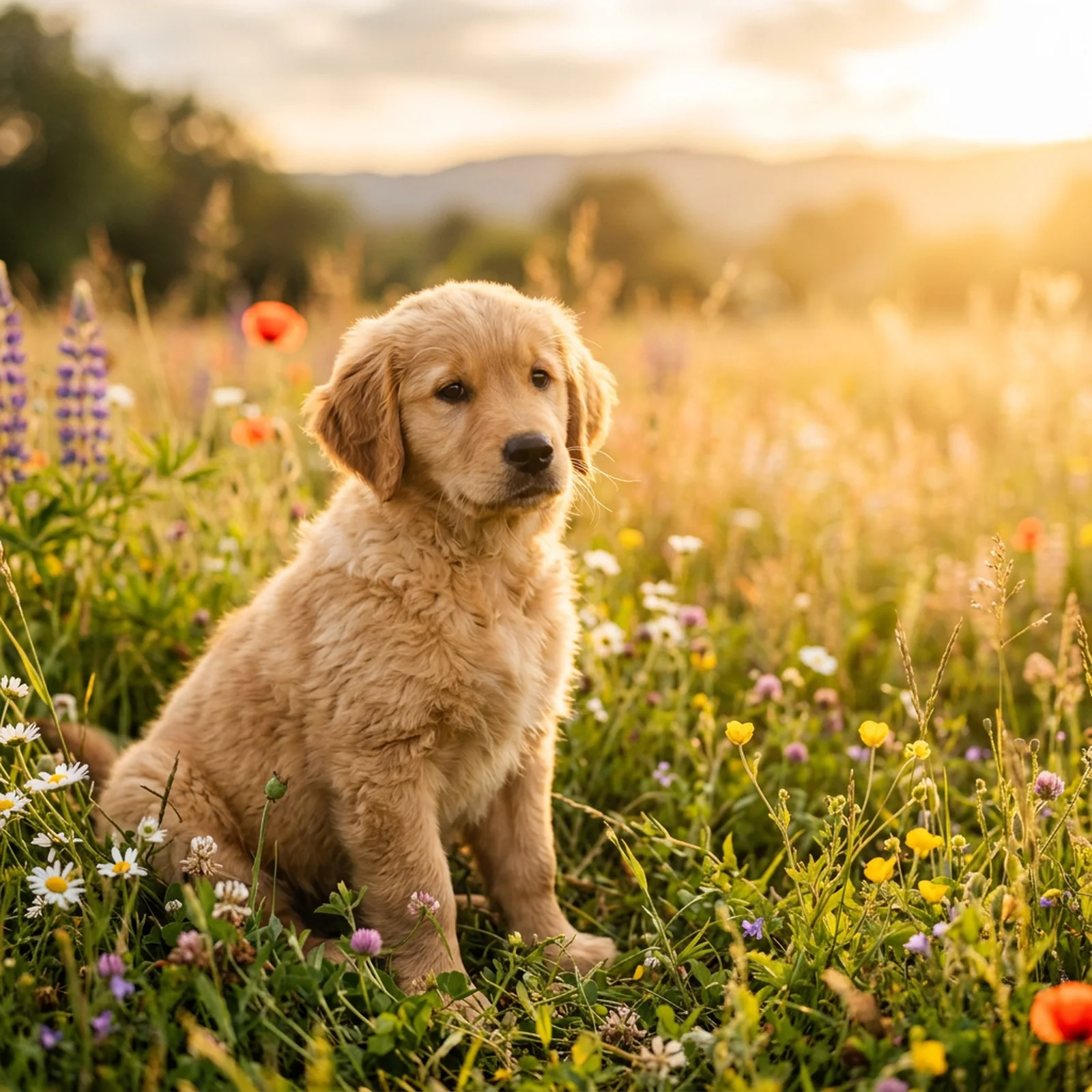
Drop an image to resize it
Or click to browse · JPEG · PNG · WEBP · Up to 30 MB
Resize with precision, crop with intent.
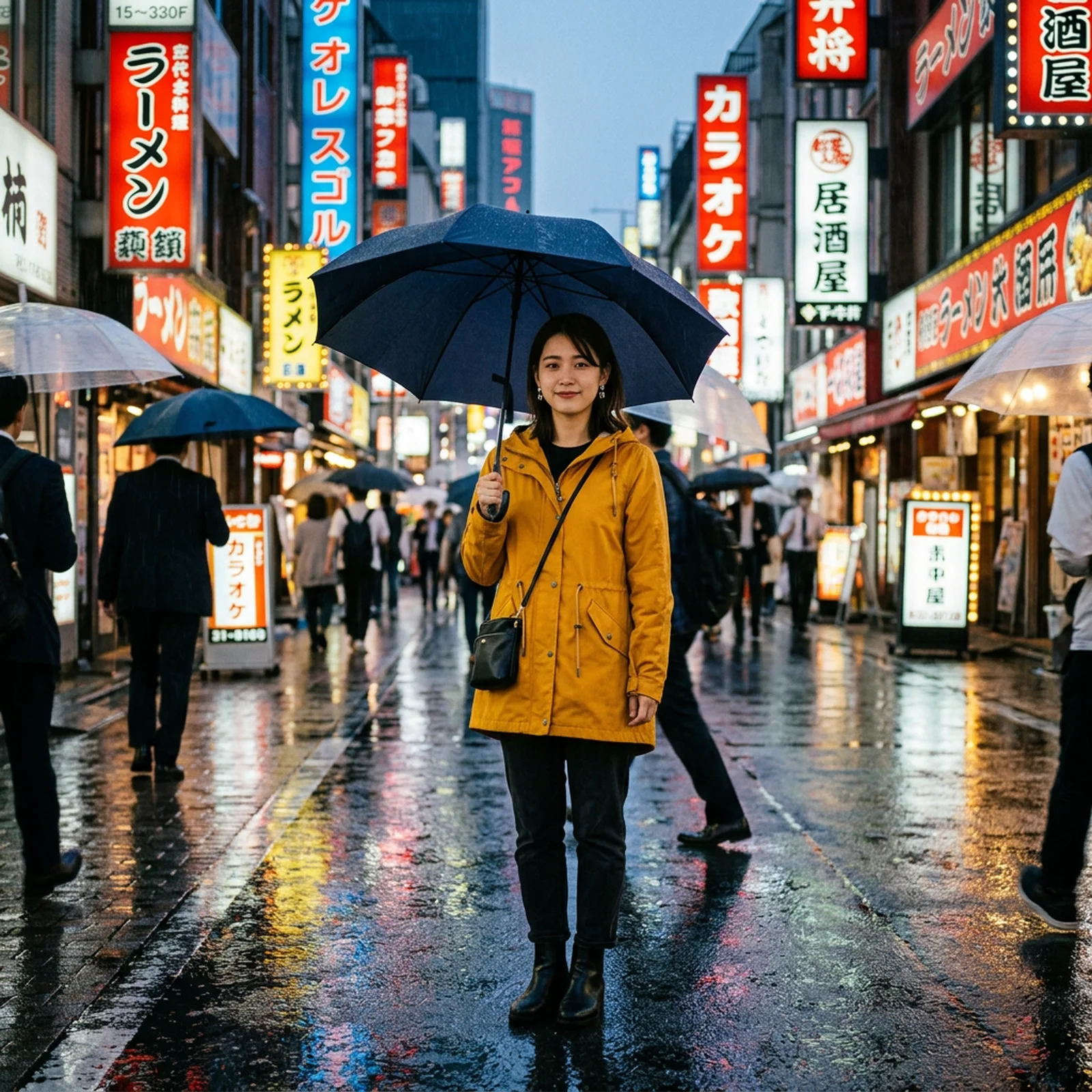
The exact dimensions every platform expects.
Type a width and height or tap a social preset: Instagram post, story, YouTube thumbnail, X header, Pinterest pin. The download comes out at those exact pixels, every time, with the aspect lock keeping proportions honest while you type.
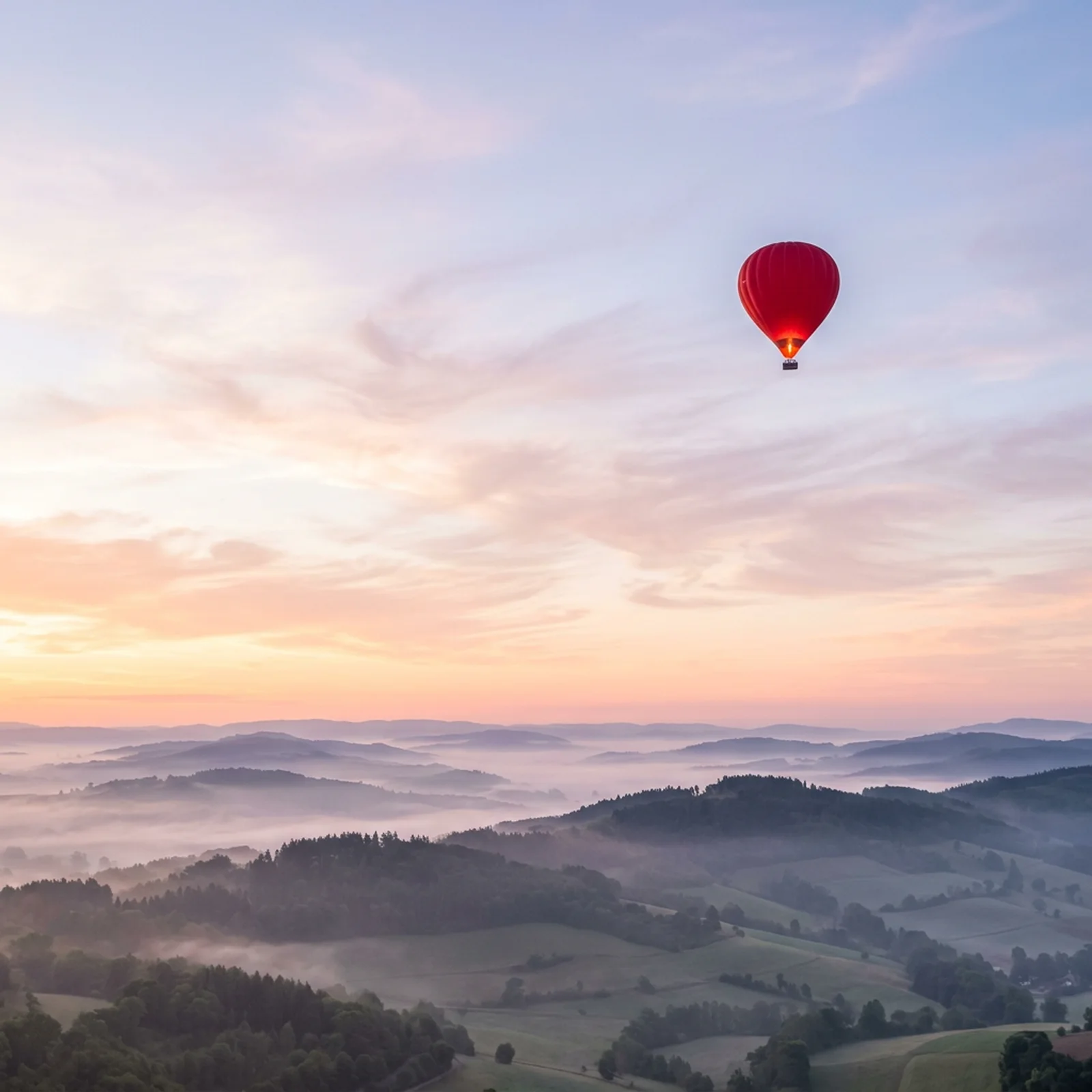
The part you keep is always in view.
The crop frame sits over your photo from the moment it loads. Drag it to move, pull the corners to resize, zoom to tighten the composition. What is inside the frame is what you download, no surprises.
Your image never leaves your device.
Resizing and cropping run entirely in your browser with no upload step at all. Nothing is sent to a server, nothing is stored, and the tool works the same whether you are signed in or not.
JPG, PNG, or WebP out, with a quality dial.
Keep the original format or convert on the way out. Transparent PNGs stay transparent, JPG and WebP get a quality slider, and the size readout shows the real encoded file size before you download.

Three steps. Seconds.
Drop, frame, download. Everything happens in your browser, so there is no upload wait and no queue.
Drop in an image
Drag and drop a JPEG, PNG, or WebP up to 30 MB, or click to browse. It opens instantly with the crop frame already live over your photo. No account, no upload.
Frame it and set the size
Drag the frame over what you want to keep, or pick a social preset and type exact pixels. The width and height readout tracks the frame as you go, and the zoom slider tightens the shot.
Download exact pixels
Choose JPG, PNG, or WebP, check the real file size in the readout, and download. The file comes out at the exact dimensions you set. No watermark, no paywall.
Small habits, cleaner exports.
A few things that make the difference between a usable image and a perfect one.
Start from the preset, then reframe
Pick the platform preset first so the frame locks to the right shape, then drag it over the part of the photo that should survive the crop. The download is already the exact pixels the platform wants.
Downscale freely, upscale carefully
Making an image smaller keeps it sharp. Making it larger than the framed area cannot add detail, so if you need more resolution, run it through the free AI image upscaler first.
WebP for the web, PNG for graphics
WebP at quality 80 to 90 is usually the smallest file that still looks clean in a browser. Keep PNG for screenshots, logos, and anything with transparency.
One photo, every format
After downloading one size, use Back to editing: your photo and frame are still there, so switching to the next preset and downloading again takes seconds.
Resizing a thousand images?
This tool is built for one image at a time. For bulk work, wire fal's image APIs into your pipeline: resize, upscale, expand, and edit programmatically, with per-second pricing and no per-seat licensing.
Frequently asked
What is the difference between resizing and cropping?
Resizing changes how many pixels an image has, keeping everything in the picture. Cropping cuts the picture down to a region you choose. This tool does both in one motion: the frame picks the region, and the width and height set the pixels the download comes out at.
Is this image resizer really free?
Yes. No account, no watermark, no trial limits. The whole tool runs in your browser, so there is nothing for us to meter. fal makes money from its developer API, and this tool is free forever.
Does my image get uploaded anywhere?
No. Cropping, resizing, and encoding all happen locally in your browser using the canvas API. Your image never leaves your device, which also makes the tool safe for confidential material.
Will resizing reduce my image quality?
Making an image smaller keeps it looking sharp; this tool uses stepped downscaling for clean results even at large reductions. Making an image larger than the framed area cannot invent new detail, so the result may look soft. The tool warns you when that happens.
How do I resize an image without losing quality?
Downscaling preserves quality by nature. If you need to go bigger, use AI: run your image through fal's free image upscaler first to add real detail, then come back here to crop and set exact dimensions.
Can I change the aspect ratio without cropping?
Changing aspect ratio always means either cropping or adding new image area. If you want the new shape without losing anything, use fal's free AI image extender, which generates new scenery beyond your photo's edges instead of cutting into it.
What formats and sizes are supported?
JPEG, PNG, and WebP go in, up to 30 MB and 24 megapixels. Any of the three formats comes out, up to 8192 pixels per side. Transparent PNGs keep their transparency unless you convert to JPG, which fills the background white.
Can I resize by percentage instead of pixels?
Yes. Switch the unit toggle from px to % and type a percentage of the original dimensions: 50% halves the image, for example. The pixel readout updates so you always see the real output size.
Can I resize many images at once?
The browser tool handles one image at a time. For batches, fal's image APIs do resizing, upscaling, and editing programmatically: see the image-to-image models and grab an API key from your dashboard.
Finish the job with the other tools.
The free image tools chain together and none of them watermark what you download: cut the background out, upscale the result, then export it at the exact size you need.
Free in your browser
No account, no watermark, no upload limits, nothing to install.
Remove a background in one click
Drop an image and get a clean cutout with transparent edges, up to 4K. Handles hair, fur, and glass without manual masking.
Open Background RemoverUpscale without the mush
Increase resolution and recover detail instead of just stretching pixels. Good for small product shots, old photos, and print.
Open Image UpscalerUncrop and extend past the edges
Generate new scenery beyond the frame so a photo fits a wider or taller aspect ratio, with no cropping and nothing cut off.
Open Image ExtenderRuns on your fal account
Generating video runs real inference on our platform, so these open in the fal playground: sign in, then pay per second of compute.
Generate video from a prompt
Every frontier video model behind one prompt box, from Veo to Kling to Seedance. Describe the shot, pick a model, and generate.
Open AI Video GeneratorTurn a script into moving footage
Write what should happen and get video back. Compare models side by side to find the one that reads your prompt best.
Open Text to Video