![How to Edit Videos With Gemini Omni Flash [2026]](https://refinery.fal.media/url/https%3A%2F%2Fv3b.fal.media%2Ffiles%2Fb%2F0aa30d6c%2Fdi3YlifxXJiz7gj7Uh7oF.jpg/tr:w-1920,q-80/di3YlifxXJiz7gj7Uh7oF.webp)
In this guide, I'll show you how you can edit videos with Gemini Omni Flash while preserving scene coherence through natural language instructions.
TL;DR
Edit prompts are one short sentence naming the change; the model wants a director's brief only when you're generating the source clip.
"Keep everything else the same" closes nearly every good edit prompt, because without it the model treats your instruction as an invitation to reinterpret the scene.
Your own footage uploads straight into the edit endpoint through fal's storage client, though editing uploaded videos isn't available in the EEA, Switzerland, and the United Kingdom.
You can access Gemini Omni Flash on fal, billed by token consumption at around $0.13 per second of edited 720p video, which puts an eight-second edit at about a dollar.
Where can you access Gemini Omni Flash on fal?
The best place to access Gemini Omni Flash is on fal across four separate endpoints:
google/gemini-omni-flash/edit is the one this guide orbits: it takes a finished video and a sentence, and returns the video with that sentence applied.
google/gemini-omni-flash generates a clip with synchronized audio from a text prompt.
google/gemini-omni-flash/image-to-video animates a still frame.
google/gemini-omni-flash/reference-to-video builds a clip around subject and style images.
All four share the same @fal-ai/client call shape, so one integration covers auth, queueing, webhooks, and billing across these endpoints and the over 1,000 other models on fal.
An edit call looks like this:
javascript
import { fal } from "@fal-ai/client";

const result = await fal.subscribe("google/gemini-omni-flash/edit", {
  input: {
    prompt:
      "Make this video anime. Keep everything else the same.",
    video_url:
      "https://storage.googleapis.com/falserverless/model_tests/video_models/mmaudio_input.mp4",
  },
  logs: true,
  onQueueUpdate: (update) => {
    if (update.status === "IN_PROGRESS") {
      update.logs.map((log) => log.message).forEach(console.log);
    }
  },
});

console.log(result.data);
console.log(result.requestId);
In this guide, I'll focus on the edit endpoint, though I'll also use its text-to-video endpoint to generate the content I'll edit.
How do you get a source clip to edit?
There are two routes for getting a source clip for you to edit with Gemini Omni Flash: generate the clip or upload one you already have.
For generation, the base endpoint wants a director's brief in a single prompt: the scene and its physical details, the camera's shot and movement, the light, and the sound.
You can also add "in a single continuous shot" when you want one take, since the model builds small multi-shot narratives by default, and write exclusions straight into the text (there's no negative prompt parameter).
A brief that covers those bases looks like this:
Prompt: A rider on a vintage motorcycle rolls to a stop outside a chrome roadside diner at dusk, cutting the engine as the neon sign flickers on above. The camera tracks low alongside the rear wheel, then cranes up past the rider's shoulder to frame the glowing sign against a bruised purple sky. Steam curls from a kitchen vent, moths orbit the neon, the hot engine ticks as it cools, and a paper cup rolls across the lot. Sound design: the engine's dying rumble, the buzz of the neon tube, a screen door creaking off frame, distant highway hiss. Deep teal shadows against warm neon reds, anamorphic flare on the sign, shallow depth of field, film grain. In a single continuous shot. No dialogue.
Generated using Gemini Omni Flash on fal, an AI model from Google.
Every clip arrives with a soundtrack the model composed for the scene, so you want to describe the audio you want, even when the answer is "No dialogue."
When the starting point is a still image, the image-to-video endpoint animates it, and reference-to-video builds the clip around images of a specific subject or style.
All four endpoints return the same video object, so any generation's output URL drops straight into the edit endpoint.
For footage that already exists, fal provides a convenient file storage that lets you upload files and use them in your requests.
You can upload files using the client API and use the returned URL in your requests:
javascript
import { fal } from "@fal-ai/client";

const file = new File(
  ["Hello, World!"],
  "hello.txt",
  { type: "text/plain" }
);
const url = await fal.storage.upload(file);
A note for European readers: editing uploaded videos is not available for users in the European Economic Area (EEA), Switzerland, and the United Kingdom.
How do you edit videos with Gemini Omni Flash?
You edit a video by sending two inputs to the endpoint: the video's URL and one sentence describing the change.
fal hands the video to Google's Files API behind the scenes, and a new file comes back with your change applied and the rest of the scene intact.
The editing techniques in this guide reflect Google's published guidance for Gemini Omni Flash, which aligns with my own testing.
Short prompts win
This is the single biggest adjustment if you're used to prompting generation models.
Every extra clause in an edit prompt is another thing the model might decide to change.
I learned this the annoying way on this exact clip: I asked for an olive green jacket and, for context, described the diner, the neon, the parked bike, and the dusk around it.
I got the new jacket plus a different sign flicker and two extra cars in the lot.
The rerun said "Make the rider's jacket olive green. Keep everything else the same" and nothing else moved.
Edited using Gemini Omni Flash Edit on fal, an AI model from Google.
The same rule shapes every edit you'd run on this clip.
Avoid: "In this shot of the rider outside the diner, could you add a gray cat inside the window that walks along the sill and settles down somewhere cozy, while the neon keeps flickering exactly the way it does now."
Write: "Add a gray cat sitting in the diner window. Keep everything else the same."
Avoid: "Please get rid of all the moths flying around the sign and patch the sky behind each one so the neon glow still looks natural where they used to be."
Write: "Make the moths invisible. Keep everything else the same."
The second version of each pair never explains how to execute the change.
The model already knows how sky and neon glow behave. Your job is naming the change, not directing the cleanup.
falMODEL APIs
The fastest, cheapest and most reliable way to run genAI models. 1 API, 100s of models
One phrase does most of the preservation work
"Keep everything else the same."
Google's documentation recommends appending it to targeted edits, and I've found the same in my testing as well.
Without it, the model has more freedom to reinterpret the scene around your change.
With it, edits stay surgical.
Let's run it on the diner clip:
Prompt: "Make the motorcycle cherry red. Keep everything else the same."
Edited using Gemini Omni Flash Edit on fal, an AI model from Google.
You can see how the bike changes color but the rider, the flickering sign, and the rolling paper cup carry on as if nothing happened.
What are the anti-slop rules for edit prompts?
Six habits will help you keep the output out of the "AI slop" bucket:
Name only the change: every adjective past the change itself is a decision you've reopened.
Close with the anchor phrase: "Keep everything else the same" is documented guidance, and I treat it as punctuation.
Quote on-screen text exactly: "Change the text on the sign to say 'Fresh Today'" tells the model the words are copy, not description.
One change per turn: chain turns for multiple changes, and branch when a turn goes wrong.
Say what happens, not how to composite it: "Make the scooter invisible" beats a removal instruction with background-repair notes attached.
Tie conditional edits to an on-screen event: "When the kettle starts to steam, fog the window behind it" gives the model a trigger it can see.
What are the best editing prompt patterns for Gemini Omni Flash?
Every prompt here follows the same two moves: name only the change, then close with the anchor phrase.
I'll now generate a very detailed video that I'll then do small edits around it so you can see some of Gemini Omni Flash's best practices (and use cases!).
Prompt: A wooden juice cart parked on a cobbled seaside promenade at midday, crates of oranges stacked on one side and a chalkboard sign reading 'FRESH SQUEEZED' hanging from the awning. A crate tips and oranges tumble into a steel press, juice streaming into a glass below. Two seagulls pace along the awning's edge. The camera starts tight on the tumbling fruit, then pulls back and rises to frame the cart against glittering water. Sound design: fruit rolling on wood, the squeak of the press, gulls crying, the low wash of the harbor. Bright Mediterranean light, saturated color, lens flare off the water, gentle handheld energy. In a single continuous shot. No dialogue.
Generated using Gemini Omni Flash on fal, an AI model from Google.
Object swaps
"Replace the oranges with lemons. Keep everything else the same."
Generated using Gemini Omni Flash Edit on fal, an AI model from Google.
Lighting and weather
"Make it golden hour, long shadows across the cobbles. Keep everything else the same."
Edited using Gemini Omni Flash Edit on fal, an AI model from Google.
"Roll in a thick sea fog. Keep everything else the same."
Edited using Gemini Omni Flash Edit on fal, an AI model from Google.
Note: Fog was a good stress test because it has to hang at the right depth between the camera and every object it wraps, so the physics grounding had nowhere to hide.
Full style transfer
"Make this video stop-motion claymation. Keep everything else the same."
Style transfer is the one case where "everything else" means composition and motion, since the entire visual surface is being rebuilt.
Edited using Gemini Omni Flash Edit on fal, an AI model from Google.
Removals
"Make the seagulls invisible. Keep everything else the same."
Edited using Gemini Omni Flash Edit on fal, an AI model from Google.
Text replacement
"Change the chalkboard to say 'LAST DAY OF SUMMER'. Keep everything else the same."
Edited using Gemini Omni Flash Edit on fal, an AI model from Google.
Gemini Omni Flash renders legible on-screen type, so the rewritten chalkboard stays readable.
Physics transforms
"When the oranges hit the press, turn the splash into liquid gold. Keep everything else the same."
Conditional edits tied to an event in the clip feel genuinely new, and simple cause-and-effect phrasing is all the model needs.
Edited using Gemini Omni Flash Edit on fal, an AI model from Google.
How much does Gemini Omni Flash cost on fal?
fal bills Gemini Omni Flash by token consumption.
Input tokens (text/audio/video) cost $1.875 per 1 million tokens. Output tokens cost $21.875 per 1 million tokens.
For 720p video, this costs approximately $0.13 per second of video.
Recently Added














Run Gemini Omni Flash on fal
The playground is the fastest way in, and an account is free to create.
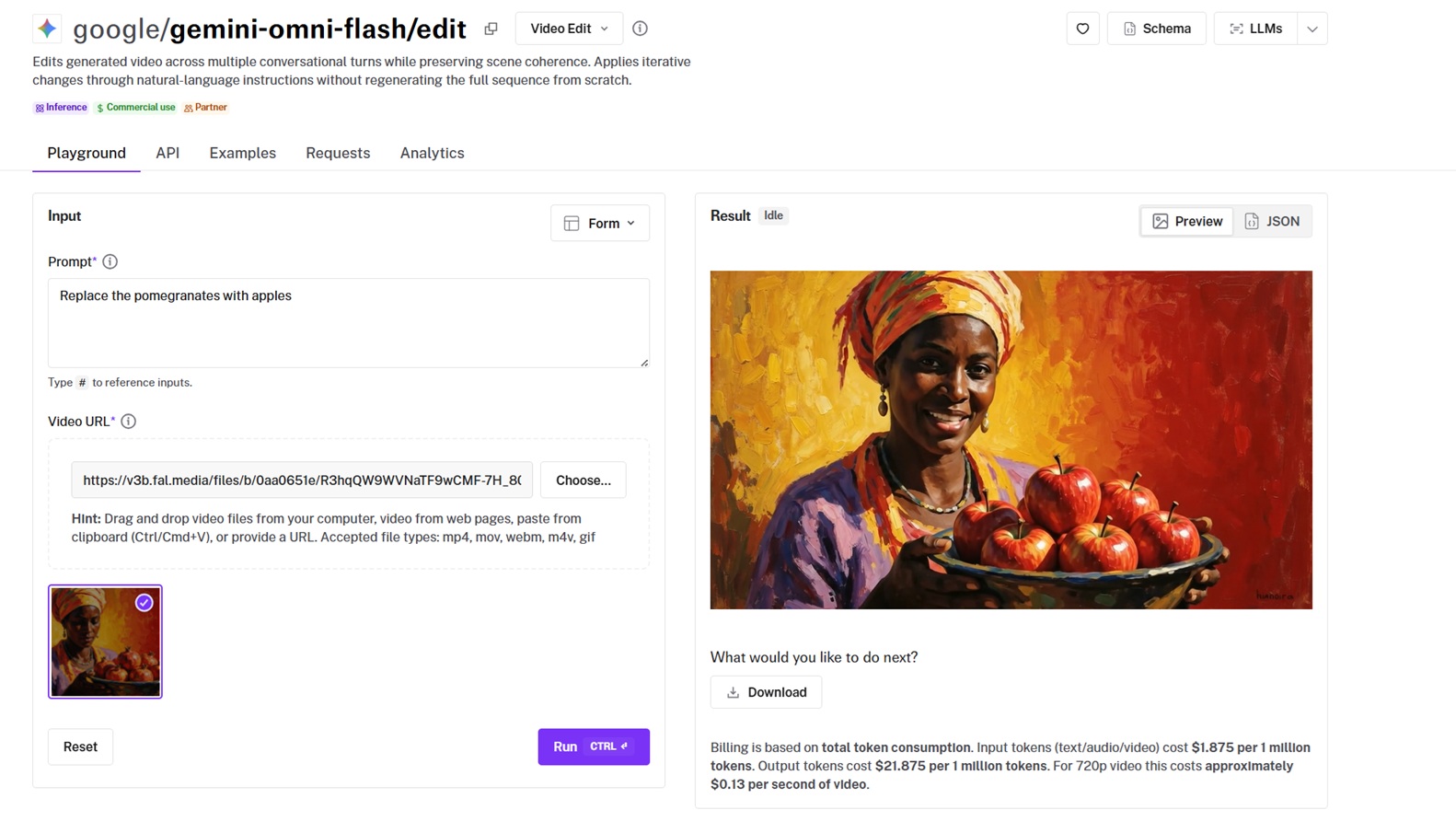
My routine: generate at the 8-second default in 16:9, run one edit turn at a time until the clip stops surprising me, and branch from the last good turn when it does.
And when the source footage already exists, the edit endpoint takes it directly, so the whole revision pass happens without leaving fal.
FAQs about editing videos with Gemini Omni Flash
Where can you access the Gemini Omni Flash API?
The Gemini Omni Flash API is available on fal with pay-per-use billing and no subscription.
Why should you use fal to run Gemini Omni Flash?
fal gives you all four Gemini Omni Flash endpoints behind one client, with queueing and webhooks handled, no GPUs to manage, and no subscription.
The same integration reaches the over 1,000 other models on fal, outputs are cleared for commercial work, and the playground lets you test an edit in the browser before using the API.
How do you use Gemini Omni Flash on fal?
There are more ways in than the two this guide uses:
The playground runs any endpoint in the browser with no code, and the @fal-ai/client SDK carries the same calls into production with queueing and webhooks.
Past those, fal's Sandbox and Workflows cover experimentation and multi-model pipelines, and the MCP server and CLI bring the endpoints into agents and terminals.
What are the four endpoints for Gemini Omni Flash on fal?
Here are the 4 endpoints of Gemini Omni Flash on fal:
-
google/gemini-omni-flash/edit edits a finished video: it takes the clip and a sentence, and returns the video with that sentence applied.
-
google/gemini-omni-flash generates a clip with synchronized audio from a text prompt.
-
google/gemini-omni-flash/image-to-video animates a still frame.
-
google/gemini-omni-flash/reference-to-video builds a clip around subject and style images.
Can I use Gemini Omni Flash videos in commercial work?
Yes.
Videos generated or edited through fal can be used in commercial projects, client work included, and fal's terms of service have the details.
What durations and aspect ratios are supported?
The generation endpoints run from 3 to 10 seconds with a default of 8, in 16:9 or 9:16.
The edit endpoint exposes neither parameter: it takes your instruction and the source video, nothing else.
Why does my clip have scene cuts I didn't ask for?
The model builds small multi-shot narratives by default.
Ask for "a single continuous shot" or add "no scene cuts" to the prompt, and it holds one take.
Are the outputs watermarked?
Every video carries Google's SynthID watermark, invisible to viewers but detectable programmatically, which matters if your pipeline verifies provenance.
![How To Use Gemini Omni Flash 1.1: Prompts & Workflows [2026]](https://refinery.fal.media/url/https%3A%2F%2Fv3b.fal.media%2Ffiles%2Fb%2F0aa980d2%2FCQSjgFTnyKN_hFvYMZ4d1.jpg/tr:w-1280,q-80/CQSjgFTnyKN_hFvYMZ4d1.webp)
![How To Use FLUX 3: Prompts & Workflows [2026]](https://refinery.fal.media/url/https%3A%2F%2Fv3b.fal.media%2Ffiles%2Fb%2F0aa634ac%2FQDj7UCejgvCv5IKAwDFLP.jpg/tr:w-1280,q-80/QDj7UCejgvCv5IKAwDFLP.webp)