Editing a video with AI is a different skill from generating one from scratch.
You start with footage that already has its own motion and timing, and the work is to change one part of it without the rest coming apart.
This guide covers the models on fal built for that, how to write an edit prompt the model can actually follow, the settings that move cost and quality, and the slip-ups that send you back for a second pass.
TL;DR
AI video editing keeps your clip's motion and structure while changing the parts you describe, so a good prompt says what changes and what stays put.
Two of the models here, Kling O3 and Happy Horse 1.0, handle targeted swaps and natural-language edits, while Seedance 2.0 rebuilds a clip with fresh camera work and native audio when the edit is really a full transformation.
Reference tags do the heavy lifting, where @Image, @Element, @Video, and @Audio point the model at exactly what a swap, a style, or a soundtrack should be.
fal runs every model in this guide through one @fal-ai/client call on pay-per-use pricing, with a playground if you want to test before writing any code.
Where's the best place to edit videos with AI?
fal is the best place to run these editors, with all of them reachable through one API on a custom-built inference engine, so an edit finishes in seconds.
You set up one fal account and one billing relationship, and you pay per generation with no monthly plan attached.
The call is the same @fal-ai/client pattern every time, but the editors are not drop-in swaps: Kling O3 takes elements and reference images, Happy Horse 1.0 takes video_url and audio_setting, and Seedance reference-to-video takes video_urls and audio_urls, so switching editors means changing the endpoint and matching its input fields.
Past these three, that same account opens up over 1,000 AI models spanning image generation, audio, text-to-video, and 3D.
Since your code does not change between models, you can rough out an edit on a cheaper pass and hand the final render to a higher-fidelity one without rewriting anything.
A request looks like this:
javascript
import { fal } from "@fal-ai/client";

const result = await fal.subscribe("alibaba/happy-horse/video-edit", {
  input: {
    video_url: "https://example.com/your-video.mp4",
    prompt: "Recolor the sky to a deep purple sunset.",
    resolution: "1080p",
    audio_setting: "auto",
  },
  logs: true,
  onQueueUpdate: (update) => {
    if (update.status === "IN_PROGRESS") {
      update.logs.map((log) => log.message).forEach(console.log);
    }
  },
});

console.log(result.data.video.url);
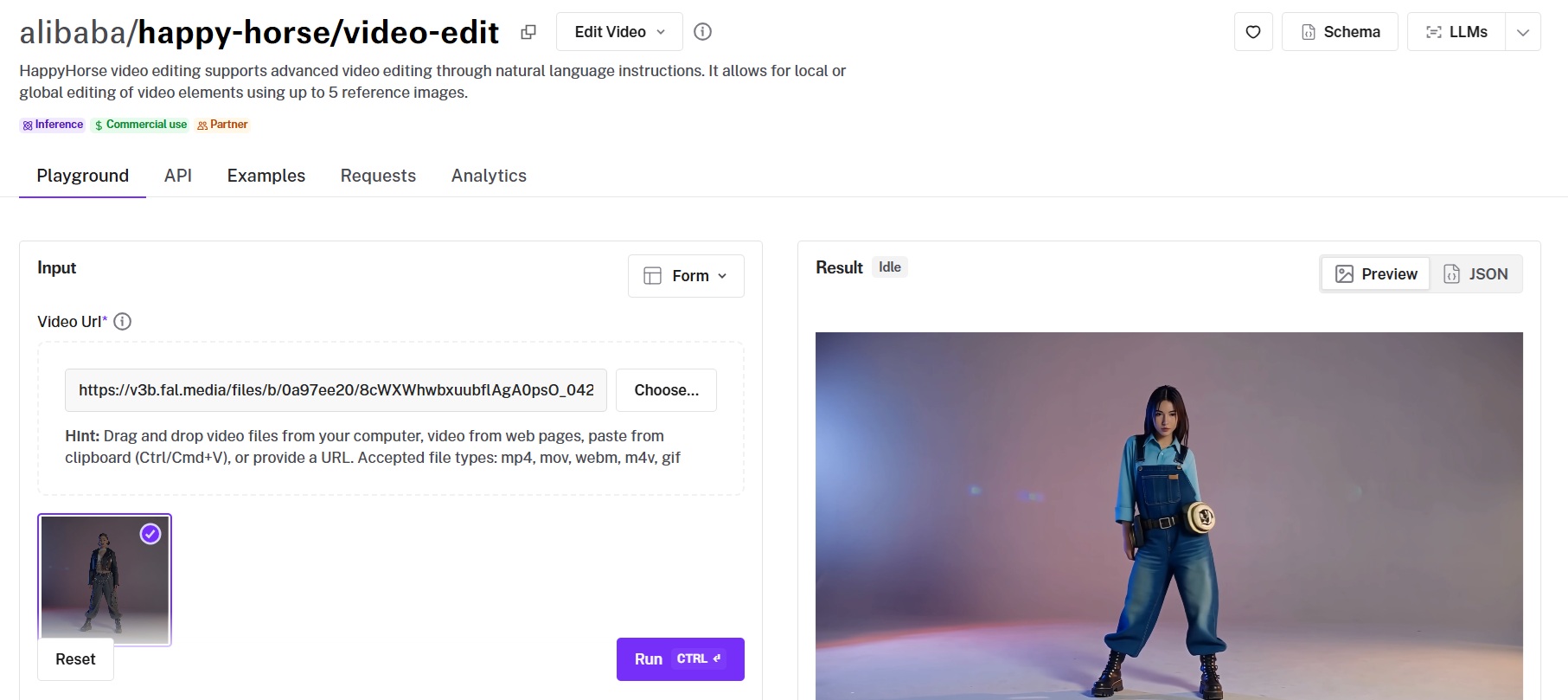
However, before you have to run any code or use our API, you can experiment with video editing in the AI model's playground, such as Happy Horse 1.0's Video Edit playground.
How do you prompt AI video editing models for the best results?
A good edit prompt does two things at once: it spells out the change you want, and it protects everything that should stay put.
If you miss the second half, the model would be free to redraw parts of the clip you never meant to touch.
These six habits cover the difference between an edit that lands on the first pass and one that needs three:
Name the kind of edit first
Every edit is either global or local, and the model treats them differently.
A global edit reworks the whole clip at once, like dropping a summer scene into deep winter or pushing a flat daytime look into a moody night grade.
A local edit goes after one thing and leaves the rest alone, like recoloring a single storefront awning or swapping the bag a person is carrying.
State which one you mean at the top of the prompt, because a vague instruction can pull a local change into a full-frame restyle you never asked for.
Let's start with a clip to work on, generated from a text prompt that already reads like a directed shot, as per our video generation best practices:
Generation prompt: A quiet city street on a flat grey afternoon, a few pedestrians crossing at the far corner, a slow push-in moving down the sidewalk past closed storefronts, soft even daylight, the low hum of distant traffic and footsteps on concrete.
Generated using Happy Horse 1.0 on fal, an AI model from Alibaba.
Now the global edit, named as global so it carries across every frame:
Edit prompt: Global edit: turn this daytime street into a rainy night, wet reflective asphalt, neon storefront glow, a light drizzle catching the streetlights, cool blue grade.
Edited using Happy Horse 1.0 on fal, an AI model from Alibaba.
What should stay untouched
If you only describe the change, the model can redraw everything around it, and the parts that wander first are usually motion and faces.
This is why we need to spell out what to keep.
A short clause like "keep the camera move, the lighting, the pacing, and the people exactly as they are" does more for a clean result than any quality booster.
This matters most on local edits, where the entire point is that one element changes and nothing else does.
The source is a clip with a clear camera move and a couple of details worth protecting:
Generation prompt: A slow horizontal pan across a sunny residential street, a grey four-door sedan parked at the curb in the center of frame, two people walking past on the sidewalk behind it, warm late-morning light, birdsong and the faint rush of a car passing a block away.
Generated using Seedance 2.0 on fal, an AI model from ByteDance.
The convertible going in is a still image, shot clean against a neutral background so Kling can lock its identity as an element:
Generation prompt: A studio product shot of a classic 1960s convertible in deep cherry red with chrome trim, top down, three-quarter front angle, even soft lighting, plain neutral background.
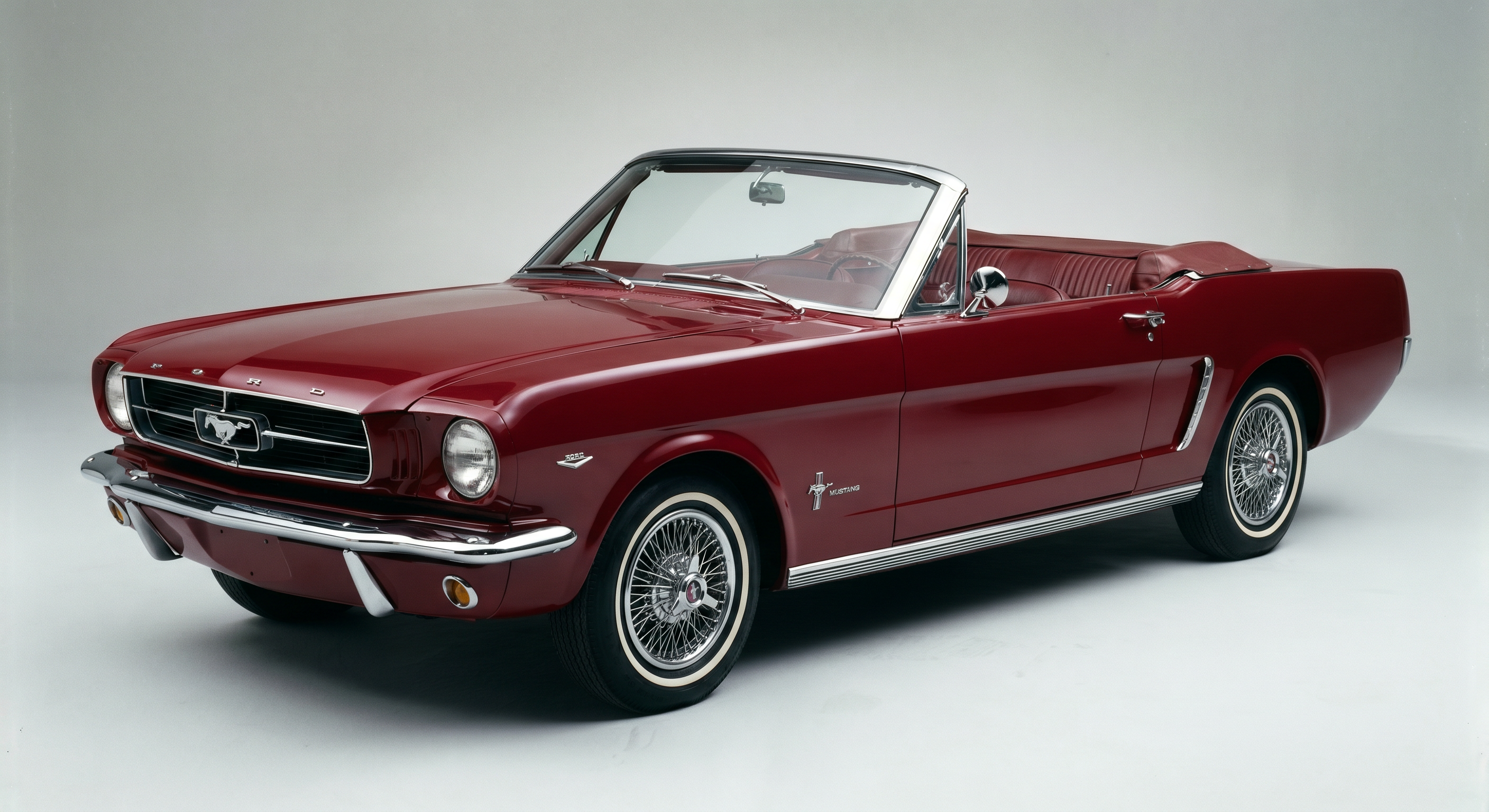
Generated using Nano Banana Pro on fal, an AI model from Google DeepMind.
Then the swap, with the pan and the people called out as things to keep:
Edit prompt: Replace the parked sedan in @Video1 with the convertible from @Element1, keep the camera pan, the pedestrians, and the original lighting intact.
Edited using Kling O3 on fal, an AI model from Kling Team.
falMODEL APIs
The fastest, cheapest and most reliable way to run genAI models. 1 API, 100s of models
Let @ tags carry the references
Words alone can only get you so close to a specific look. A reference tag pins it down, and each one has its own job.
@Image hands the model a style or a flat asset to match, @Element carries a character or object into the footage with its own identity, @Video is the source clip you are editing, and @Audio drops in a track for the model to build around.
You want to lean on them whenever the result has to match something exact, since describing "a vintage red convertible with chrome trim" in prose rarely lands as cleanly as pointing at a photo of one.
Begin with footage worth restyling, made from a directed prompt:
Generation prompt: A cyclist riding along a tree-lined city boulevard, a steady tracking shot moving alongside from the side, dappled late-afternoon sun through the leaves, the whir of the chain and the soft rush of passing traffic.
Generated using Seedance 2.0 on fal, an AI model from ByteDance.
The look you are matching is a reference image, generated first:
Generation prompt: A flat mid-century travel-poster illustration, bold blocky fields of color, minimal shading, subtle screen-print grain, a limited palette of teal, mustard, and warm cream.

Generated using Nano Banana Pro on fal, an AI model from Google DeepMind.
The edit points at the reference and stays short:
Edit prompt: Restyle the whole clip to match the flat painted-poster look of @Image1, holding the original motion and timing.
Edited using Happy Horse 1.0 on fal, an AI model from Alibaba.
One instruction at a time
A single coherent change lands well.
Pile five competing edits into one line, and the model quietly abandons some of them, usually the ones you cared about.
When you need several changes, sequence them or run separate passes, fixing one detail before moving to the next.
Here is the base clip, straight from a text-to-video prompt:
Generation prompt: A young person in a plain grey pullover hoodie walking through a city park, a steady tracking shot holding them centered from the front, soft overcast light, ambient park sounds with footsteps crunching on the gravel path.
Generated using Seedance 2.0 on fal, an AI model from ByteDance.
One change, nothing else touched:
Edit prompt: Change the person's plain grey hoodie to a deep red windbreaker; leave the face, hair, and background untouched.
Edited using Happy Horse 1.0 on fal, an AI model from Alibaba.
Make a deliberate call on the audio
Audio is a choice you get to make, not a default to ignore.
Keep the original track when motion and dialogue have to stay in sync, since regenerating it can knock lips and footsteps off their timing.
Let the model build new audio when you are remaking the whole world of the shot and the old soundtrack no longer fits.
The clip to rebuild comes from text first, generated at 720p so it sits inside Seedance's reference limit:
Generation prompt: A skateboarder carving across an empty concrete skatepark at midday, a low tracking shot following just behind the board, hard overhead sun and sharp shadows, the scrape and click of the wheels on concrete.
Generated using Seedance 2.0 on fal, an AI model from ByteDance.
The track underneath is generated from text too:
Generation prompt: A mellow lo-fi hip-hop loop, warm Rhodes chords, soft vinyl crackle, a relaxed downtempo beat, dusk mood.
Generated using Lyria 2 on fal.
The edit makes the audio call explicit, bringing in @Audio1 while holding the motion:
Edit prompt: Rebuild the skateboarding clip from @Video1 at a city plaza at dusk, lay the ambient track from @Audio1 underneath, hold the rider's motion.
Edited using Seedance 2.0 on fal, an AI model from ByteDance.
Use a colorist's vocabulary for global looks
Global restyles respond well to the language a colorist or a director of photography would use.
You want to name the grade, the film stock, the direction of the light, and how hard it falls, and the model carries it across every frame.
"High-contrast noir with a single hard key light and faint grain" would read very differently from "warm late-afternoon film," and that difference shows up in the output.
Let's generate a base clip in full color, so the grade has something to work against:
Generation prompt: A figure in a long coat crossing an empty parking garage at night, a slow dolly following from behind, mixed fluorescent overhead light and deep shadow between the pillars, footsteps echoing off the concrete.
Generated using Seedance 2.0 on fal, an AI model from ByteDance.
Then grade it, in a colorist's terms:
Edit prompt: Grade the entire clip toward high-contrast black-and-white noir, deep shadows, one hard key light from the left, a faint film grain over the whole frame.
Edited using Happy Horse 1.0 on fal, an AI model from Alibaba.
What are the best AI models for editing videos?
The three video editors I'm about to go through approach the job from different directions.
Kling O3 and Happy Horse 1.0 change an existing clip in place, one through dropped-in elements and one through instructions, while Seedance 2.0 takes your footage as a reference and rebuilds the scene around it.
Note: Each one also has a text-to-video endpoint on fal, so you can generate the clip and edit it inside the same model family.
Kling O3
Kling O3 is all about element-based editing.
Kling Team built this video-to-video editor so you can hand it a character or object as an element, made from a frontal shot and a few reference angles, and it composites that subject into your footage while you reshape the surroundings from a reference image in the same pass.
The source clip can run 3 to 10 seconds at 720px to 2160px; you point to the video as @Video1, tag a reference image as @Image1 for the environment or style, and bring a subject in as @Element1, and the original audio stays in place by default.
That suits the kind of edit where a specific thing has to appear in a scene that already exists, like placing a product or a character into live footage without a reshoot.
Pricing runs $0.168 per second of generated video, so a 5-second edit lands at $0.84.
The bench clip comes from Kling's own text-to-video endpoint, so the whole job stays inside one model:
Generation prompt: A slow dolly moving toward an empty wooden park bench beneath a large tree, a quiet green park around it, soft late-summer afternoon light, birdsong and a gentle breeze through the leaves.
Generated using Kling O3 on fal, an AI model from Kling Team.
The figure is a generated still, shot frontally for the element:
Generation prompt: A frontal three-quarter portrait of a woman in a tan trench coat and a wool scarf, relaxed standing pose, even soft studio light, plain light-grey background.
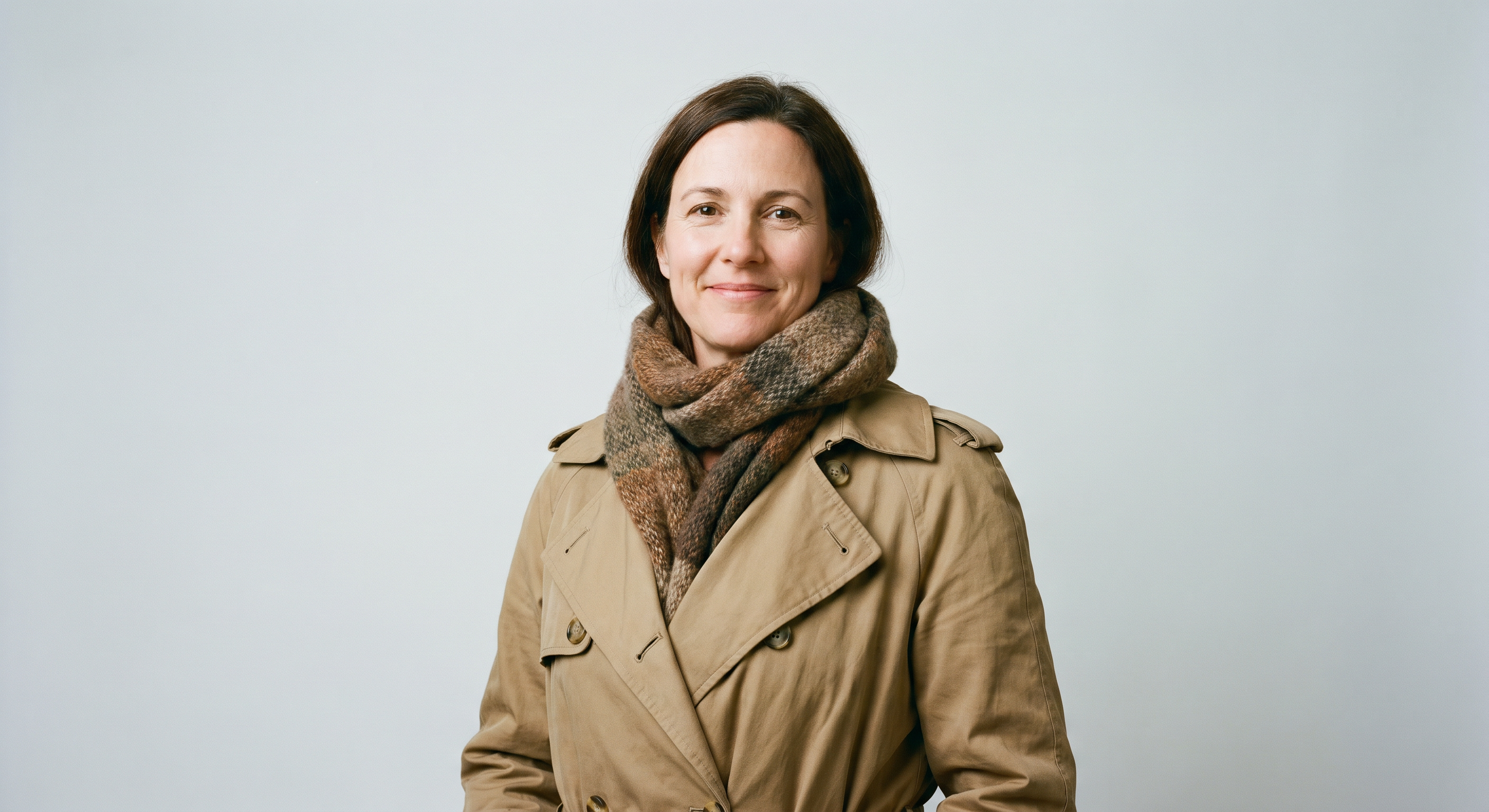
Generated using Nano Banana Pro on fal, an AI model from Google DeepMind.
The new season is a second reference image:
Generation prompt: An autumn park scene, trees in deep orange, red, and gold, a carpet of fallen leaves on the grass, warm low-angle afternoon sun.
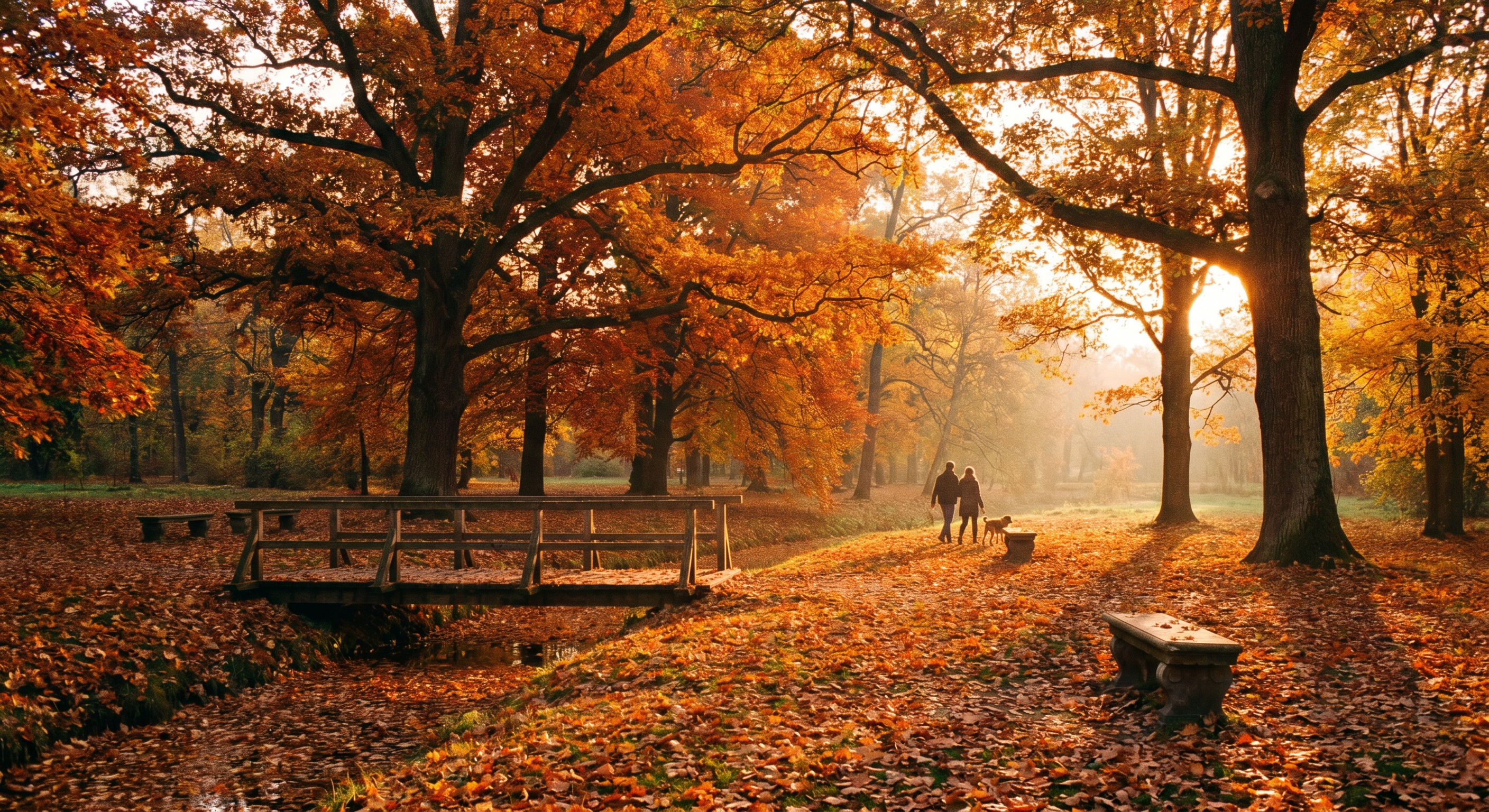
Generated using Nano Banana Pro on fal, an AI model from Google DeepMind.
Then the edit composites the figure in and swaps the season, holding the camera move:
Edit prompt: Drop the figure from @Element1 onto the empty park bench in @Video1, shift the surroundings to the autumn setting from @Image1, and keep the original camera move.
Edited using Kling O3 on fal, an AI model from Kling Team.
Happy Horse 1.0
Happy Horse 1.0 takes a different route to the same goal.
Alibaba built it around a clean split between global and local edits, and it works entirely from plain-language instructions.
A global edit reworks the whole clip at once, like warming a grey overcast scene into golden afternoon light or relighting it for a different season.
A local edit goes after one element and leaves the rest untouched, like swapping the artwork on a wall or recoloring a single neon sign.
You can attach up to five reference images, tagged @Image1 through @Image5, and it accepts inputs for up to 60 seconds while holding the source structure and motion.
The output keeps the source aspect ratio, and its duration matches the input, capped at 15 seconds, so a longer clip is trimmed to its first 15.
Reach for this one when describing the change in a sentence beats rigging up masks or elements.
Pricing on fal runs $0.28 per second of output at 720p and $0.56 per second at 1080p.
You can generate the base clip on Happy Horse's text-to-video endpoint, in flat daytime light so the blue-hour push has somewhere to go:
Generation prompt: A wide static shot of a downtown skyline under flat midday light, a few clouds drifting overhead, the distant hum of city traffic.
Generated using Happy Horse 1.0 on fal, an AI model from Alibaba.
Then push it into blue-hour with a single global instruction:
Edit prompt: Global edit: push the whole clip into late blue-hour, the sky deepening to indigo, warm window lights coming on across the buildings, a cool grade with soft highlights, motion and framing unchanged.
Edited using Happy Horse 1.0 on fal, an AI model from Alibaba.
Seedance 2.0
Seedance 2.0 edits by rebuilding.
ByteDance's flexible reference-to-video model takes your clip in as @Video1 alongside images and audio, up to 12 files across the three types, and recomposes the whole thing with native synchronized audio and prompt-driven camera control.
Native audio covers music, ambient sound, sound effects, and lip-synced dialogue at no extra cost, the camera follows director-level moves you write into the prompt, and it can cut between several shots inside one generation up to 15 seconds, with output up to 1080p.
The price drops when you include a video to work from, which suits edits that are really transformations, where the setting and the camera language both change while your original footage anchors the result.
At 720p, standard pricing runs $0.3024 per second, falling to $0.1814 per second once you include a video input, with a faster tier and a 1080p option above that.
The clip you feed in can come from Seedance's own text-to-video endpoint, generated at 720p so it sits inside the reference limit:
Generation prompt: A handheld shot in a busy home kitchen, a cook chopping herbs at the counter, natural light from a window to the side, the knock of the knife on the board and a pan sizzling nearby.
Generated using Seedance 2.0 on fal, an AI model from ByteDance.
Then hand it back for a full recompose:
Edit prompt: Take the handheld kitchen clip in @Video1 and recompose it as a slow dolly-in on the same scene, warm cinematic grade, gentle ambient room tone, hold the cook's movements throughout.
Edited using Seedance 2.0 on fal, an AI model from ByteDance.
Which settings matter when you edit video with AI?
Your prompt drives the content of the edit, but a handful of settings decide how it renders and what you pay.
These are the ones to get straight before you hit run:
Resolution: the main thing moving your bill. Keep edits at 720p while you are still dialing in the prompt, and save 1080p for the version you actually deliver.
Audio handling: each editor treats this differently. On Kling O3, keep_audio retains the original track, and on Happy Horse 1.0, audio_setting set to "origin" does the same, so reach for those when sync matters. On Seedance 2.0, generate_audio only toggles whether the rebuilt clip gets newly generated audio; it does not preserve the source soundtrack, so don't rely on it when you need the original.
Reference images and elements: an image pins a style or a flat asset, while an element on Kling O3 binds a subject's identity from a frontal shot and reference angles. Use the element path when a character or object has to stay recognizable across the whole clip.
Input length and the output cap: the limits vary, with Kling O3 taking a 3 to 10 second source, Happy Horse 1.0 accepting up to 60 seconds but capping output at 15, and Seedance 2.0 working from video references between 2 and 15 seconds. Only Happy Horse 1.0 trims an over-length input to its first 15 seconds; Kling O3 and Seedance 2.0 reject clips outside their ranges, so pre-trim to the segment you want before uploading.
Seed: fixing it makes the same input return the same edit, which is what you want when you are changing one thing at a time and need everything else to hold. Leave it unset for fresh variations.
Recently Added













Edit videos with AI on fal
The hard part of video editing used to be the masking and the frame-by-frame cleanup.
These three models hand most of that back to a text prompt, and between them they cover everything from a precise one-element swap to a full rebuild of the scene.
On fal you generate the source, the reference image, and the audio, then run the edit, all through one API on pay-per-use pricing, with no GPU to keep running.
Open any of them in the playground and try a prompt before you write a line of code, or wire up the API and switch between them by editing one string.
Frequently asked questions
Do I have to generate the clip first, or can I edit my own footage?
Either works.
Every model here takes a video URL, so you can upload your own footage or feed in a clip you generated on fal.
The examples in this guide generate the source from text so you can follow the whole path, but the edit step is identical whether the input came from a camera or a text-to-video model.
Can I keep the original audio from my clip?
Yes, on the models that work from your footage directly.
Kling O3 keeps the original audio by default, and Happy Horse 1.0 lets you preserve the source track when sync needs to hold.
Seedance 2.0 leans the other way and generates fresh native audio as part of the rebuild, which fits its more transformative approach.
Pick the one whose audio behavior matches whether you are touching up a clip or remaking it.
How long can my edited clip be?
It depends on the model.
Kling O3 takes a source clip of 3 to 10 seconds, Happy Horse 1.0 accepts inputs up to 60 seconds but caps output at 15, and Seedance 2.0 works from video references between 2 and 15 seconds with output up to 15.
If your source runs longer than a model's cap, the edit comes back trimmed to the opening stretch, so plan the clip you feed in around that limit.
How much does it cost to edit a video on fal?
Pricing is pay-per-use and billed by the second of generated video.
Kling O3 runs $0.168 per second, so a 5-second edit is $0.84.
Happy Horse 1.0 runs $0.28 per second at 720p, and $0.56 at 1080p, and Seedance 2.0 runs $0.3024 per second at 720p, dropping to $0.1814 per second when you include a video input.
You pay only for what you generate, with no subscription.
Can I use AI-edited videos commercially?
Yes. Each of the three editors from this guide carries commercial-use rights on fal.
Terms can still vary from one provider to the next, so it is worth checking the specific model page before an output goes into a paid project.

![10 Best Image-to-Image APIs in 2026 [Reviewed]](https://refinery.fal.media/url/https%3A%2F%2Fv3b.fal.media%2Ffiles%2Fb%2F0aa0ad7c%2F3vi7CwocCD7cb_feJpa0d_best-image-to-image-apis-2026.jpg/tr:w-1280,q-80/3vi7CwocCD7cb_feJpa0d_best-image-to-image-apis-2026.webp)
![How To Create a Multi-Angle Video With Seedance 2.5? [2026]](https://refinery.fal.media/url/https%3A%2F%2Fv3b.fal.media%2Ffiles%2Fb%2F0aac4654%2Fl_XpD5ZyeaxkHTMN-k3Na.jpg/tr:w-1280,q-80/l_XpD5ZyeaxkHTMN-k3Na.webp)