I'll cover how you can run and properly use Nano Banana Pro on fal based on my experience with the AI model, and also Google's official recommendations around prompting and best practices.
You'll be able to generate cool images like this that you can then use for your advertising, social media, and any other content production campaigns:
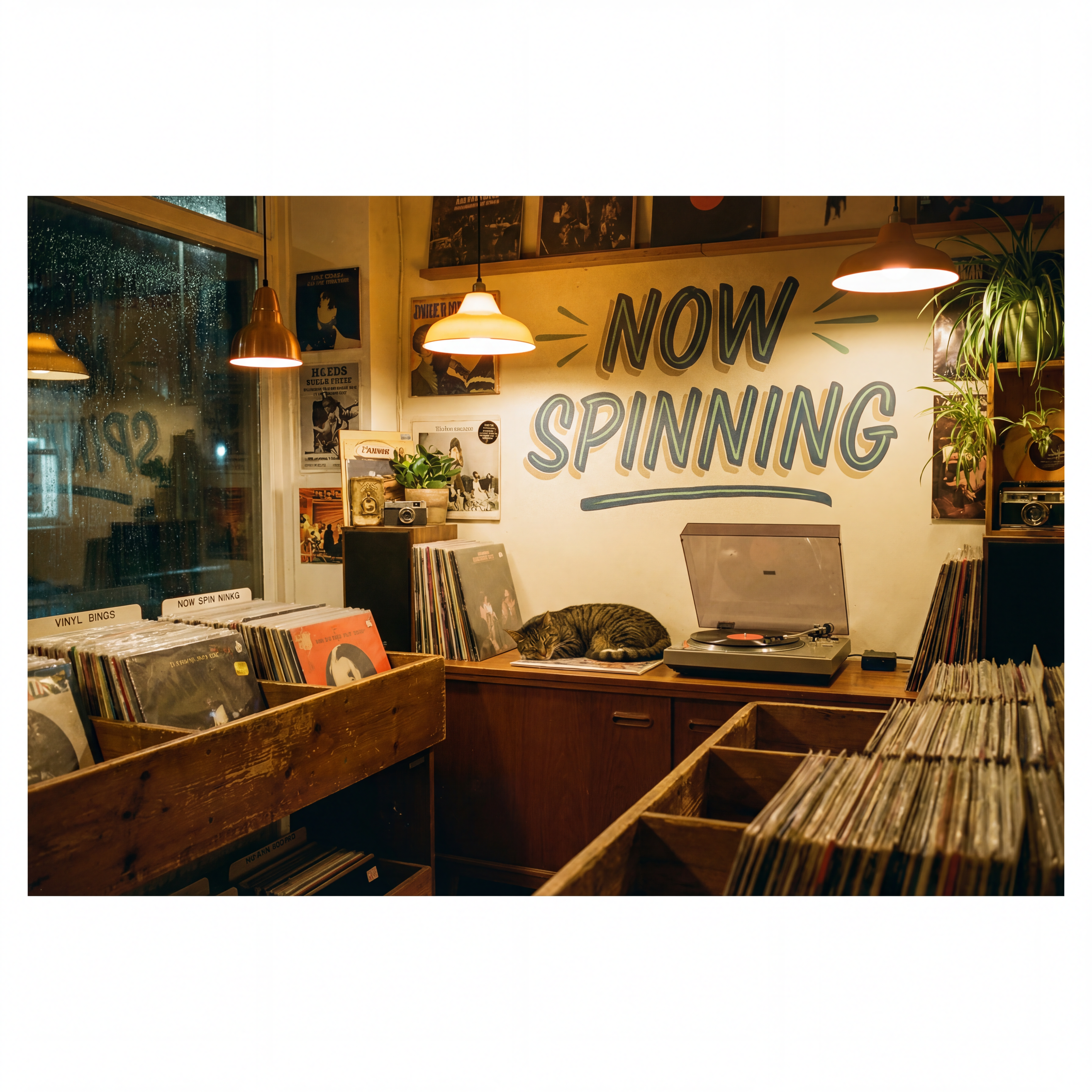
Generated using Nano Banana Pro on fal, an AI model from Google DeepMind.
Prompt: A photorealistic eye-level photograph of a cozy independent record shop after closing time. Rows of vinyl sit in worn wooden bins, and a large hand-painted mural behind the counter reads 'NOW SPINNING' in bold mid-century lettering. A tabby cat sleeps on the counter beside an open turntable, with warm tungsten light and faint dust catching in the air. Shot on a 35mm lens with natural film grain.
TL;DR
Nano Banana Pro can be accessed on fal on a pay-per-use basis at $0.15 per image for both generation and editing, with 4K at $0.30 and an extra $0.015 added when web search is switched on.
It is Google's Gemini 3 Pro Image, and it works out the composition and lighting before it renders, so the structure usually holds on the first try.
Text rendering is the standout functionality, as it puts legible, correctly-spelt words straight into the image.
Where can you access Nano Banana Pro right now?
Nano Banana Pro can be accessed on fal on a pay-per-use basis where you don't have any subscriptions or minimum usage.
You integrate once with the @fal-ai/client SDK, and that same pattern carries across every image endpoint on the platform, plus the over 1,000 other models on it.
Auth, error handling, queueing, and billing all stay identical whether you use Nano Banana 2 for draft passes, or route to FLUX 2 Pro or Seedream when you want a different look.
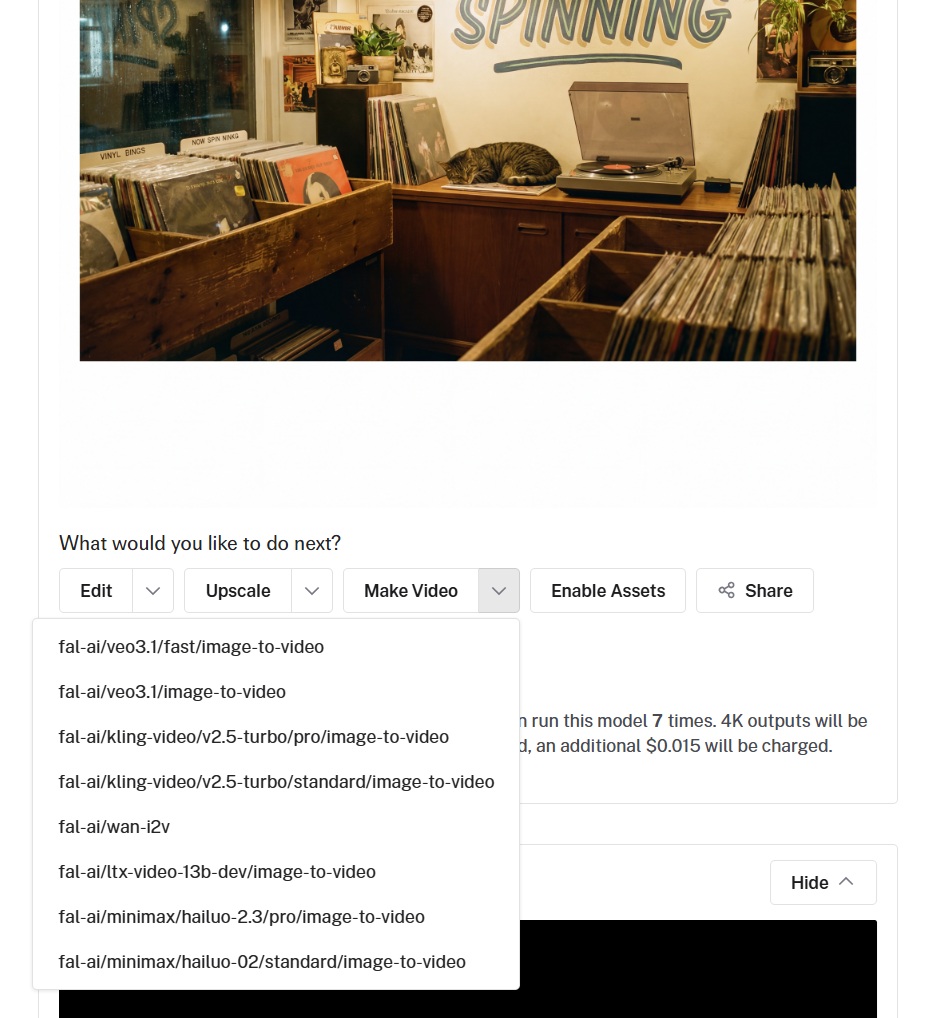
But what I think really separates fal from other media generation platforms is that you can then take your generated image from Nano Banana Pro and:
Edit it with Nano Banana Pro Edit or other AI model platforms like Ideogram V3 and FLUX Pro Kontext Max.
Upscale it with AI models like Seedvr, Clarity, Recraft, and Codeformer.
Make a video out of it with AI models like Veo 3.1, Kling 2.5 Turbo Pro, and Minimax Hailuo 2.3 Pro.
All you need is a few lines to generate an image:
javascript
import { fal } from "@fal-ai/client";

const result = await fal.subscribe("fal-ai/nano-banana-pro", {
  input: {
    prompt:
      "A vintage globe on a wooden desk beside a stack of maps, warm afternoon light",
  },
});
How do you use Nano Banana Pro on fal?
You can use Nano Banana Pro in two ways: in the playground, and through the API.
Here's how that looks like:
How to use Nano Banana Pro in the fal playground?
The playground is the fastest path from "let me try this" to a finished image.
Step 1: Open the model page
Head to the Nano Banana Pro playground, and it loads at the top of the page. You get a prompt field on the left and a result panel on the right.
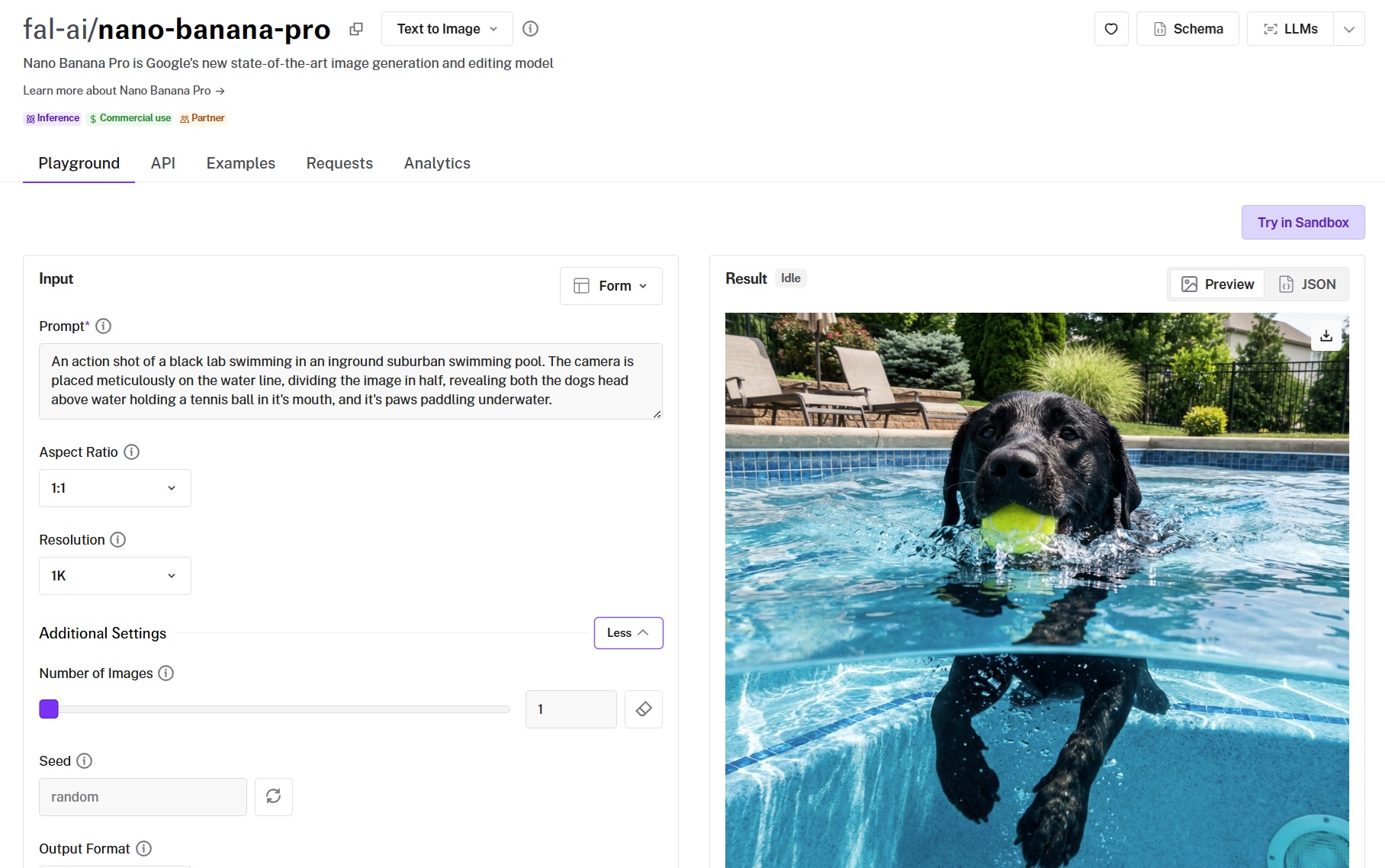
Step 2: Write your prompt
The field takes plain text. You can keep it concrete, and put any literal text you want rendered in quotes (e.g., "fal").
I'll go into how to prompt Nano Banana Pro later in this guide.
Step 3: Pick your resolution and aspect ratio
Resolution sits in its own dropdown, with 1K, 2K, and 4K on offer.
1K and 2K both run at the standard rate, while 4K is billed at double, so I tend to stay at 1K while I'm still shaping the prompt and only step up once it's locked.
Aspect ratio sits next to it, on auto by default, with presets running from 21:9 down to 9:16.
Step 4: Open additional settings before you run
You can click into the additional settings to expose the rest of the controls:
Number of images decides how many you get back in one go.
💡 I've noticed that this is particularly useful when you don't have a solid idea of how you want the output to look like, and you want to give the AI image generation model some creative freedom to wow you.
Seed lets you lock a result or leave it random.
Output format covers png, jpeg, and webp.
System prompt is an optional style instruction that rides along with the request.
Enable web search grounds the image in live information and adds $0.015 per generation.
Limit generations forces a single image per round, even when the prompt asks for more.
Safety tolerance shows in the form but is API-only, so it does nothing from the playground.
Step 5: Hit run
Generation starts, and status updates show under the result panel until the image lands in the preview.
A toggle above the result switches between the rendered image and the raw JSON response.
Step 6: Iterate or download
When the result is in, you can download it straight from the playground.
If the prompt missed, you can adjust it in the same field and run again, and your earlier results stay in the request history.
The playground skips the code and the API key entirely. You just write a prompt and run it, with a couple of options in between:
falMODEL APIs
The fastest, cheapest and most reliable way to run genAI models. 1 API, 100s of models
How to use Nano Banana Pro with fal's API?
For anything past a quick test, you can use fal's API.
The playground runs on the same model and parameters, so a prompt that works there drops straight into a code call:
Step 1: Get your fal API key.
You can sign up at fal to create your free account and create a key in the developer dashboard.
Set it as an environment variable so the client picks it up on its own:
bash
export FAL_KEY="YOUR_API_KEY"Step 2: Install the JavaScript client.
bash
npm install --save @fal-ai/clientThe client wraps the queue protocol behind a single subscribe call, so polling and result fetching happen for you.
Step 3: Submit a generation request
javascript
import { fal } from "@fal-ai/client";

const result = await fal.subscribe("fal-ai/nano-banana-pro", {
  input: {
    prompt: "Your prompt here",
    aspect_ratio: "16:9",
    resolution: "2K",
    num_images: 1,
    output_format: "png",
  },
  logs: true,
  onQueueUpdate: (update) => {
    if (update.status === "IN_PROGRESS") {
      update.logs.map((log) => log.message).forEach(console.log);
    }
  },
});

console.log(result.data.images[0].url);
The response comes back with an array of images, each carrying a downloadable URL, plus dimensions and a content type.
Step 4: For long-running jobs, you can switch to the queue API
Production traffic shouldn't block on a synchronous call.
You can submit the request, take the request_id you get back, and either poll for status or have fal hit a webhook when the image is ready:
javascript
const { request_id } = await fal.queue.submit("fal-ai/nano-banana-pro", {
  input: { prompt: "Your prompt here" },
  webhookUrl: "https://your.app/webhook",
});
Step 5: Iterate until you get your desired output
Run the prompt, look at what came back, adjust, and run again.
Most of the real work with Nano Banana Pro happens in that loop, so expect to run it more than once.
How do you prompt Nano Banana Pro?
As the model reasons about a scene before it draws it, the way you write the prompt matters more than the specific keywords or phrasing you add in:
Give it a scene to picture
You want to hand Nano Banana Pro a scene it can actually picture, and it builds something coherent.
A loose string of keywords leaves too much open, since the model has no relationships to reason about and nothing to anchor the mood to.
So get concrete about the subject and the setting, then say how the light behaves.
"A dog in a park" could be almost anything.
"A wet golden retriever shaking off after a swim, low winter sun behind it, a frozen pond out of focus in the background" gives the model something real to build.
You want to frame things positively too.
Asking for "an empty boardwalk at dawn" lands cleaner than negating what you don't want, which the model can sometimes read as a cue to include it.
And you can also borrow a cinematographer's vocabulary when you need control over the shot, with terms like low-angle, aerial view, shallow focus, or a 35mm look.
A bare prompt like "a bicycle leaning on a wall" gets you a forgettable stock image.
The fuller version puts the reasoning to work: "A steel road bike with a worn leather saddle leaning against a sun-faded blue stucco wall, late-afternoon light throwing a long shadow across the pavement, shot on a 35mm lens with slight film grain and a warm muted grade."
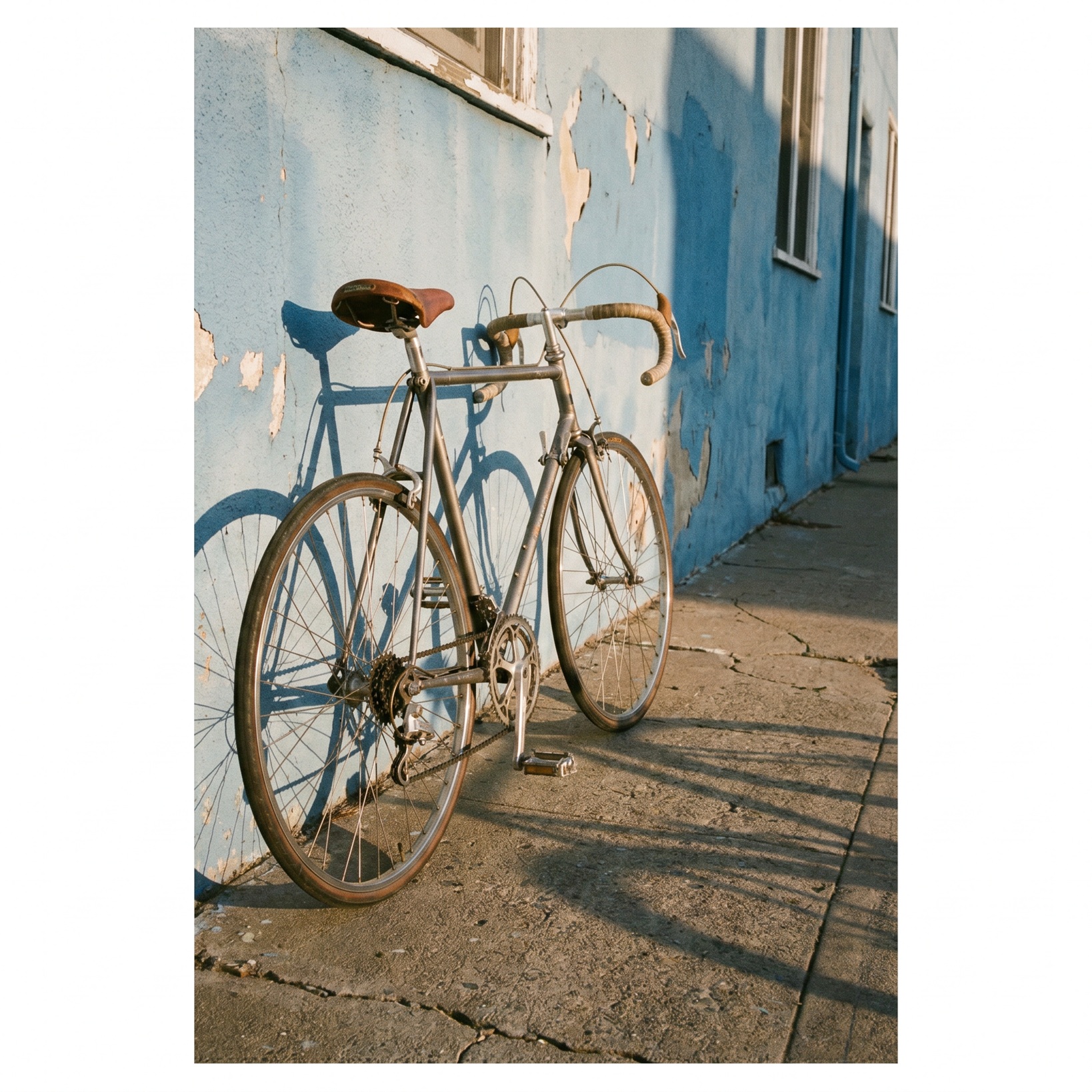
Generated using Nano Banana Pro on fal, an AI model from Google DeepMind.
I can notice in this example image how realistic the bike looks, although I could have better explained what the color of the bike should look like.
Despite this, the level of detail wouldn't have been possible without explaining the scene as if I were talking to a photographer.
Get the text exactly right
This is the feature I keep coming back to.
I've sat through enough image models that turn a clean shop sign into "GRAND OPNEING" to appreciate how much changed here.
Two habits get you sharp text:
Put the exact words in quotes so the model knows precisely what to render.
Then name the typography you want, whether that's a heavy sans-serif or a thin elegant script.
Let's put it to the test:
Prompt: A close-up product shot of a matte black cold-brew coffee can standing on a concrete surface, soft studio lighting. The front of the can reads "MIDNIGHT ROAST" across the center, set in a bold condensed sans-serif, all caps, in warm copper foil. Directly beneath it, the line "Small-Batch Cold Brew · 250ml" in a thin, evenly-spaced uppercase sans-serif, same copper tone but smaller. Near the base, "Brewed in London" in a delicate italic script.
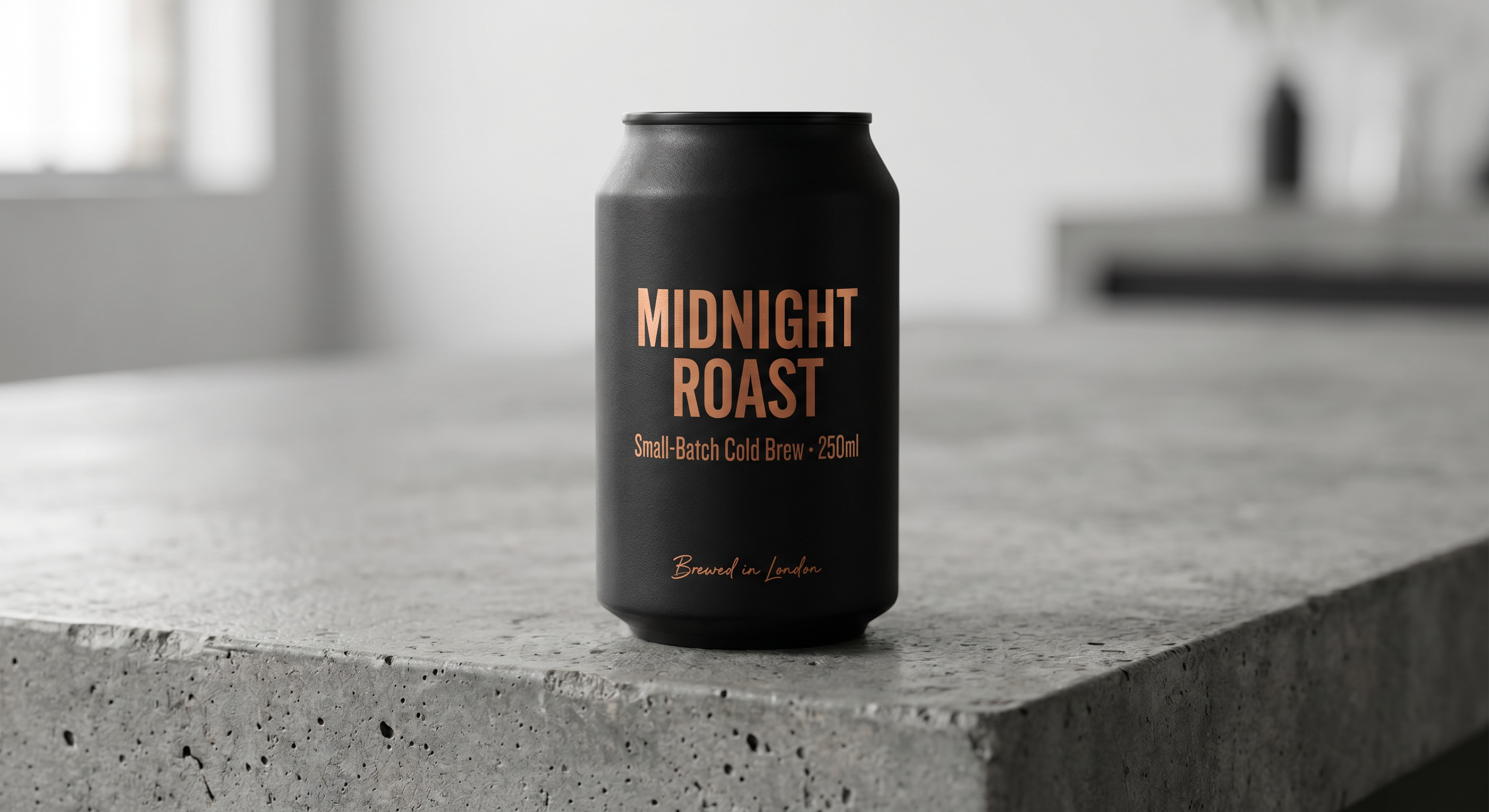
Generated using Nano Banana Pro on fal, an AI model from Google DeepMind.
I can appreciate how Nano Banana Pro listened to my instructions in this case, especially around how it handled "brewed in London" in italic, which I think looks quite authentic.
By the way, another piece of advice for this example, if you're not working on an advertising or social media campaign where dimensions matter, you can try leaving the aspect ratio as "auto" and Nano Banana Pro will decide, like in this case, what dimension would be ideal for the prompt.
Call the shots on lighting and lens
You can set the lighting yourself when you want studio-grade results.
You can ask for a soft three-point setup for a clean product look, or hard side-light when you want to add some spice.
You want to pick the glass and the focus too, like a wide-angle lens for scale or a shallow f/1.8 to melt the background.
I've noticed that color and film stock carry the mood, and "muted teal grade" sends an image somewhere very different from "1980s color film, slightly grainy."
You want to name the materials while you're at it, because "navy tweed" and "hand-thrown ceramic" read nothing like a vague "fabric."
Prompt: Photograph a single ripe pomegranate split open on a dark slate surface, its seeds glistening with juice. Light it with hard chiaroscuro from one softbox at camera left, so the right side of the fruit falls into deep shadow. Shoot on a macro lens at f/2.8 with a shallow plane of focus on the front seeds. Grade the color toward rich crimson with a touch of 1970s Kodachrome warmth.
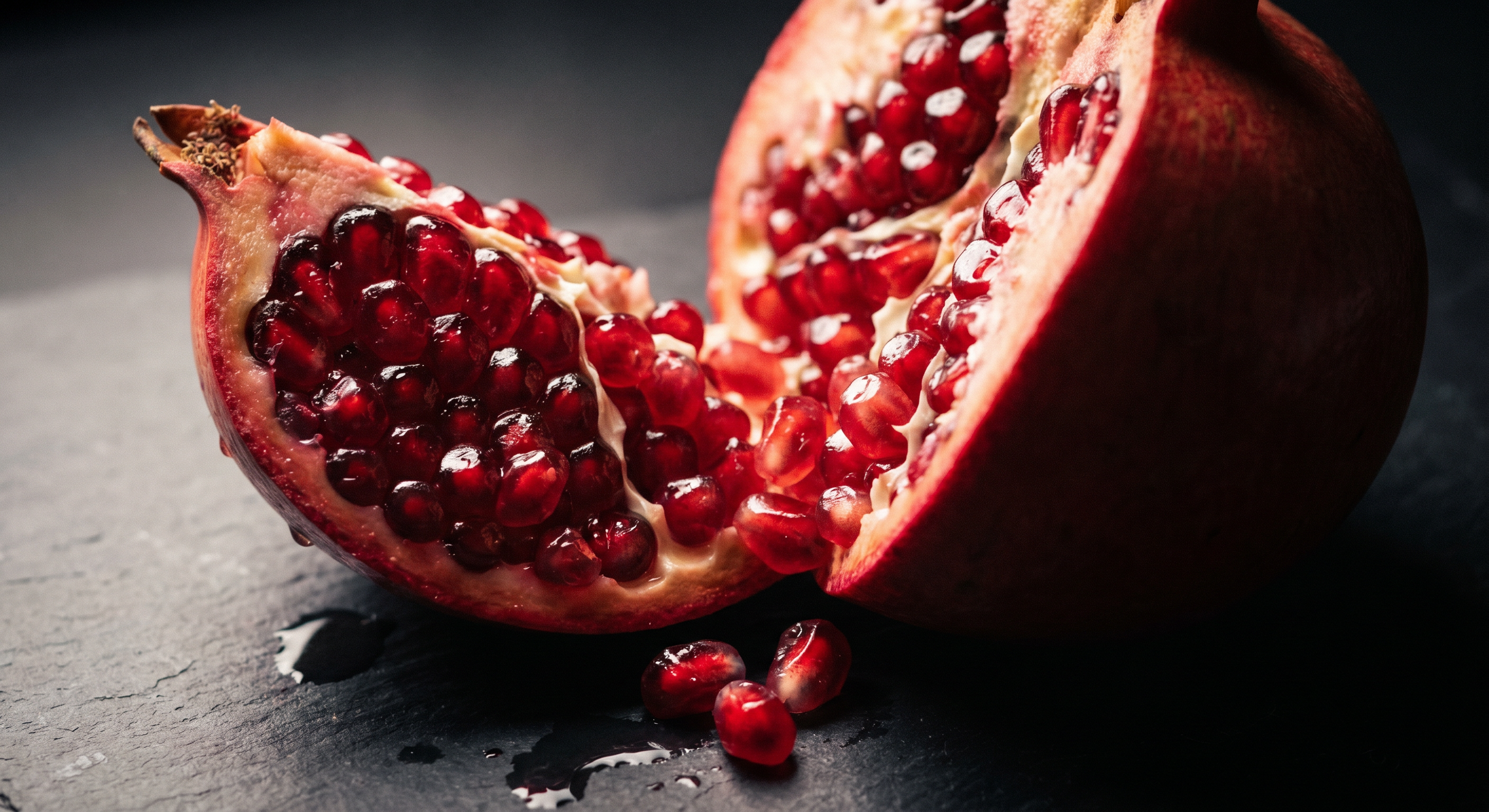
Generated using Nano Banana Pro on fal, an AI model from Google DeepMind.
This image is just… next level. I specifically included directions on the lens and also the focus on the front seeds in order to get the desired realism.
How do you use Nano Banana Pro's image editing?
The editing endpoint, fal-ai/nano-banana-pro/edit, takes a prompt-based instruction and applies it to an image you hand it.
And the best part?
You can generate an image with Nano Banana Pro's regular text-to-image endpoint and then continue working with that image as a reference with the edit endpoint (ideal for refining).
Let's take the previous image that we generated and take it to the edit endpoint with this prompt: repaint the pomegranate to be blue.
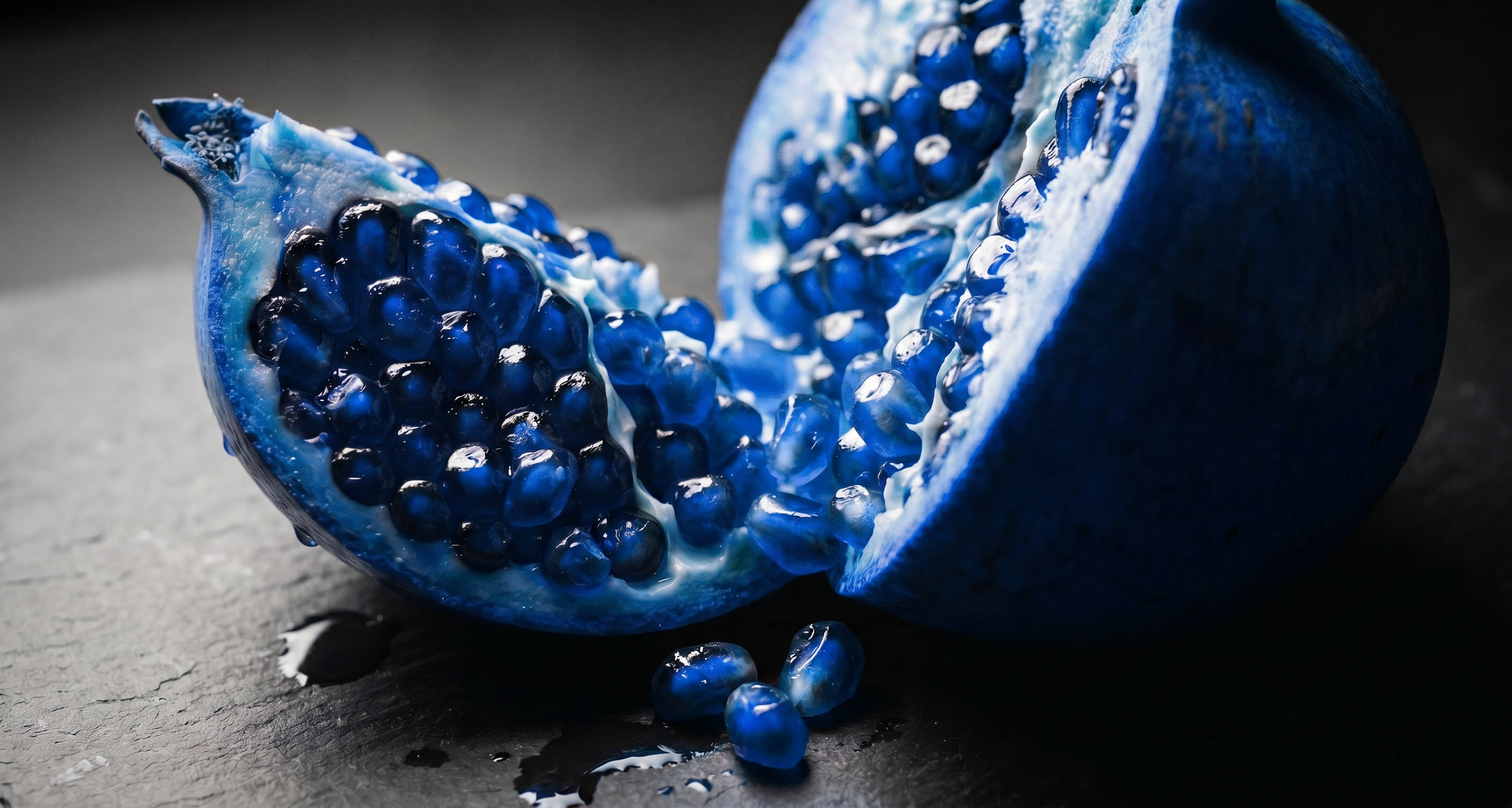
Generated using Nano Banana Pro Edit on fal, an AI model from Google DeepMind.
💡 For more complex imagery, you can tell the AI image editing model on what to leave alone.
If you only describe the change, the model is free to redraw the rest, so this is why you want to call out the parts you want left alone.
There's another use case for the image editing endpoint, which is blending two images into one.
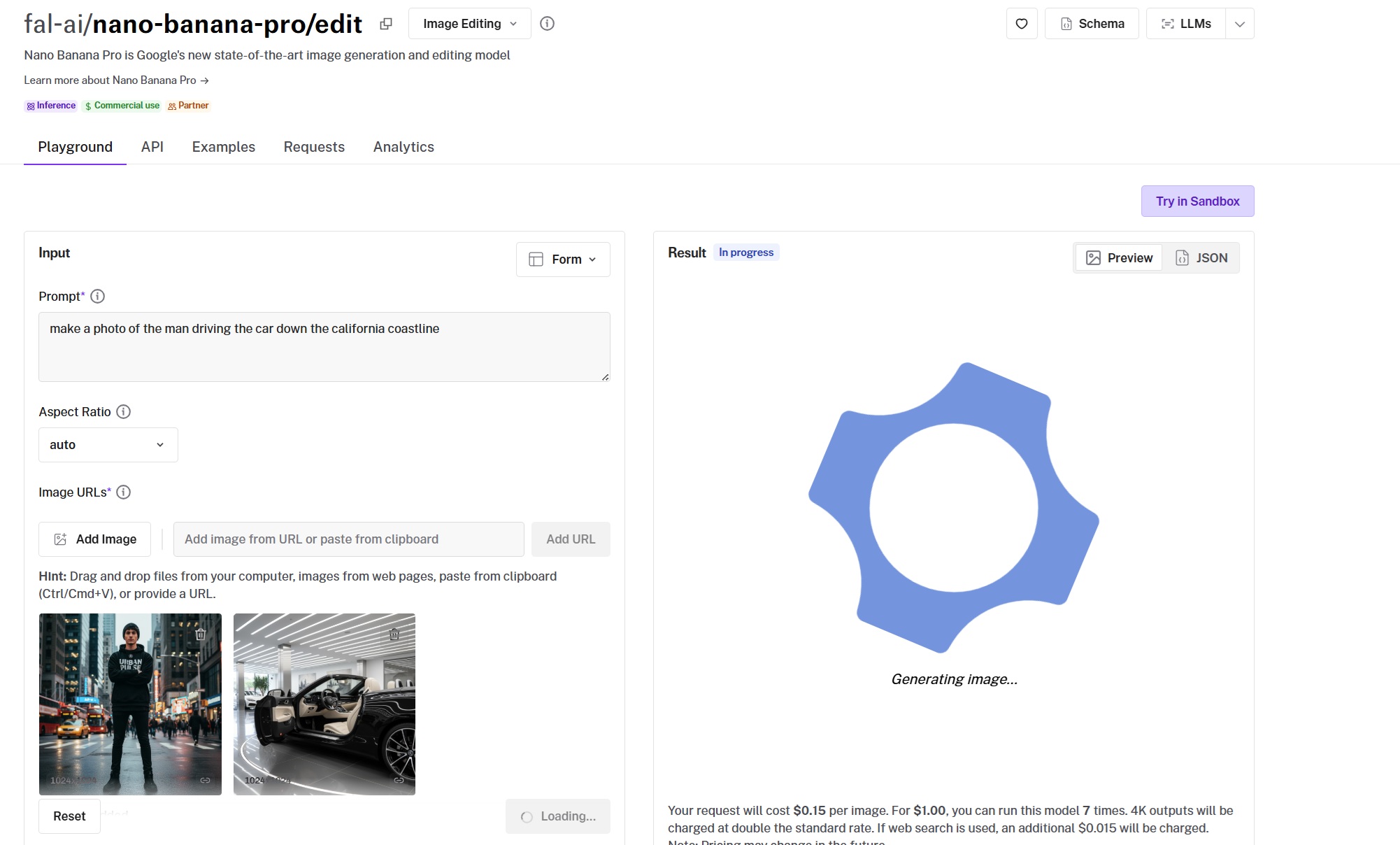
With two reference images, one supplies the base and the other supplies the element or style, and your prompt sets how they work together.
Prompt: Make a photo of the man driving the car down the california coastline.
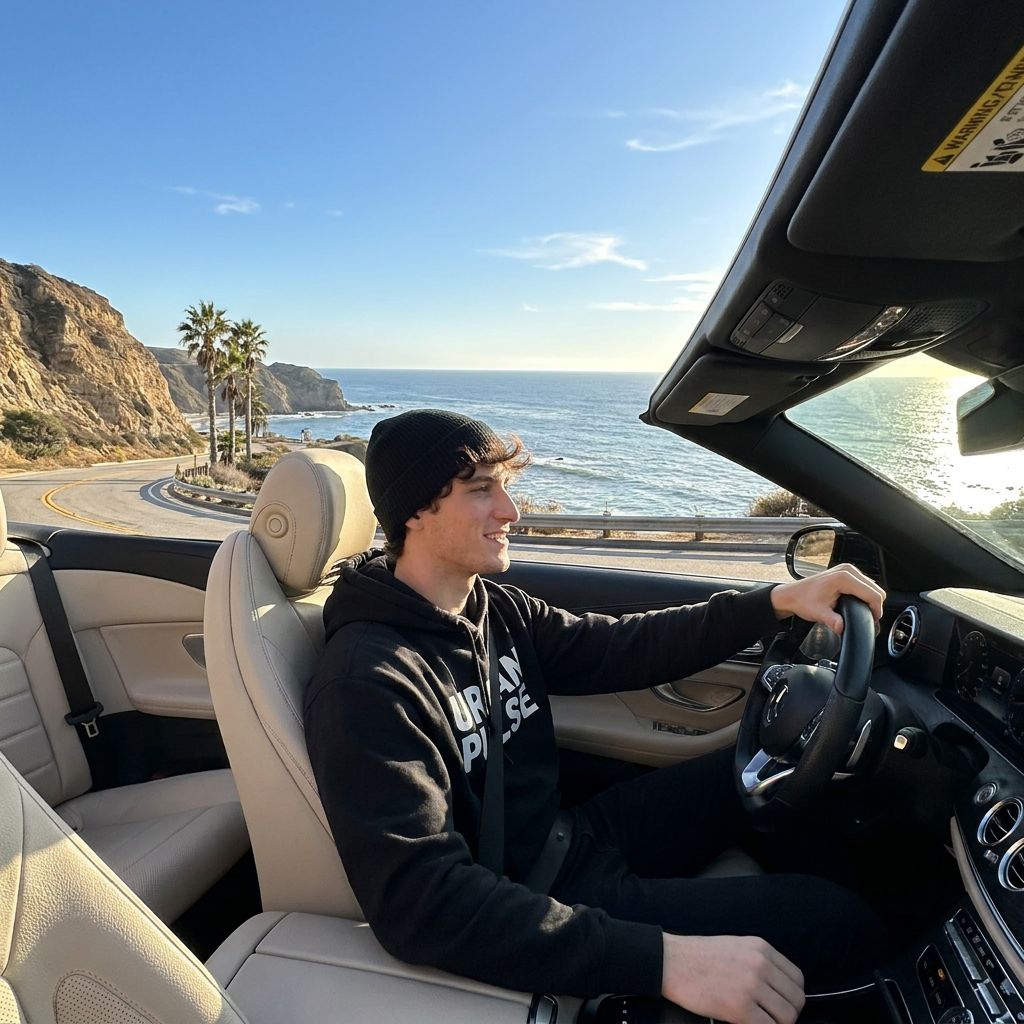
Generated using Nano Banana Pro Edit on fal, an AI model from Google DeepMind.
The input options of the Edit endpoint mirror the text-to-image endpoint, so you still get aspect ratio, resolution from 1K to 4K, output format, seed, and the rest. Pricing matches too, at $0.15 per edit.
Recently Added












Run Nano Banana Pro on fal
The image-generation space has more capable models now than it has ever had, and Nano Banana Pro is one of the stronger picks when you need reasoning and fidelity over raw speed.
If your creative work depends on accurate text and characters that stay consistent across a series, Nano Banana Pro is an excellent AI image generation model that you can use on a pay-per-use basis and no need for GPU management on fal.
You can test it in the playground, or wire up the API in a few minutes.
Nano Banana Pro Frequently Asked Questions
What is Nano Banana Pro?
Nano Banana Pro is Google's image generation and editing model, built on the Gemini 3 Pro Image architecture.
It plans the composition and lighting before it renders, which is closer to how a reasoning model works than to how a standard diffusion model paints from noise.
On fal it covers both text-to-image and editing at $0.15 per image, and it's known for two things in particular: accurate text rendering, and character consistency for up to five people in a scene. It also generates natively up to 4K.
How does Nano Banana Pro compare to Nano Banana 2?
Nano Banana Pro and Nano Banana 2 are two different models from Google, which were tuned for different priorities.
Nano Banana Pro runs on the heavier Gemini 3 Pro Image backbone, which leans toward deeper reasoning and fine detail on complex scenes, priced at $0.15 per image and $0.30 at 4K.
Nano Banana 2, on the other hand, runs on the lighter Gemini 3.1 Flash Image architecture, which leans toward speed and lower cost.
It starts at $0.06 per image at the 512px tier and $0.08 at 1K, and it takes up to 14 reference images for editing.
Can I use Nano Banana Pro images commercially?
Yes. Images you generate through fal can be used in commercial projects. Every output carries an invisible SynthID watermark.
![10 Best Image-to-Video APIs in 2026 [Reviewed]](https://refinery.fal.media/url/https%3A%2F%2Fv3b.fal.media%2Ffiles%2Fb%2F0a9eafb7%2FvhLf9ukH8MQphlcPiVSOi_best-image-to-video-apis-2026.jpg/tr:w-1280,q-80/vhLf9ukH8MQphlcPiVSOi_best-image-to-video-apis-2026.webp)