Qwen Image 2.0 Pro — Image Editing
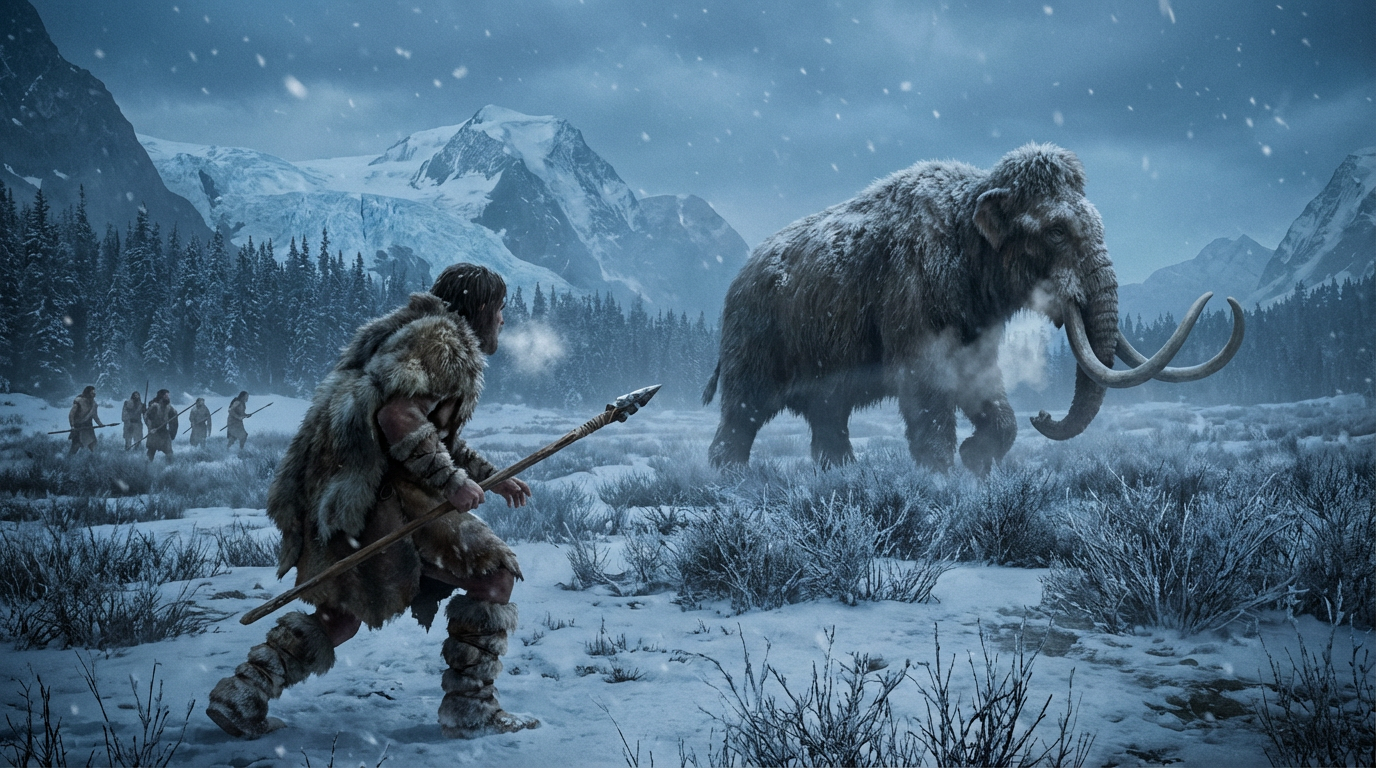
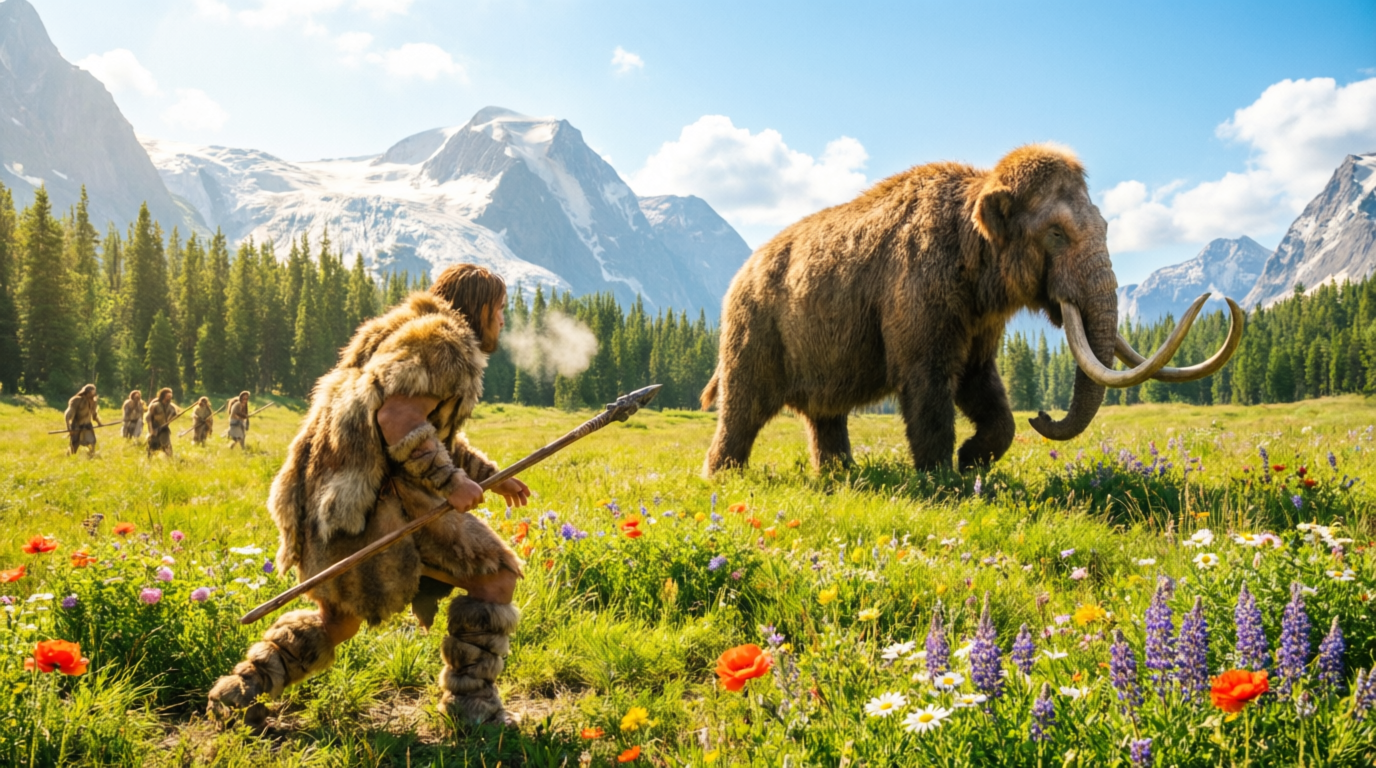
Qwen Image 2.0 Pro Editing lets you modify images using natural language instructions. Describe the change you want — background swap, object removal, style transfer, text overlay — and the model handles spatial reasoning and pixel-level transformations. The Pro tier delivers the highest editing fidelity for production-quality results at $0.075 per image.
What You Can Do
- Style transfer — transform a photo into a watercolor, sketch, or anime style
- Object insertion and removal — add or remove elements while maintaining visual coherence
- Text editing — add, modify, or overlay text directly on images
- Background replacement — swap environments while preserving the subject
- Multi-image compositing — combine elements from multiple source images
- Cross-domain editing — place illustrated characters into photographs, or vice versa
Key Parameters
| Parameter | Default | Range | Notes |
|---|
| prompt | — | string | Natural language description of the edit |
| image_url | — | URL | Public URL of the source image |
| num_images | 1 | 1–4 | Generate multiple edit variations |
| seed | random | integer | Fix for reproducible results |
| output_format | png | png / jpeg / webp | Output file format |
Quick Start
import fal_client
result = fal_client.subscribe(
"fal-ai/qwen-image-2/pro/edit",
arguments={
"prompt": "Change the background to a sunset over the ocean, keep the subject sharp",
"image_url": "https://example.com/your-photo.jpg"
}
)
print(result["images"][0]["url"])
import { fal } from "@fal-ai/client";
const result = await fal.subscribe("fal-ai/qwen-image-2/pro/edit", {
input: {
prompt: "Change the background to a sunset over the ocean, keep the subject sharp",
image_url: "https://example.com/your-photo.jpg",
},
});
console.log(result.data.images[0].url);
Writing Effective Edit Prompts
Edit prompts work differently from generation prompts. Be specific about what to change and what to preserve:
- Good: "Replace the blue sky with a dramatic thunderstorm, keep the buildings and street unchanged"
- Bad: "Make it stormy"
Tips for better results:
- Name the change explicitly — "change the background to...", "remove the person on the left", "add text reading 'SALE' in red at the top"
- Mention what to keep — "preserve the subject", "keep the lighting consistent", "maintain the original colors of the foreground"
- Use guidance_scale 4–7 for natural-looking edits. Higher values enforce the prompt more strictly but can introduce artifacts.
- Increase steps for detail work — text overlays and fine object manipulation benefit from 35–50 steps.
Common Editing Tasks
Background Replacement
"Replace the background with a clean white studio backdrop, maintain soft shadows under the product"
Object Removal
"Remove the trash can on the right side of the image, fill the area naturally with the surrounding grass"
Style Transfer
"Convert this photo into a Studio Ghibli watercolor painting style, preserve the composition and character positions"
Text Overlay
"Add the text 'GRAND OPENING' in bold white serif font at the top center of the image with a subtle drop shadow"
Standard vs Pro
Use the standard editing endpoint ($0.035/image) for testing edits and iterating on prompts. Switch to Pro for the final output where precision and detail matter.
 fal-ai/qwen-image-2/pro/edit