This guide covers how Kling 3.0 Pro handles multi-shot video generation, how to write prompts that control motion and camera work, and how to use custom elements to keep characters consistent across shots.
How to prompt Kling 3.0 Pro?
Kling 3.0 Pro is a multi-shot video model.
Previous versions of Kling treated each generation as one continuous clip.
You wrote a single prompt, picked a duration, and hoped the model could carry your scene from start to finish without losing coherence halfway through.
Kling 3.0 Pro lets you split a single generation into discrete shots, each with its own prompt and duration, stitched together into one continuous video.
This changes how you plan your videos.
Instead of cramming an entire narrative arc into one prompt, you can break it into beats.
Shot 1 (4 seconds): Wide establishing shot of a forest clearing at golden hour. Mist hangs low between the trees. Soft light filters through the canopy. Still, quiet, atmospheric.
Shot 2 (3 seconds): Close-up push-in on a paper lantern hanging from a gnarled branch. The flame flickers inside, casting warm light on the bark. Shallow depth of field, background blurred.
Shot 3 (5 seconds): A cloaked figure walks into frame from the left, stepping carefully along a mossy path. Camera tracks alongside. Dappled light moves across the figure's shoulders. Slow, deliberate pace.
Generated using Kling 3.0 Pro on fal.
All three shots go into a single multi_prompt call and come back as one continuous video.
Each shot gets its own prompt, its own pacing, its own camera language.
💡 Pro tip: You can upload reference images of specific characters or objects and tag them as @Element1, @Element2 in your prompts.
The model will maintain visual consistency for those elements across your entire video, even across multi-shot sequences.
It goes beyond just tracking a single face: multi-character coreference lets you keep three or more distinct characters in the same scene without blending faces or outfits.
Kling 3.0 Pro also generates audio natively.
When the generate_audio parameter is enabled (it's on by default), the model produces synchronized sound for your video.
On fal, Kling 3.0 Pro runs across three endpoints: text-to-video, image-to-video, and motion control.
How does Kling 3.0 Pro read your prompts?
Kling 3.0 Pro wants scene descriptions, not keyword lists.
Think of your Kling 3.0 Pro prompt as a shot brief for a cinematographer.
You're describing what happens in the frame, how the camera moves, what the lighting looks like, and what mood the scene carries.
The model responds well to specific, visual language.
Comma-separated lists of aesthetic descriptors ("cinematic, 4K, dramatic lighting, trending") don't help here.
The model needs action verbs and spatial relationships, plus clear temporal sequencing when there's movement involved.
Tell it what moves, what stays still, and where the camera is pointing.
From my testing, the sweet spot for a single-shot prompt is 2-5 sentences.
Each sentence should describe a different element of the scene: subject, motion, camera, atmosphere.
Short, punchy sentences work better than long compound ones.
The model seems to parse discrete instructions more reliably when they're separated into their own sentences.
Here's a simple, conversational prompt that works well for text-to-video:
Prompt: Close-up of glowing fireflies dancing in a dark forest at twilight. Soft bioluminescent particles float through the air. Shallow depth of field, bokeh lights in background. Magical atmosphere, gentle movement.
Generated using Kling 3.0 Pro on fal.
And here's a more structured prompt for image-to-video, where the source image anchors the visual and the prompt drives the motion:
Prompt: The figure walks slowly along the stone path toward the cliff edge. His cloak billows in the wind. Camera follows from behind, then he stops at the edge and slowly turns to face the valley below. Golden hour light catches dust in the air. Cinematic, dramatic, anamorphic lens flare.
Generated using Kling 3.0 Pro on fal.
Here are a few practical tips from working with this model:
Describe motion explicitly.
Don't just say "a bird in a field."
Say "a bird takes flight from a wheat stalk, wings catching the afternoon light as it rises."
The model needs verbs to generate movement.
Camera direction matters.
Terms like "slow push-in," "tracking shot," "close-up," "wide angle," and "dolly zoom" all influence the output.
Camera movements like dolly zooms, tracking shots, and rack focuses behave like real cinematography in this model, so using proper camera terminology pays off.
If you don't specify a camera movement, the model defaults to a relatively static or subtly drifting shot.
falMODEL APIs
The fastest, cheapest and most reliable way to run genAI models. 1 API, 100s of models
What are Kling 3.0 Pro's settings that actually matter?
Duration
Kling 3.0 Pro supports durations from 3 to 15 seconds in per-second increments.
For text-to-video, shorter clips (3-6 seconds) tend to have tighter motion consistency.
Longer clips give the model more room to drift.
When using multi-shot, each individual shot can be set anywhere from 1 to 15 seconds.
As I'll explain later in this guide, the video duration directly affects cost.
A 5-second clip with audio costs $0.84.
A 15-second clip with audio costs $2.52.
Resolution
Kling 3.0 Pro outputs at up to 1080p.
There's no resolution parameter to configure in the API.
The model handles this automatically based on your input and aspect ratio settings.
Aspect Ratio
There are three options for text-to-video on fal: 16:9, 9:16, and 1:1.
Here's what you need to know about each one:
16:9 is the default and works best for most cinematic and landscape content.
9:16 is built for vertical social formats.
1:1 is useful for square-crop platforms.
Note: Kling 3.0 Pro's Image-to-video doesn't expose an aspect ratio parameter.
The output matches your input image's proportions.
CFG Scale
Controls how closely the model follows your prompt.
Default is 0.5.
Lower values (toward 0.3) give the model more creative freedom.
Higher values (toward 0.7) keep it tighter to your instructions.
From my testing, the default 0.5 works well for most use cases.
I'd only push it higher for scenes with very specific spatial requirements.
Negative Prompt
Defaults to "blur, distort, and low quality."
You can customize this, but the default covers the most common failure modes.
If you're seeing specific artifacts in your outputs (e.g., warped faces, jittery camera), add those terms to the negative prompt.
Generate Audio
On by default.
When enabled, the model generates synchronized audio for your video, including sound effects, dialogue, and natural lip synchronization.
Audio adds cost: $0.168/second with audio vs. $0.112/second without.
Elements (Image-to-Video)
Elements let you upload reference images of characters or objects and tag them in your prompts.
Each element needs a frontal_image_url and can optionally include reference_image_urls for additional angles, or a video_url for motion reference.
Reference elements in your prompt with @Element1, @Element2, and so on.
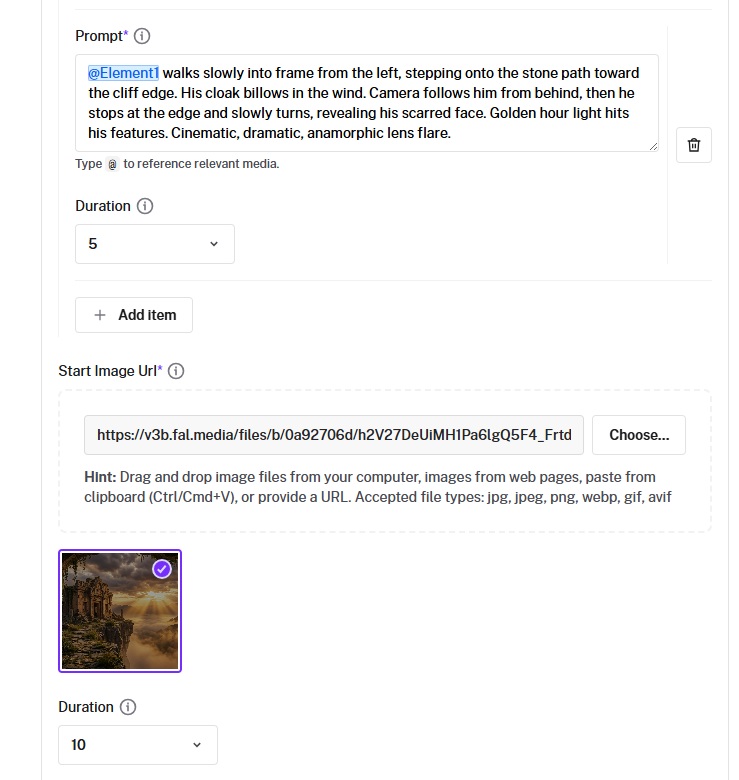
The model uses these references to maintain visual consistency for that character or object throughout the video.
One of the stronger features here: multi-character coreference.
You can have three or more distinct characters in the same scene, and the model keeps them visually separate without blending faces, hair, or outfits.
This matters for narrative work where you need two characters in conversation or a group scene with identifiable individuals.
Using elements increases the per-second cost.
$0.224/second (audio off) or $0.336/second (audio on) when elements are active.
End Image (Image-to-Video)
The end_image_url parameter lets you specify a target frame for the end of your video.
The model will animate from your start image toward your end image.
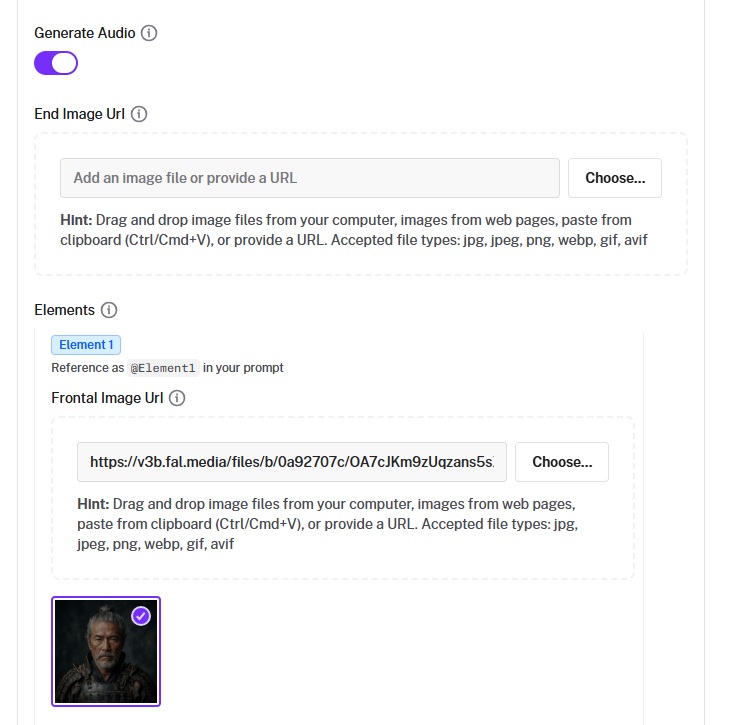
This is useful for controlled transitions: morphing between two compositions, guiding a camera move to a specific final frame, creating smooth loops, or connecting two distinct scenes.
What is Kling 3.0 Pro's motion control?
Kling 3.0 Pro includes a motion control endpoint that transfers movement from a reference video onto a character in a reference image.
You provide two inputs: an image_url for the character you want to animate, and a video_url containing the motion you want to transfer.
The model generates a new video where your character performs the actions from the reference video.
The character_orientation parameter controls how this mapping works.
Set it to "video" and the output character's pose matches the reference video.
This mode supports up to 30 seconds and is better for complex full-body motions.
Set it to "image" and the character's orientation stays closer to the reference image.
This mode caps at 10 seconds and works better when you want the camera movement from the reference video without changing the character's facing direction.
Kling 3.0 adds element binding for facial consistency in motion control.
When character_orientation is set to "video," you can upload a facial element to preserve the character's identity across the generated video.
Only one element is supported for motion control.
Motion control costs $0.168 per second of generated video.
A quick note on input quality: the reference image should show the character with clear body proportions, no heavy occlusion, and the character should occupy more than 5% of the image area.
The reference video should contain a realistic-style character with the entire body or upper body visible, including the head.
Example prompt: "A man dancing", after adding an image of the animated character and a video of a person dancing.
Generated using Kling 3.0 Pro Motion Control on fal.
What is Kling 3.0 Pro's pricing on fal?
Kling 3.0 Pro's pricing on fal is per-second and varies based on whether audio and elements are active.
Text-to-video and image-to-video (without elements): $0.112 per second with audio off. $0.168 per second with audio on. $0.196 per second with audio on and voice control.
Image-to-video with elements: $0.224 per second with audio off. $0.336 per second with audio on. $0.392 per second with audio on and voice control.
Motion control: $0.168 per second.
To put that in real numbers: a 5-second text-to-video clip with audio on costs $0.84.
A 10-second image-to-video clip with elements and audio costs $3.36.
A 5-second clip with audio and voice control costs $0.98.
If you're generating footage you plan to score with your own audio, turning off generate_audio cuts your per-second cost by about a third.
Recently Added















Run Kling 3.0 Pro on fal
Video generation models have gotten genuinely good at following complex prompts, and Kling 3.0 Pro is one of the strongest options for multi-shot, narrative-driven clips right now.
If you want to run Kling 3.0 Pro through a single API with pay-per-use pricing and no GPU management, fal is the fastest way to get started.
Test prompts in the playground or plug into the API in minutes.
Kling 3.0 Pro FAQ
How do you access Kling 3.0 Pro?
You can run Kling 3.0 Pro on fal through the API or the playground.
Sign up on fal, grab an API key from your dashboard, and start generating immediately.
The model is available through the JavaScript and Python client libraries, or you can call the REST API directly.
No GPUs to manage, no infrastructure to set up.
What is the difference between Kling V3 Pro and Kling V3 Standard?
Both models share the same feature set: multi-shot storyboarding, custom elements, native audio generation, and 3-15 second output at up to 1080p.
Pro produces higher quality output with longer inference times.
Standard is faster and more cost-effective for iteration and prototyping.
If you're doing final renders or client-facing work, Pro is the better pick.
If you're experimenting with prompts or drafting storyboards, Standard saves time and money.
How long can Kling 3.0 Pro videos be?
Kling 3.0 Pro generates videos between 3 and 15 seconds per API call.
You set the duration explicitly in per-second increments.
When using multi-shot, each individual shot can be anywhere from 1 to 15 seconds, and the total video is the sum of all shot durations.
So a three-shot sequence at 4 seconds each gives you a 12-second video from a single generation.
Can I use Kling 3.0 Pro for commercial projects?
Yes.
Videos generated through the fal API can be used in commercial projects.
Check fal's terms of service for full details on usage rights and licensing.
What input formats does Kling 3.0 Pro accept?
For image-to-video, the model accepts JPG, JPEG, PNG, WebP, GIF, and AVIF files as start images, end images, and element references.
For motion control, reference videos accept MP4, MOV, WebM, M4V, and GIF formats.
You can pass files as publicly accessible URLs or upload them through fal's storage API, which returns a hosted URL you can use in your requests.
![How To Use Krea 2 Open Source: Prompts, Workflows & LoRA [2026]](https://refinery.fal.media/url/https%3A%2F%2Fv3b.fal.media%2Ffiles%2Fb%2F0aa34f53%2F2y6ROgROzoiWnnXbs82n5.jpg/tr:w-1280,q-80/2y6ROgROzoiWnnXbs82n5.webp)