This guide covers how prompting differs from other models, how to get accurate text rendering, how to use the editing pipeline, which parameters to tune, and when to use Qwen Image 2 vs. the alternatives.
What Makes Qwen Image 2 Different?
What makes Qwen Image 2 different is its encoder-decoder architecture with two main components.
The encoder is an 8B-parameter Qwen3-VL vision-language model that processes your text prompts (for generation) or text-plus-image inputs (for editing).
The decoder is a 7B-parameter diffusion transformer that generates images at native 2K resolution (2048×2048).
The key difference from a model like FLUX is that Qwen Image 2 pushes most of the intelligence into the encoder.
Qwen Image 2 uses a full vision-language model, Qwen3-VL, as its encoder.
This means it doesn't just read your prompt as text. It understands it as language, which is why it handles conversational instructions, complex layout descriptions, and long prompts up to 1,000 tokens so well.
The other big architectural difference: generation and editing run through the same model.
Previous Qwen versions needed separate models for each task.
Qwen Image 2 handles both through one model and one API, processing text-only prompts for generation and image-plus-text inputs for editing.
Qwen Image 2 Endpoints at a Glance
Qwen Image 2 has four endpoints on fal across two tiers. Full pricing and endpoint details are on the model page.
| Endpoint | ID | Price |
|---|---|---|
| Text-to-Image (Standard) | text-to-image | $0.035/image |
| Text-to-Image (Pro) | pro/text-to-image | $0.075/image |
| Editing (Standard) | edit | $0.035/image |
| Editing (Pro) | pro/edit | $0.075/image |
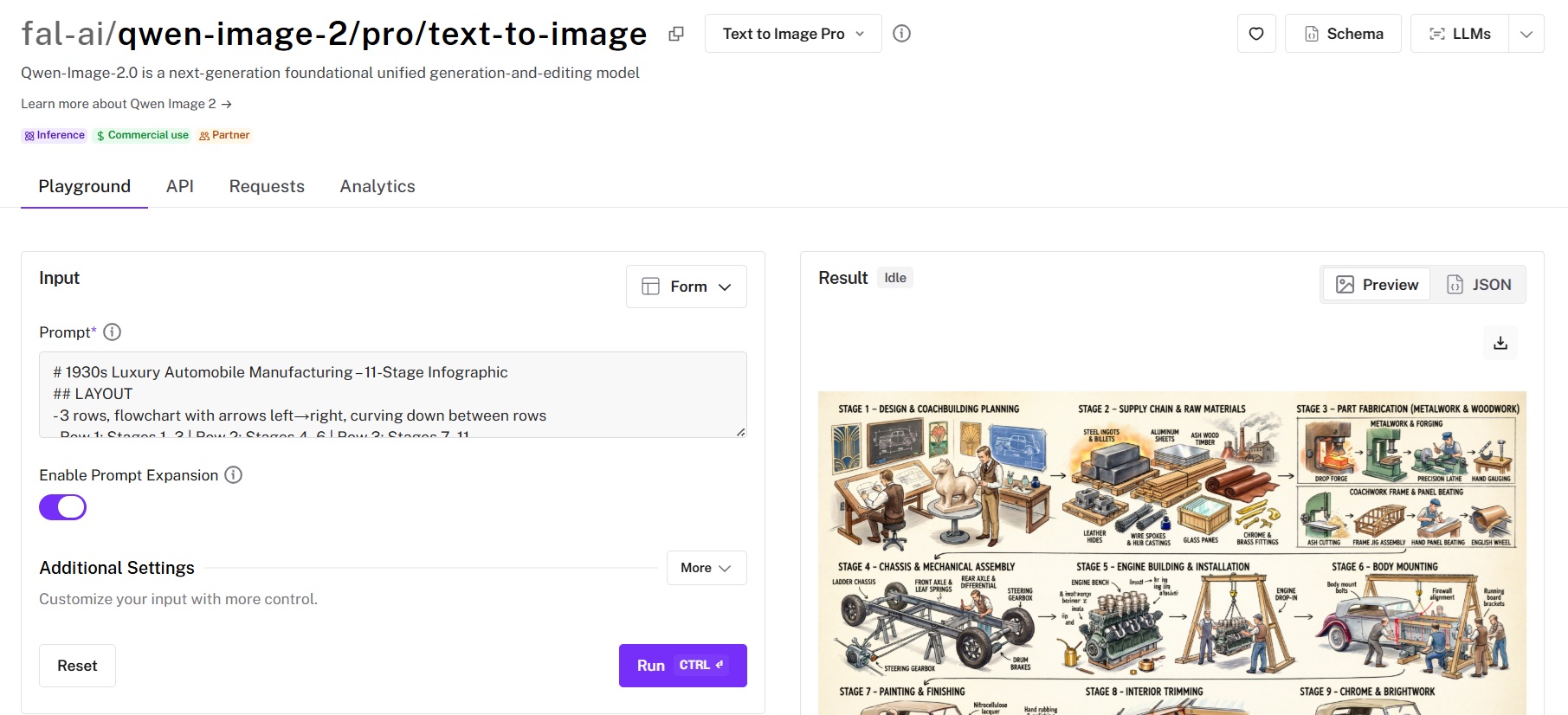
Standard is for rapid iteration and prototyping. Fast generation at lower cost, ideal for exploring prompts, testing compositions, and bulk draft work.
Pro delivers higher fidelity output with stronger detail, composition, and text rendering accuracy. Use it for final production assets where quality matters more than speed.
The practical workflow: You can iterate with Standard during development, switch to Pro for final deliverables.
How Qwen Image 2 Reads Your Prompts
Qwen Image 2 wants natural language.
Because it uses an LLM as its text encoder rather than CLIP, it understands conversational instructions with far more flexibility than keyword-driven models.
You can basically just talk to it and describe what you want in plain sentences.
But there's a meaningful difference in how structured you should get.
For general images, 1-3 sentences is the sweet spot.
For text-heavy compositions like posters, slides, and infographics, you should use the full 1,000-token budget with explicit layout instructions.
That token limit is a major differentiator. For example, FLUX.1 [dev] caps at 512 tokens, schnell at 256.
Qwen Image 2 gives you roughly double the prompting space, which matters most when you're describing complex multi-element layouts.
The recommended prompt hierarchy front-loads your primary subject, which gets the heaviest weighting from the decoder's bidirectional attention:
- Subject (most important).
- Style or medium.
- Environment and scene details.
- Composition, camera, and framing.
- Lighting.
- Fine details.
- Text content (always in double quotes).
Disclaimer: This sequence is our recommendation, not an official Qwen recommendation.
Put the most important information first. If you bury your subject at the end of a long description, the model may deprioritize it.
Natural Language Wins, but Structure Helps
For simple images, a conversational prompt works great:
Prompt: A ceramic coffee mug on a marble countertop, morning light through a window, steam rising, shallow depth of field, warm tones.

Generated using Qwen Image 2.0 on fal.
For commercial work where precision matters, structured prompts with clear categorization yield measurably better results.
Describe the scene systematically: what's in it, where things are, how it's lit, and what style you want:
Prompt: Minimalist movie poster for a sci-fi film called 'ECHO STATION'. Title in bold sans-serif at top, a lone astronaut standing in a vast alien desert with two moons on the horizon, muted teal and burnt orange color palette, IMAX format stamp at bottom.
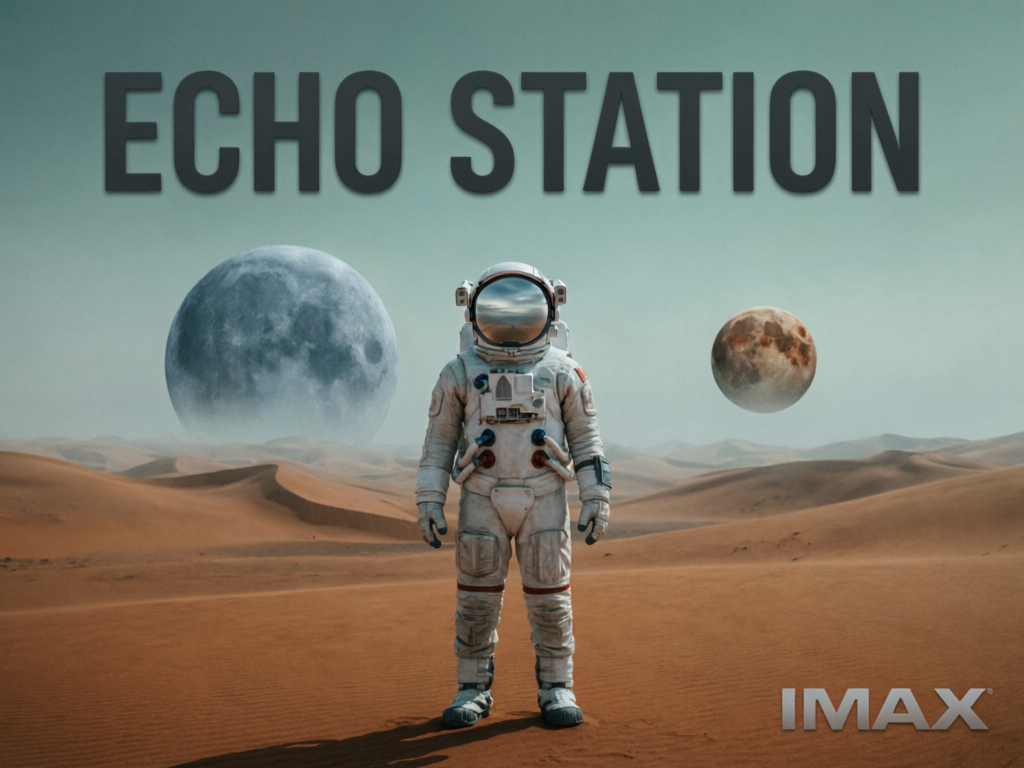
Generated using Qwen Image 2.0 on fal.
Text Rendering: The Headline Feature
This is where Qwen Image 2 stands out most clearly from the competition.
The combination of text accuracy, layout generation, and long-prompt support makes it particularly well-suited for typography-heavy images.
The single most important technique: wrap all text in double quotation marks.
Each separate text element should be individually quoted with its own style specification.
Here's what that looks like in practice:
Prompt: "GRAND OPENING" in bold sans-serif at the top, "Now serving fresh coffee" in italic script centered below.
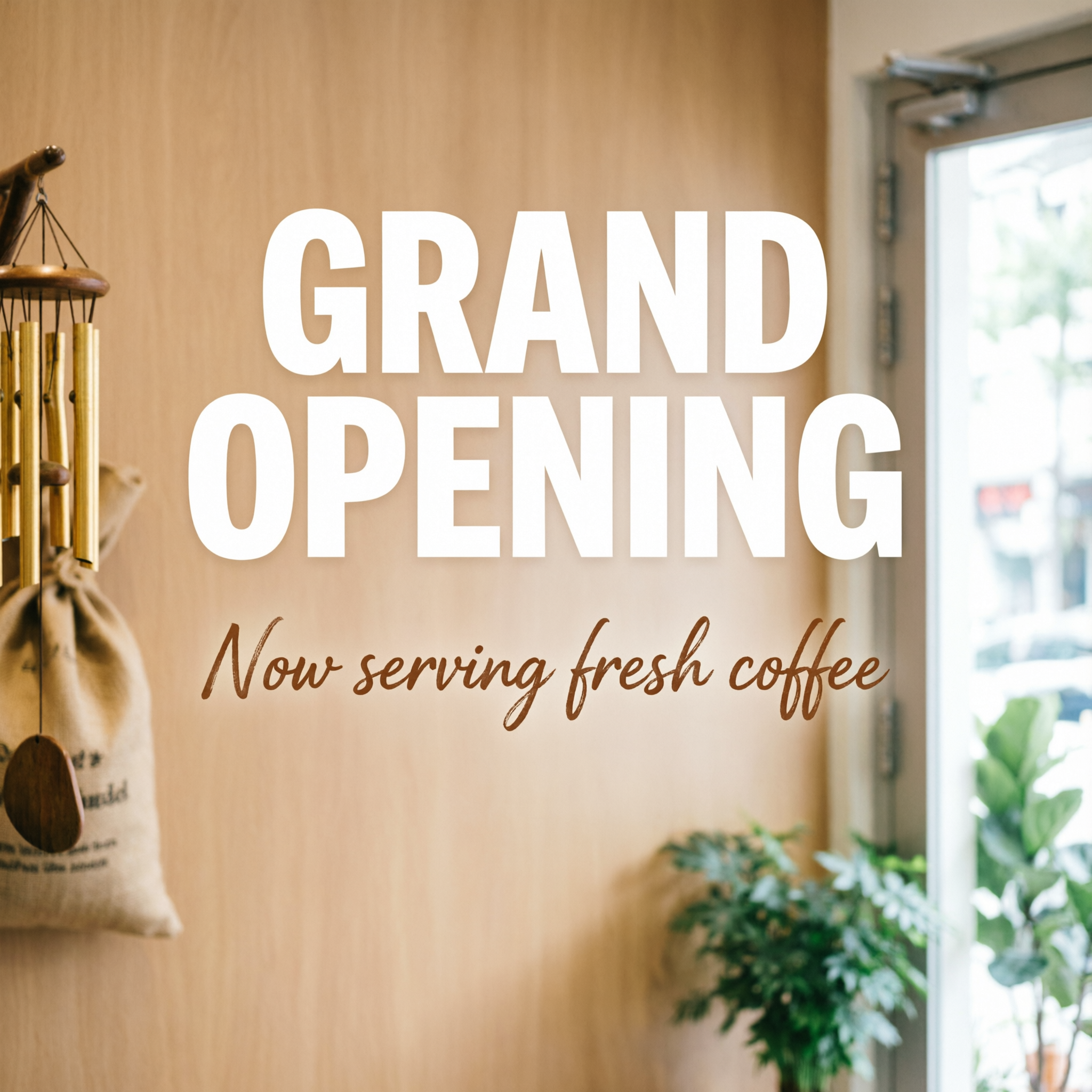
Generated using Qwen Image 2.0 on fal.
falMODEL APIs
The fastest, cheapest and most reliable way to run genAI models. 1 API, 100s of models
Settings That Actually Matter
Guidance Scale
This is the most impactful parameter. It controls how literally the model follows your prompt.
The default is 2.5. For general work, push it to 4.0-5.0. For text rendering tasks, stay in the same 4.0-5.0 range, but lean toward the higher end.
The relationship between guidance scale and prompt type matters. Low guidance gives the model more creative freedom but less precision.
High guidance increases fidelity to your description but can over-constrain the output. Match it to your use case.
Inference Steps
Default is 30. For most work, 30-50 steps is the practical range, with 50 being the recommended ceiling for high-quality final outputs.
More steps means more refinement, but the returns diminish past 50.
Acceleration
This parameter has three options: "none", "regular", and "high". "High" is not recommended for images that contain text.
For text images, use "none" or "regular". For general images where speed matters more than text accuracy, "regular" balances speed and quality.
Turbo mode (10 steps, CFG 1.2) exists for rapid iteration but reduces text rendering precision.
Resolution
Qwen Image 2 generates at true native 2048 by 2048 resolution. Not upscaled.
Fine details like skin pores, fabric weave, and architectural textures are rendered during generation.
Supported presets include square_hd, square, portrait_4_3, portrait_16_9, landscape_4_3, and landscape_16_9.
You can also pass custom width and height values directly.
Dimensions range from 512 to 2048 pixels and get rounded to the nearest multiple of 16.
One thing to watch: square aspect ratios have been reported to degrade quality in predecessor models like Qwen-Image-Edit-2511.
Square outputs (1024 by 1024, 1288 by 1288) sometimes produced hallucinations, washed-out colors, and incoherent backgrounds.
This may or may not persist in v2.0, but using non-square aspect ratios like 832 by 1216 or 1024 by 1536 is the safer choice until confirmed otherwise.
Negative Prompts
Qwen Image 2 supports negative prompts as a separate parameter.
Effective negative prompts for general work: "blurry, low quality, distorted, deformed, oversaturated, watermark."
For portraits: "smooth skin, airbrushed, doll-like, plastic."
Example Prompts That Work
Here are prompts across different use cases:
Photorealistic product shot:
A matte black glass perfume bottle on a raw concrete slab, late afternoon light raking across from the right, casting a long shadow, a single sprig of dried lavender beside it, soft neutral background fading to warm grey, editorial fragrance campaign aesthetic.
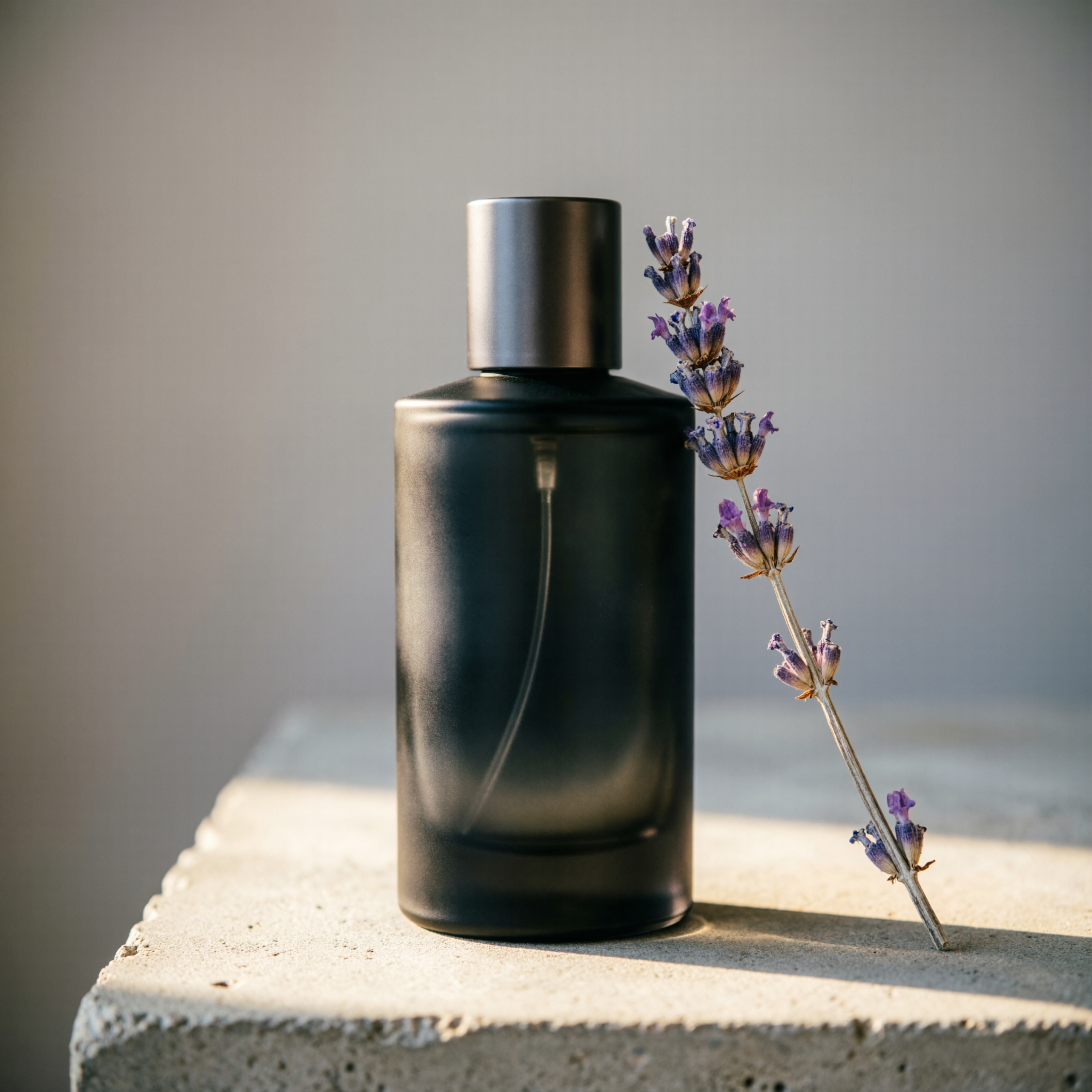
Generated using Qwen Image 2 on fal.
Typography poster:
Concert poster for a jazz festival called "MIDNIGHT BRASS" in tall condensed serif at the top, a saxophone player silhouetted against a smoky amber spotlight, "JUNE 14-16" in small caps below, "BROOKLYN ARTS CENTER" in thin sans-serif at the bottom, deep navy and warm gold color palette.
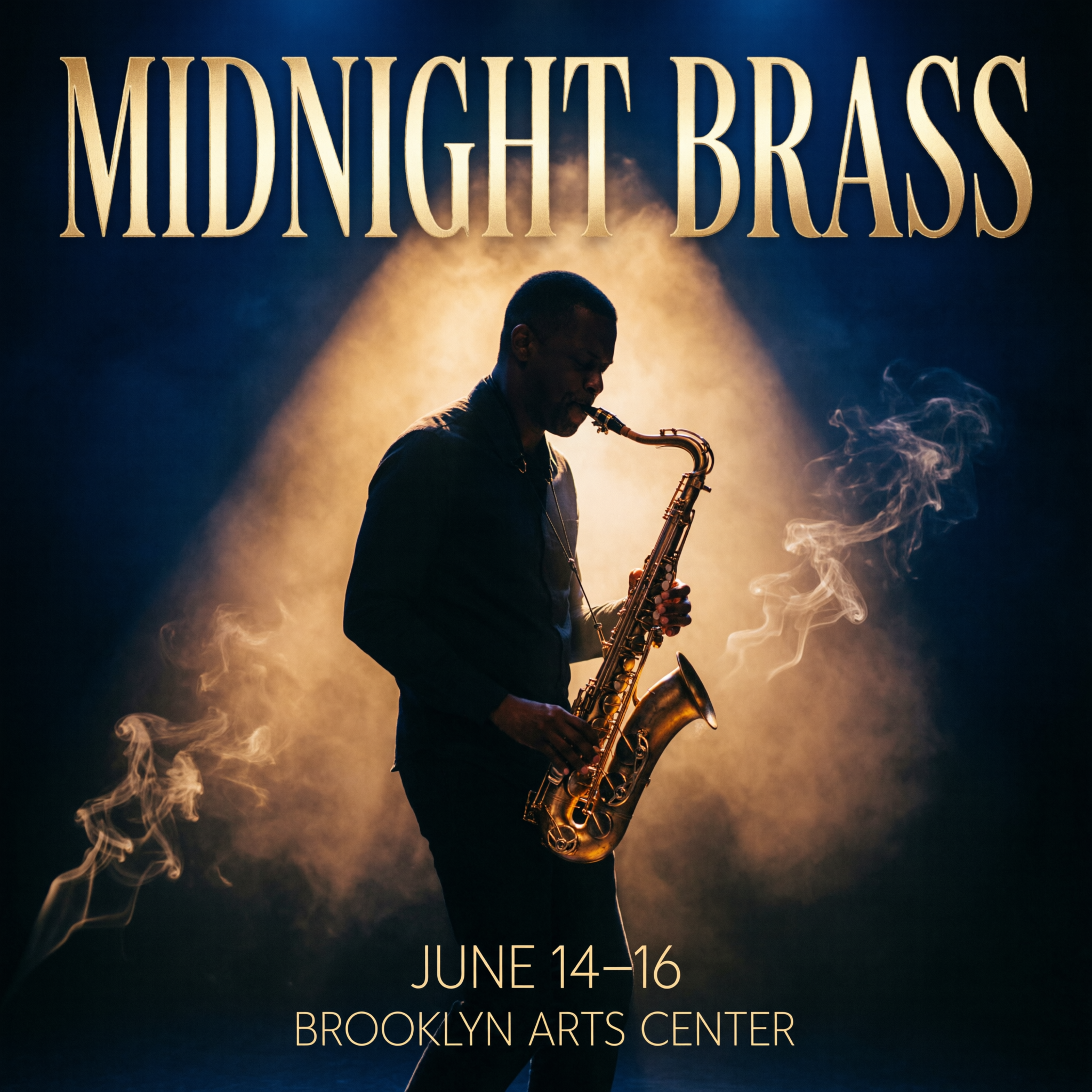
Generated using Qwen Image 2 on fal.
Infographic:
A vertical coffee brewing methods comparison chart with four sections, each showing a different method: "POUR OVER" with a V60 dripper illustration, "FRENCH PRESS" with a plunger diagram, "ESPRESSO" with a portafilter sketch, and "COLD BREW" with a mason jar drawing, brew time and grind size listed under each in clean sans-serif, kraft paper texture background with muted earth tones.
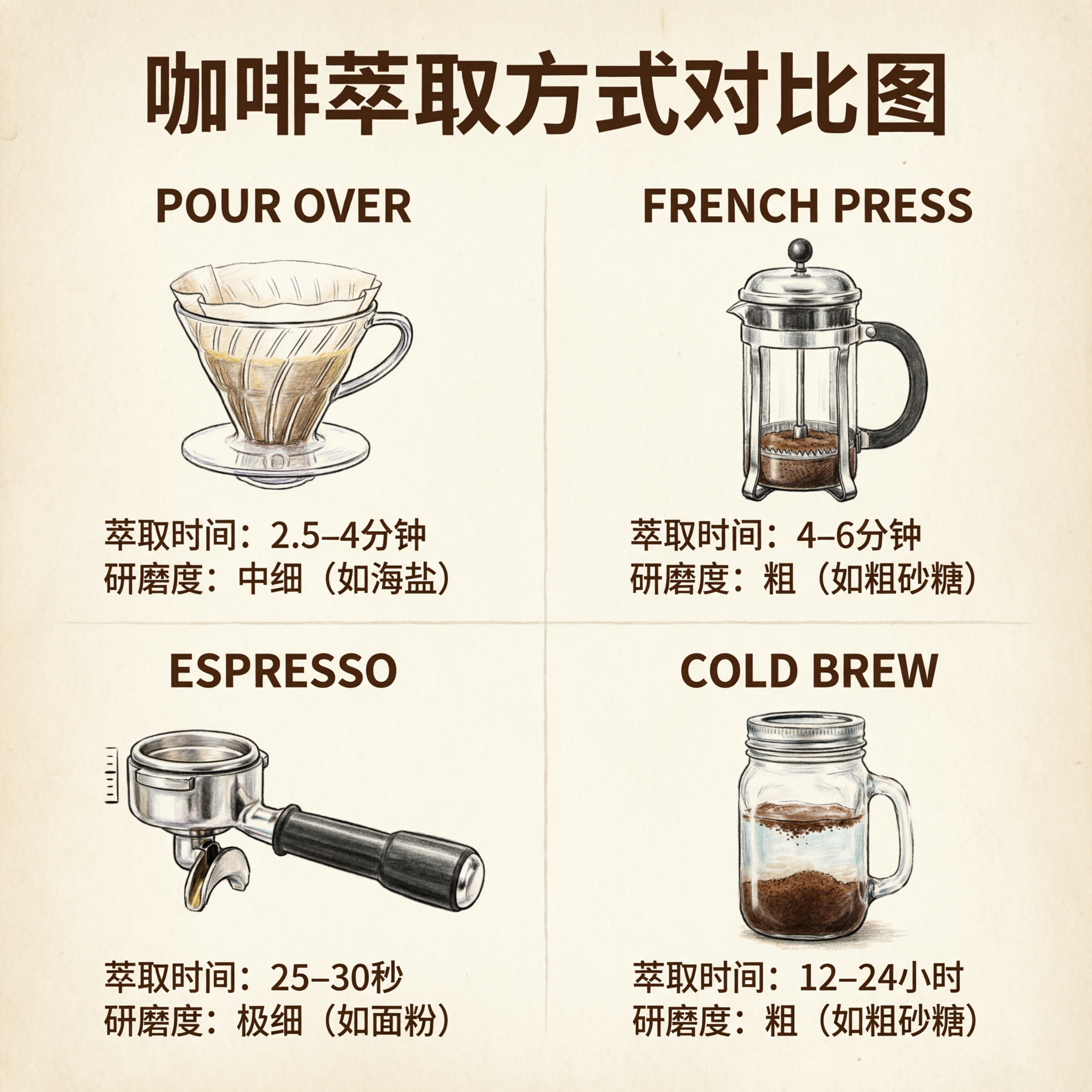
Generated using Qwen Image 2 on fal.
Artistic illustration with text:
Ink and gouache illustration of a narrow European bookshop alley at dusk, string lights draped between stone buildings, hand-painted shop signs reading "LIBRERIA VECCHIA" above the entrance, warm amber light spilling from the doorway onto cobblestones, a tabby cat sitting on a stack of books by the door.
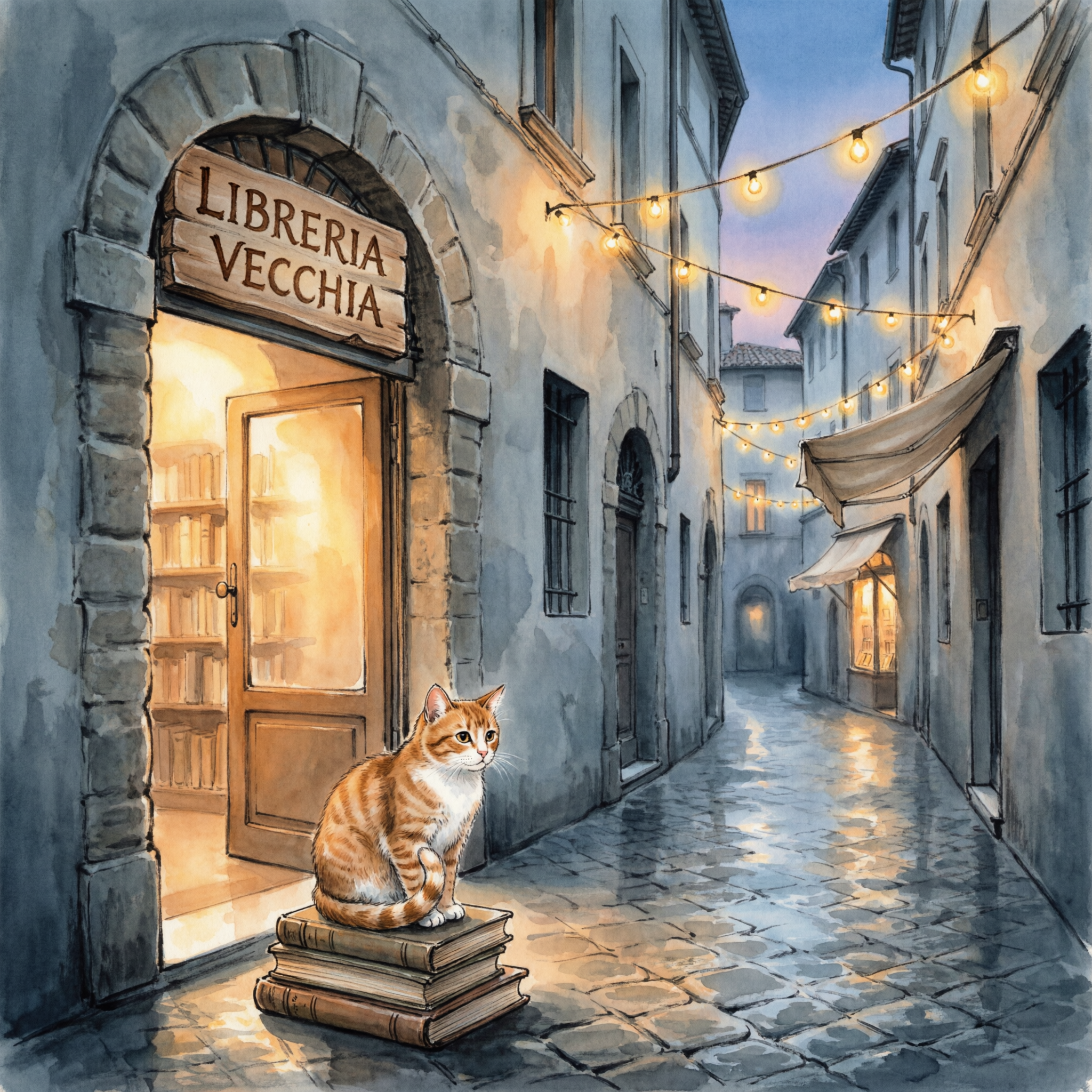
Generated using Qwen Image 2 on fal.
Bilingual content:
A tea house loyalty card with "TENTH CUP FREE" in clean bold English across the top, "第十杯免费" in brush-style Chinese below, ten small circle stamps in a grid with three filled in, minimalist sage green and cream color scheme with a small teapot icon in the corner.
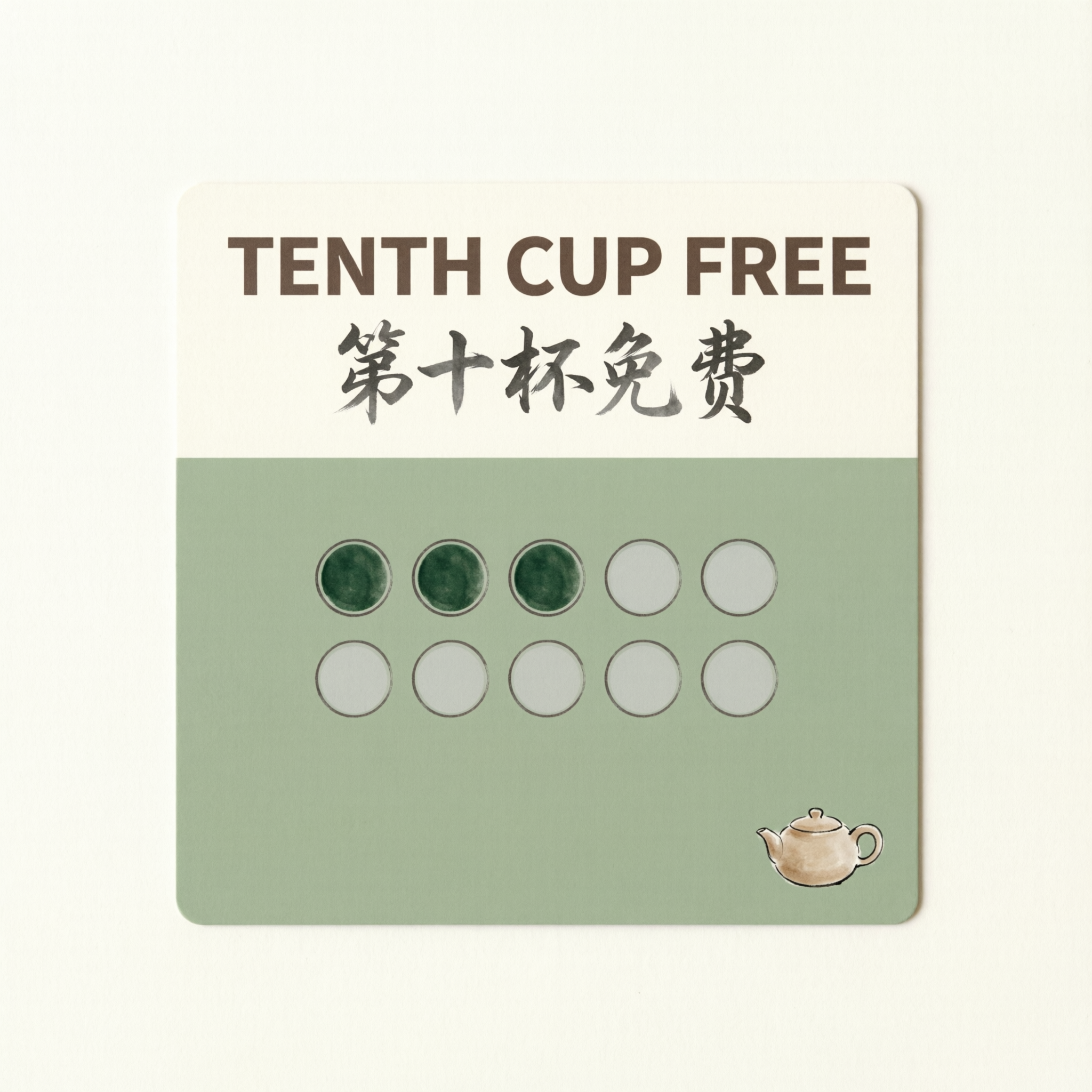
Generated using Qwen Image 2 on fal.
How to Edit Images With Qwen Image 2
Qwen Image 2's editing is instruction-based.
Provide a source image and a natural language description of what you want changed. No masks. No region selection.
The model figures out what to edit from the text alone.
This is a fundamental shift from inpainting pipelines and tools.
You don't paint over areas or define bounding boxes. You just describe the edit in words, and the model infers what to touch and what to leave alone.
The Basic Pattern
Feed the model an image URL and a prompt describing the edit.
The model reads both the image context and your text instruction, so edits feel natural rather than pasted-on.
Here are practical editing prompts that work well across different use cases:
Changing backgrounds: Place the subject in a modern office with floor-to-ceiling windows overlooking a city skyline. Keep the person's pose and clothing identical.
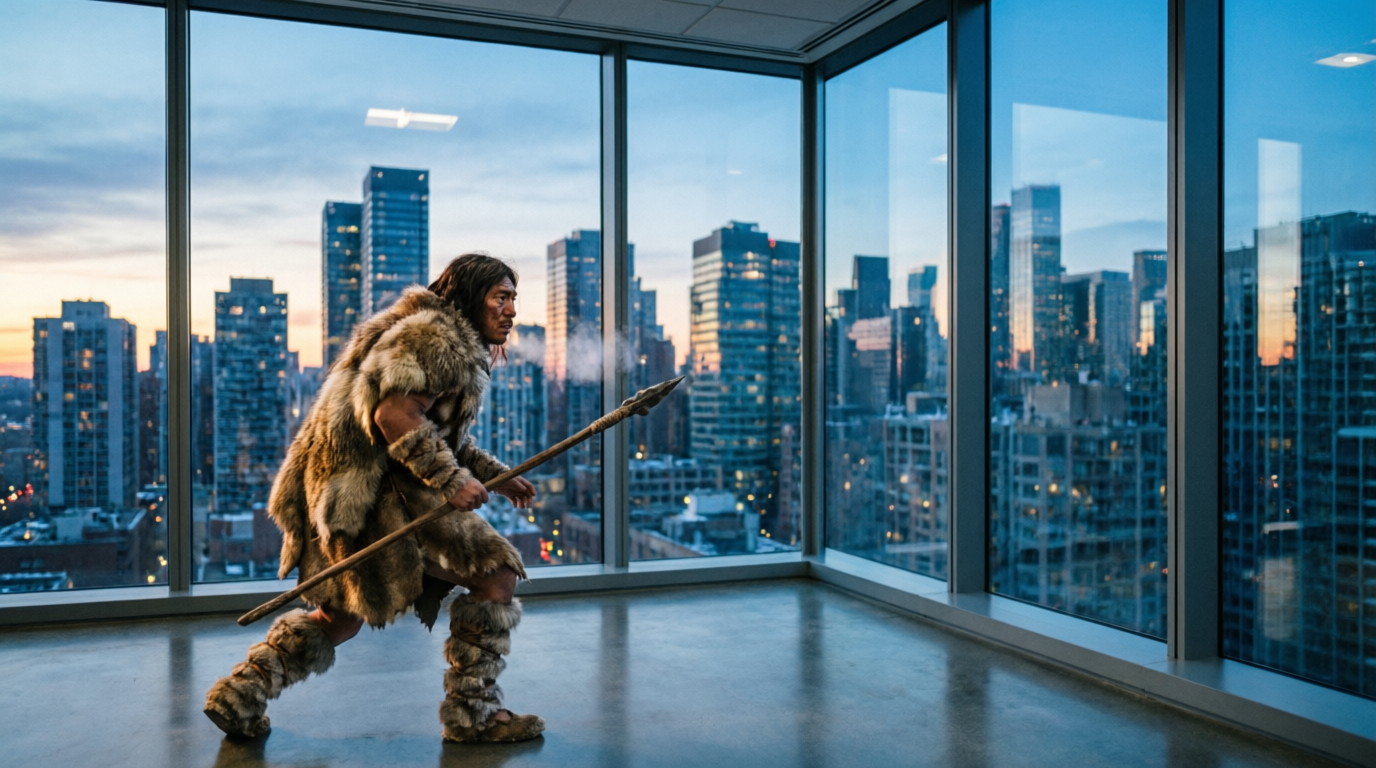
Generated using Qwen Image 2 Pro Edit on fal.
Swapping outfits: Change the person's clothing to a navy blue suit with a white shirt and no tie. Preserve face, hair, and pose exactly.
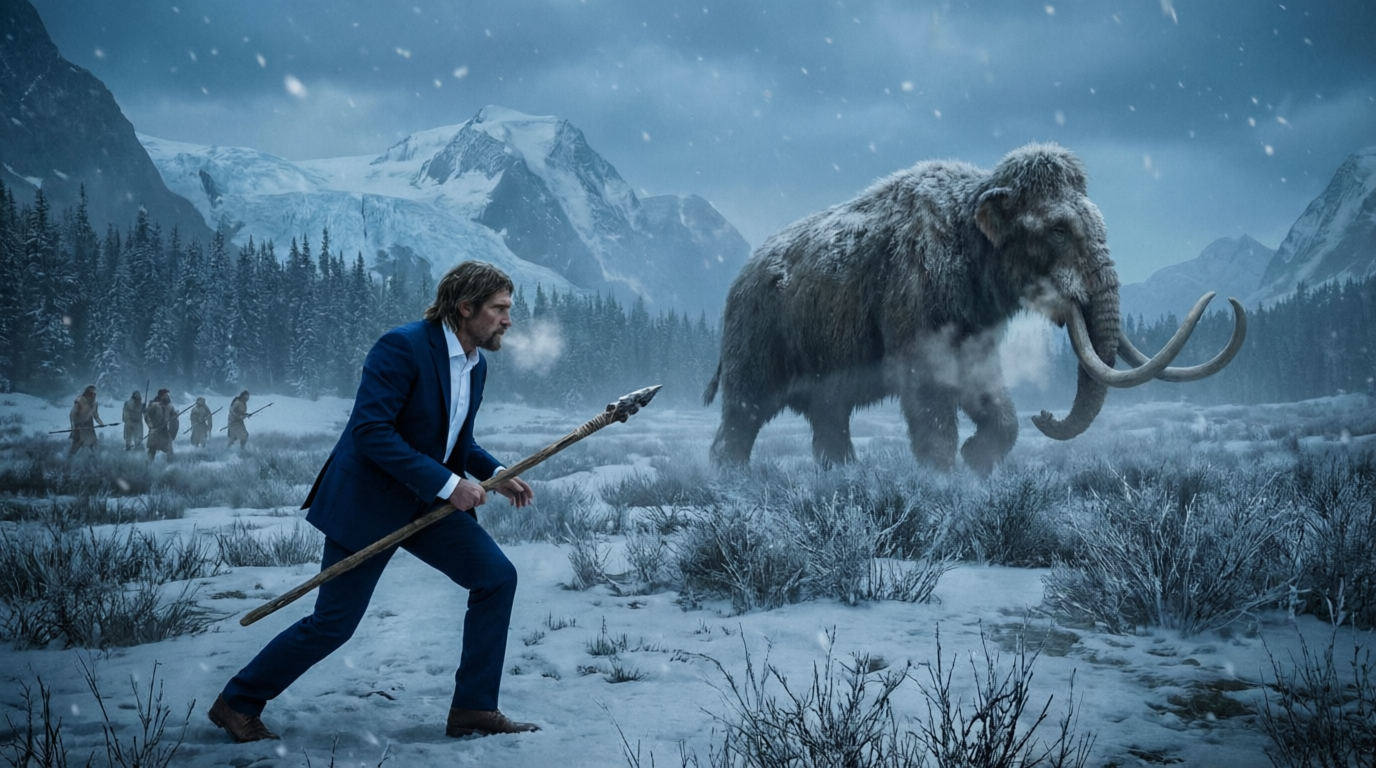
Generated using Qwen Image 2 Pro Edit on fal.
Adding objects: Add a steaming cup of coffee on a table next to the man.
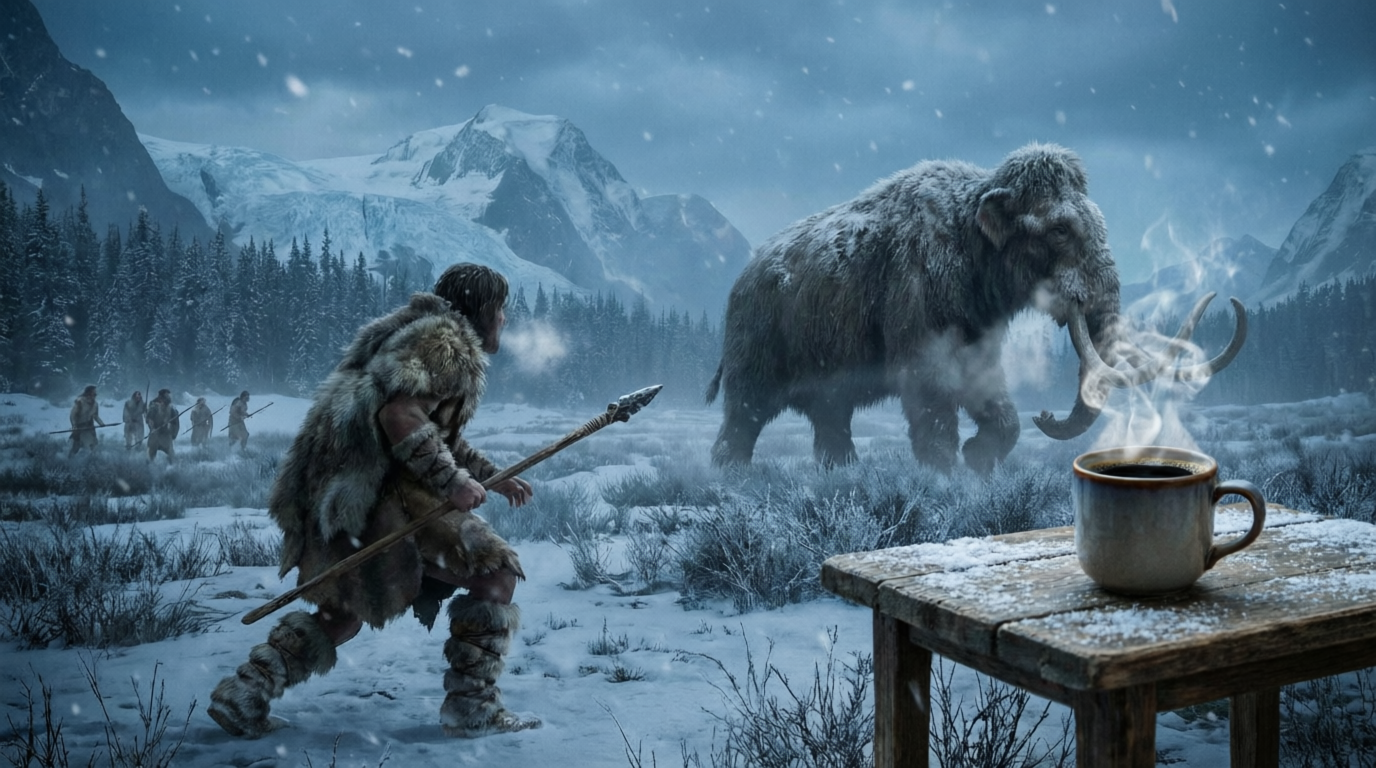
Generated using Qwen Image 2 Pro Edit on fal.
Object removal: Remove the animal from the picture.
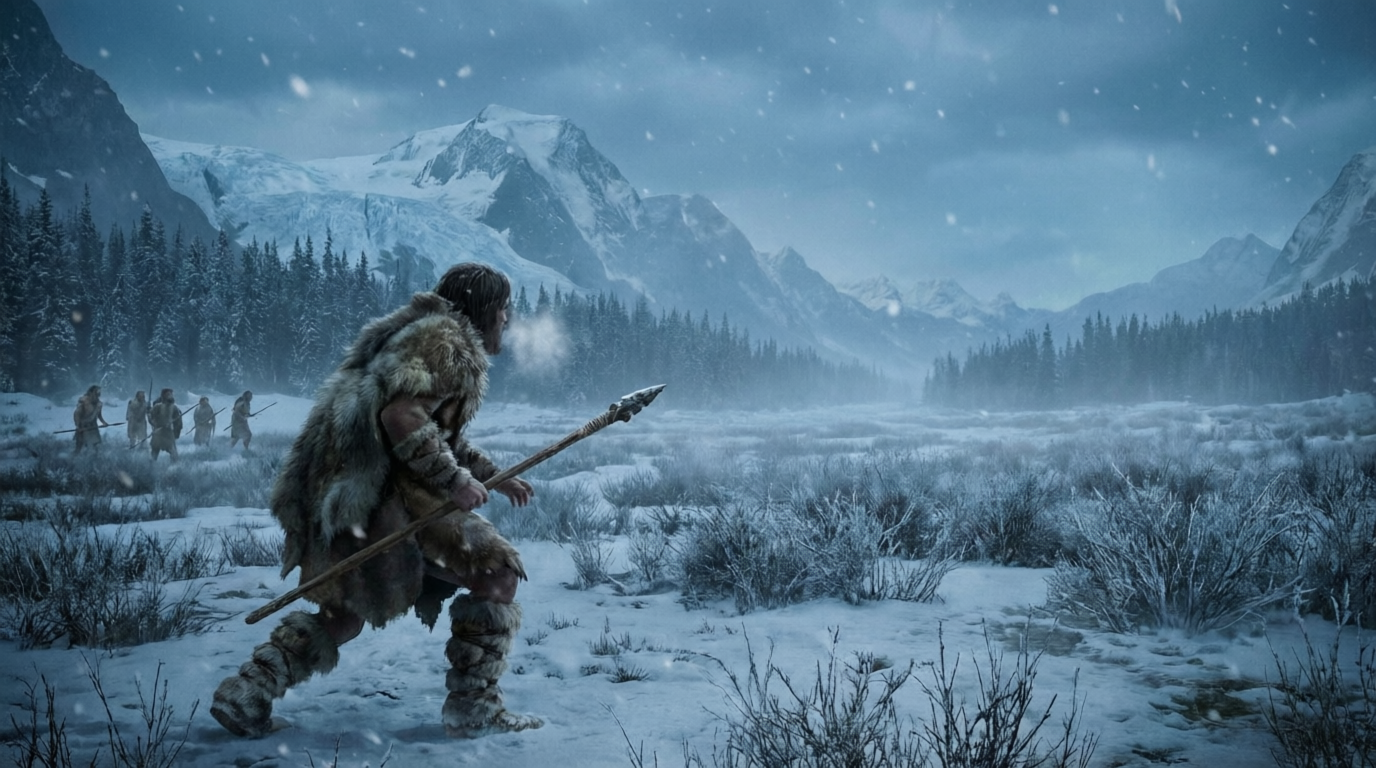
Generated using Qwen Image 2 Pro Edit on fal.
When to Use Qwen Image 2 vs. FLUX
Which one you pick depends on what you're building:
Use Qwen Image 2 when your images contain text, typography, or structured layouts and when you want generation and editing from a single model and API.
Use FLUX when you need zero-configuration generation (FLUX.2 [pro]) and when you're focused on photorealism and camera-specific aesthetics.
They aren't mutually exclusive.
Some workflows benefit from using both: FLUX for photorealistic base images, Qwen Image 2 for adding text overlays and structured layouts through its editing pipeline.
Recently Added




Run Qwen Image 2 Through fal's API
The fastest way to start generating with Qwen Image 2 is through fal's API. No GPU provisioning, no model loading, no infrastructure to manage.
Install the client library:
bash
# Python
pip install fal-client

# JavaScript
npm install @fal-ai/client
Set your API key (grab one from fal.ai/dashboard/keys):
bash
export FAL_KEY="your-key-here"Generate an image with Qwen Image 2 Pro:
python
import fal_client

result = fal_client.subscribe(
    "fal-ai/qwen-image-2/pro/text-to-image",
    arguments={
        "prompt": "Minimalist movie poster for a sci-fi film called "
        "'ECHO STATION' in bold sans-serif at top, a lone "
        "astronaut in a vast alien desert with two moons, "
        "muted teal and burnt orange palette",
        "image_size": "portrait_16_9",
        "num_inference_steps": 35,
        "guidance_scale": 6.0,
    },
)

print(result["images"][0]["url"])
Or in JavaScript:
javascript
import { fal } from "@fal-ai/client";

const result = await fal.subscribe("fal-ai/qwen-image-2/pro/text-to-image", {
  input: {
    prompt:
      "Minimalist movie poster for a sci-fi film called " +
      "'ECHO STATION' in bold sans-serif at top, a lone " +
      "astronaut in a vast alien desert with two moons, " +
      "muted teal and burnt orange palette",
    image_size: "portrait_16_9",
    num_inference_steps: 35,
    guidance_scale: 6.0,
  },
});

console.log(result.data.images[0].url);
The subscribe method handles queuing automatically and returns the result when it's ready.
For production workflows where you don't want to hold a connection open, use the queue-based approach:
javascript
// Submit
const { request_id } = await fal.queue.submit(
  "fal-ai/qwen-image-2/pro/text-to-image",
  {
    input: { prompt: "your prompt here" },
    webhookUrl: "https://your-app.com/webhook",
  }
);

// Check status
const status = await fal.queue.status("fal-ai/qwen-image-2/pro/text-to-image", {
  requestId: request_id,
});

// Get result
const result = await fal.queue.result("fal-ai/qwen-image-2/pro/text-to-image", {
  requestId: request_id,
});
For editing, swap the endpoint and add the image input:
python
result = fal_client.subscribe(
    "fal-ai/qwen-image-2/pro/edit",
    arguments={
        "prompt": "Change the background to a tropical beach at "
        "sunset. Keep the person's pose and clothing "
        "identical.",
        "image_url": "https://your-image-url.com/photo.jpg",
        "strength": 0.6,
        "guidance_scale": 4.5,
    },
)
Every Qwen Image 2 endpoint on fal also has an interactive playground where you can test prompts before writing code. Find them at fal.
![How To Use Grok Imagine Image 2.0: Prompts & Workflows [2026]](https://refinery.fal.media/url/https%3A%2F%2Fv3b.fal.media%2Ffiles%2Fb%2F0aaa08b3%2FEbZiOASE83F9ej9WDiQz-.jpg/tr:w-1280,q-80/EbZiOASE83F9ej9WDiQz-.webp)