This guide covers how to write prompts on Sora 2 Pro that control both visuals and audio, how to get reliable dialogue lip-sync, which settings affect cost and quality, and how to generate videos from both text and images.
How Sora 2 Pro reads your prompts
Sora 2 Pro reads your prompt for both visual and audio information.
This is the single most important thing to understand before you start generating.
With a silent video model, your prompt only needs to describe what things look like.
Here, you're also directing what things sound like: dialogue, ambience, sound effects, music (or the deliberate absence of music).
If you write a prompt with no audio direction, the model will still generate sound.
But it'll make its own decisions about what the scene sounds like, and those decisions might not match what you want.
Bad habits you might have
If you're coming from image generation or silent video models, two habits will hurt you here.
First, you should not be writing prompts that only describe visuals. "A woman walks through a rainy city at night, neon reflections on wet pavement" is fine for a silent clip. For Sora 2 Pro, you're leaving half the output uncontrolled.
Second, you should not be writing extremely dense prompts that pack every visual detail into one long paragraph.
Sora 2 Pro needs room for audio direction, dialogue, and mood cues.
If your prompt is already 200 words of visual description, the audio layer will get whatever's left over.
Recommended prompt structure
This order seems to work well:
- Camera and framing (angle, movement, lens).
- Subject and action (who or what, doing what).
- Dialogue in quotes (if applicable).
- Audio direction (sound design, ambient noise, music or lack of it).
- Environment and lighting (setting, time of day, weather).
- Style and mood (cinematic, documentary, energetic).
You don't need all six every time. But front-loading the camera and subject, then layering in audio direction, tends to produce the most consistent results.
Prompt length
Keep it focused. A strong Sora 2 Pro prompt runs 2-5 sentences. Short enough that every element gets attention, long enough to direct both the visual and audio layers.
Very short prompts (one sentence) tend to produce generic results with ambient sounds the model chose on its own.
Very long prompts work if they're well-structured, but rambling descriptions with no clear hierarchy lead to confused output.
Simple Prompt: A golden retriever runs along a sandy beach at sunrise, splashing through shallow waves. Soft ocean sounds, seagulls in the distance, no music.
Generated using Sora 2 Pro on fal, an AI model from OpenAI.
Detailed Prompt: Front-facing 'invisible' action-cam on a skydiver in freefall above bright clouds; camera locked on his face. He speaks over the wind with clear lipsync: 'This is insanely fun! You've got to try it - book a tandem and go!' Natural wind roar, voice close-mic'd and slightly compressed so it's intelligible. Midday sun, goggles and jumpsuit flutter, altimeter visible, parachute rig on shoulders. Energetic but stable framing with subtle shake; brief horizon roll. End on first tug of canopy and wind noise dropping.
Generated using Sora 2 Pro on fal, an AI model from OpenAI.
Practical tips
Use film language for camera direction
Terms like "tracking shot," "shallow depth of field," "low angle," and "dolly in" translate well.
Sora 2 Pro responds to cinematographic vocabulary because that's what its training data is built on.
Describe endings, not just beginnings
For longer clips (16-20 seconds), give the model a sense of arc. "End on first tug of canopy and wind noise dropping" tells the model where the scene is heading.
Without this, longer generations tend to drift.
Be explicit about what you don't want
"No background music" and "realistic natural sound" are surprisingly effective at keeping the audio grounded.
Without these cues, the model may add a cinematic score that doesn't fit your scene.
Dialogue tips
Put dialogue in quotation marks within your prompt, and describe the speaking conditions around it.
"He speaks over the wind with clear lipsync: 'This is insanely fun!'" gives the model three things to work with: who's speaking, the acoustic environment, and the exact words.
Keep dialogue to two to four sentences. Longer passages can lose lip-sync accuracy.
Describe the acoustic conditions. "Voice close-mic'd and slightly compressed" or "speaking softly" tells the model how the audio should sound, not just what words to say.
Specify emotional tone. "Speaking softly but emotionally" gives the model more direction than just dropping words in quotes.
falMODEL APIs
The fastest, cheapest and most reliable way to run genAI models. 1 API, 100s of models
Prompt: Low-angle tracking shot following a retired fisherman walking along a weathered wooden dock at dawn, shallow depth of field keeping the misty harbor soft behind him. He stops at the end, looks out at the water, and speaks quietly with clear lipsync: 'I sold the boat last Tuesday. Forty years on that water, and I don't even miss it yet.' Voice slightly hoarse, close-mic'd, tired but at peace. Gentle harbor sounds, water lapping against pilings, a distant foghorn, seagulls overhead. Realistic natural sound, no background music. Camera slowly dollies in on his face as he exhales, and the scene ends with him turning away and the foghorn fading out.
Generated using Sora 2 Pro on fal, an AI model from OpenAI.
Limitations
Dialogue works best when it's concise and embedded naturally in the scene.
If you need a character delivering a long monologue, you're better off generating the visual with a short dialogue sample and handling the full audio separately.
Additionally, the ambient audio is contextual rather than precise.
You can direct the model toward "rain sounds" or "crowd noise," but you can't control exact volume levels or audio mixing.
For production work that needs exact audio control, treat Sora 2 Pro's output as a strong first pass and refine in post.
Settings That Actually Matter
Sora 2 Pro has fewer settings than most video generation models. The ones it does expose affect cost and output quality directly.
Resolution
Three options: 720p, 1080p, and true_1080p.
720p runs at $0.30/s. 1080p and true_1080p both run at $0.50/s.
For iteration, previews, and social media content where platform compression will reduce quality anyway, 720p is the practical choice.
For final production output or anything viewed on a large screen, 1080p or true_1080p is worth the premium.
A 12-second clip at 720p costs $3.60. The same clip at 1080p costs $6.00.
The text-to-video endpoint defaults to 1080p. The image-to-video endpoint defaults to "auto," where the model selects the resolution.
Aspect Ratio
Two options for text-to-video: 16:9 (horizontal) and 9:16 (vertical). Default is 16:9.
The image-to-video endpoint adds an "auto" option (which is its default), where the model matches the aspect ratio of the input image.
16:9 is the standard cinematic format. 9:16 is built for TikTok, Instagram Reels, and YouTube Shorts.
Pick this before you start generating. Changing aspect ratio after the fact means regenerating from scratch.
Duration
Five options: 4, 8, 12, 16, and 20 seconds. The default is 4 seconds for both endpoints.
Shorter clips are cheaper and faster to generate.
Start with 4-second clips while you're dialing in your prompt, then extend once you're happy with the direction.
A 4-second test clip at 720p costs $1.20. Cheap enough to iterate quickly.
Delete video
This defaults to true on both endpoints. When enabled, the generated video is permanently deleted after download and cannot be used for remixing through the video-to-video endpoint.
If you plan to remix your generated video later (changing style, adjusting elements), set this to false so the video_id stays active.
IP Detection
The detect_and_block_ip parameter checks your prompt (and image, for image-to-video) for references to known intellectual property.
If any are detected, the request is blocked.
This is disabled by default. Enable it if you want an extra layer of protection against accidentally generating content that references copyrighted characters or properties.
How to Generate Videos from Images with Sora 2 Pro
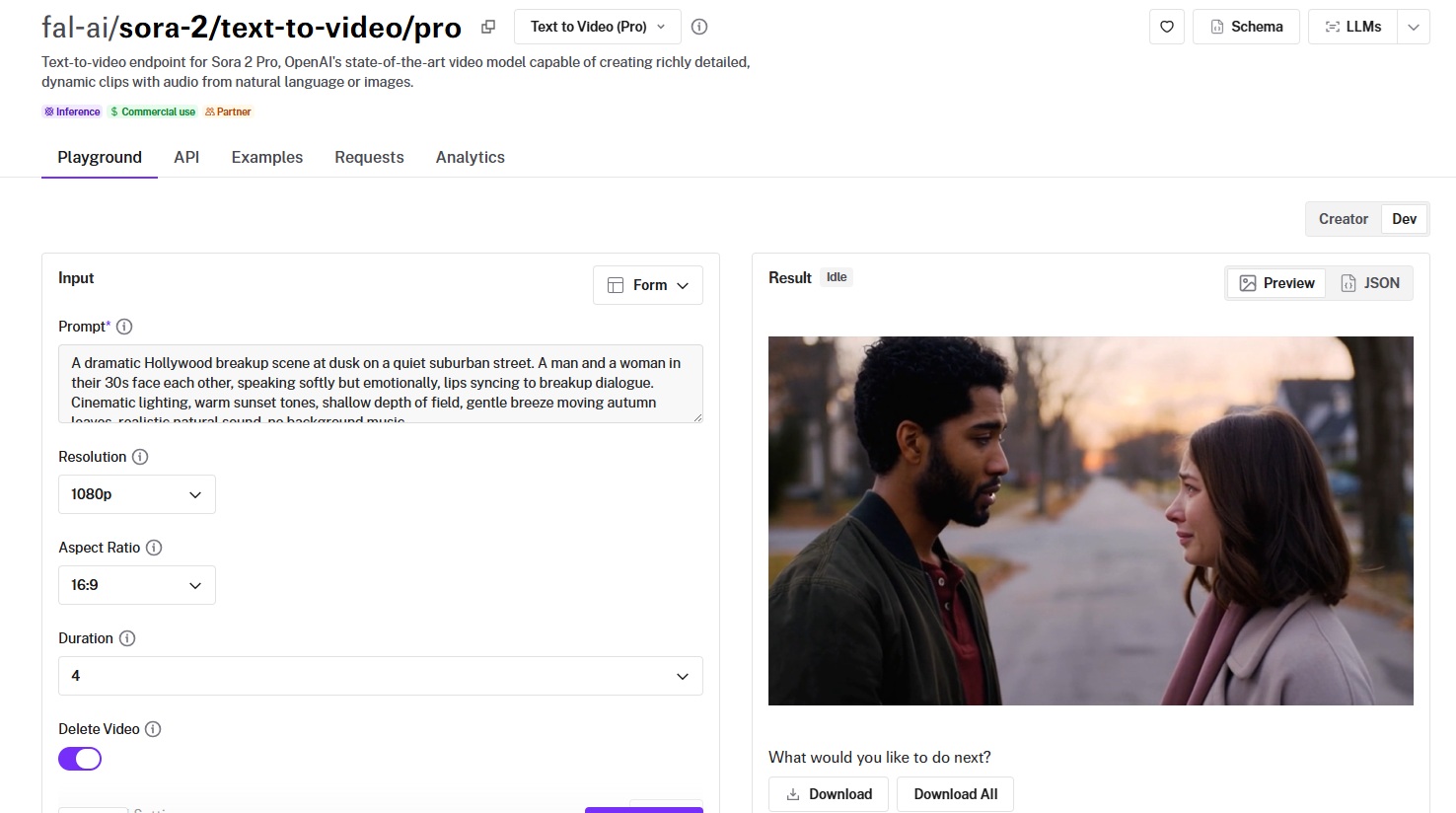
Sora 2 Pro's image-to-video endpoint (fal-ai/sora-2/image-to-video/pro) takes an existing image and animates it with the same audio capabilities as text-to-video.
Same pricing, same duration options, same audio synthesis.
The difference: you're providing a visual starting point instead of letting the model create the scene from scratch.
This is useful when you have a specific frame, product shot, or character you want to bring to life.
How it works
Upload an image (JPG, JPEG, PNG, WebP, GIF, or AVIF), write a prompt describing the desired motion and audio, and generate.
The image-to-video endpoint defaults to "auto" for both resolution and aspect ratio, meaning the model will match the input image.
You can override these manually to 720p, 1080p, true_1080p for resolution, or 9:16, 16:9 for aspect ratio.
When writing prompts for image-to-video, focus on motion and audio rather than visual description. The model already has the image. It needs to know what happens next.
Prompt: "Front-facing 'invisible' action-cam on a skydiver in freefall above bright clouds; camera locked on his face. He speaks over the wind with clear lipsync: 'This is insanely fun! You've got to try it---book a tandem and go!' Natural wind roar, voice close-mic'd and slightly compressed so it's intelligible. Midday sun, goggles and jumpsuit flutter, altimeter visible, parachute rig on shoulders. Energetic but stable framing with subtle shake; brief horizon roll. End on first tug of canopy and wind noise dropping."
Generated using Sora 2 Pro Image To Video on fal.
Using the API (JavaScript)
Install the fal client:
bash
npm install --save @fal-ai/clientSet your API key:
bash
export FAL_KEY="YOUR_API_KEY"Generate a video from an image:
javascript
import { fal } from "@fal-ai/client";
const result = await fal.subscribe("fal-ai/sora-2/image-to-video/pro", {
  input: {
    prompt:
      "The camera slowly pushes in as wind picks up. Leaves rustle, distant thunder rumbles.",
    image_url: "https://your-image-url.com/input.png",
    duration: 8,
  },
  logs: true,
  onQueueUpdate: (update) => {
    if (update.status === "IN_PROGRESS") {
      update.logs.map((log) => log.message).forEach(console.log);
    }
  },
});
console.log(result.data);
console.log(result.requestId);
Using the API (Python)
Install the fal client:
bash
pip install fal-clientSet your API key:
bash
export FAL_KEY="YOUR_API_KEY"Generate a video from an image:
python
import fal_client
result = fal_client.subscribe(
    "fal-ai/sora-2/image-to-video/pro",
    arguments={
        "prompt": "The camera slowly pushes in as wind picks up. Leaves rustle, distant thunder rumbles.",
        "image_url": "https://your-image-url.com/input.png",
        "duration": 8,
    },
)
print(result)
Character IDs
Sora 2 Pro supports up to two character IDs per generation on both the text-to-video and image-to-video endpoints.
Characters are created through a separate create-character endpoint, and you reference them by name in your prompt.
When character IDs are set, the generation uses the OpenAI provider directly.
This is useful for maintaining consistent character appearance across multiple generations, like building out scenes for a short film or ad campaign where the same character appears in different settings.
Sora 2 Pro's pricing on fal
Sora 2 Pro pricing is per second of generated video, with two resolution tiers:
$0.30 per second at 720p. $0.50 per second at 1080p.
Here's what that looks like at common durations:
| Duration | 720p Cost | 1080p Cost |
|---|---|---|
| 4 seconds | $1.20 | $2.00 |
| 8 seconds | $2.40 | $4.00 |
| 12 seconds | $3.60 | $6.00 |
| 16 seconds | $4.80 | $8.00 |
| 20 seconds | $6.00 | $10.00 |
Standard Sora 2 (non-Pro) is available at $0.10/s at 720p.
Both text-to-video and image-to-video Pro endpoints share the same pricing.
Recently Added




Run Sora 2 Pro on fal
AI video generation now includes native audio, and Sora 2 Pro is one of the first models to ship it as a single-prompt workflow.
If you want to run Sora 2 Pro through a single API with pay-per-use pricing and no GPU management, fal is the fastest way to get started.
Test it in the playground or plug into the API with the code examples above.
![What is H3 Max Camera Controls (Multi-Angle) & How To Use It? [2026]](https://refinery.fal.media/url/https%3A%2F%2Fv3b.fal.media%2Ffiles%2Fb%2F0aabbf2b%2Fq8usbuG4heGtr4-AYyqfk.jpg/tr:w-1280,q-80/q8usbuG4heGtr4-AYyqfk.webp)