 Documentation
 Examples
 Model API Reference
 SDK Reference
 Inference API
 Platform API
 Changelog

@ palette, file attachments, drag and drop, and long-text paste.
The @ palette
Type @ anywhere in the composer, or click the + button, to open the palette. It searches models, generations, characters, and skills at once, and it groups results into sections.
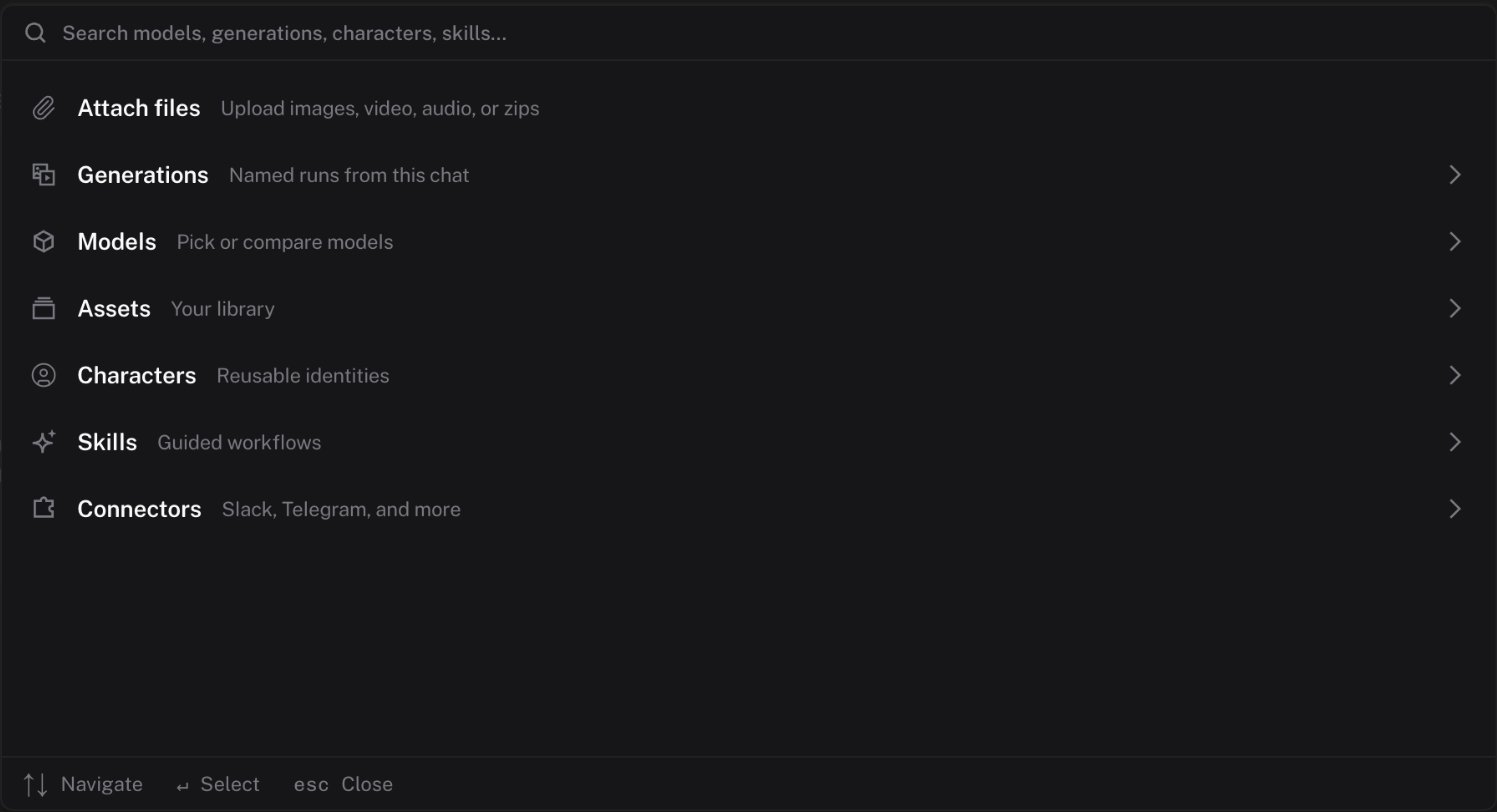
Enter to select, Backspace to go back to the list, and Escape to close. A picked item becomes a chip in the composer.
Inside a section
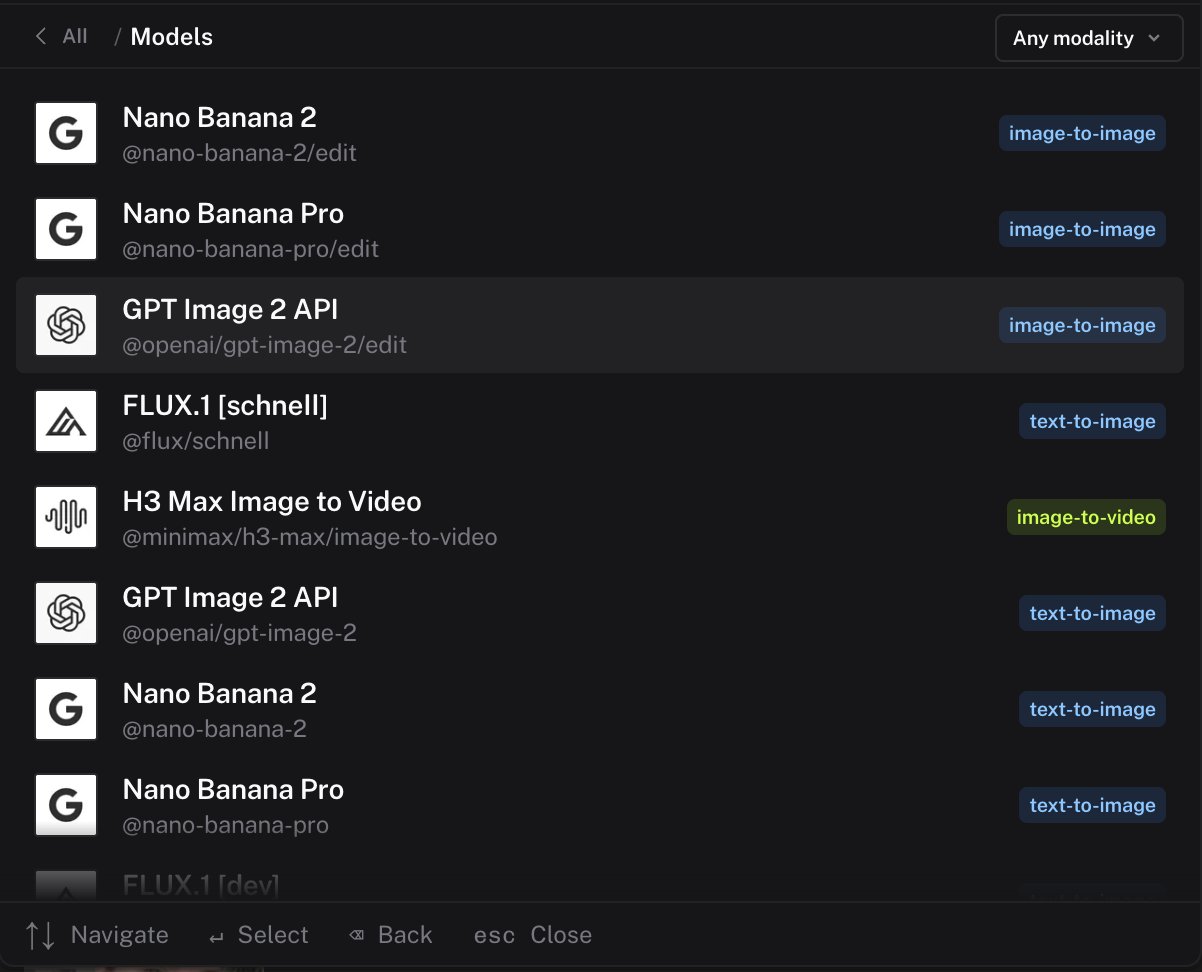
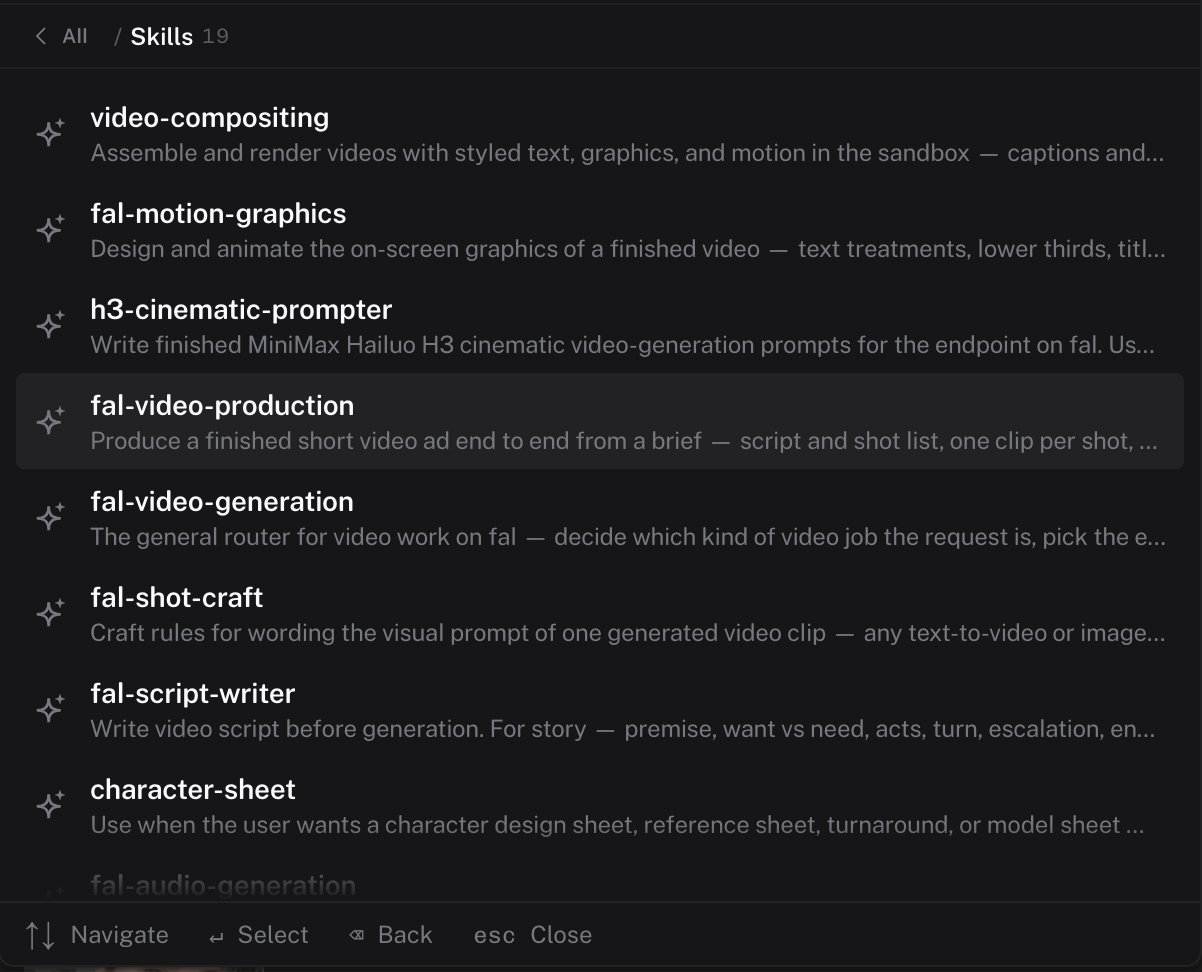
Each section opens as a list with its own search. Generations shows the named runs from this chat with the model that made them. Models lists models with a modality filter. Skills lists every enabled skill.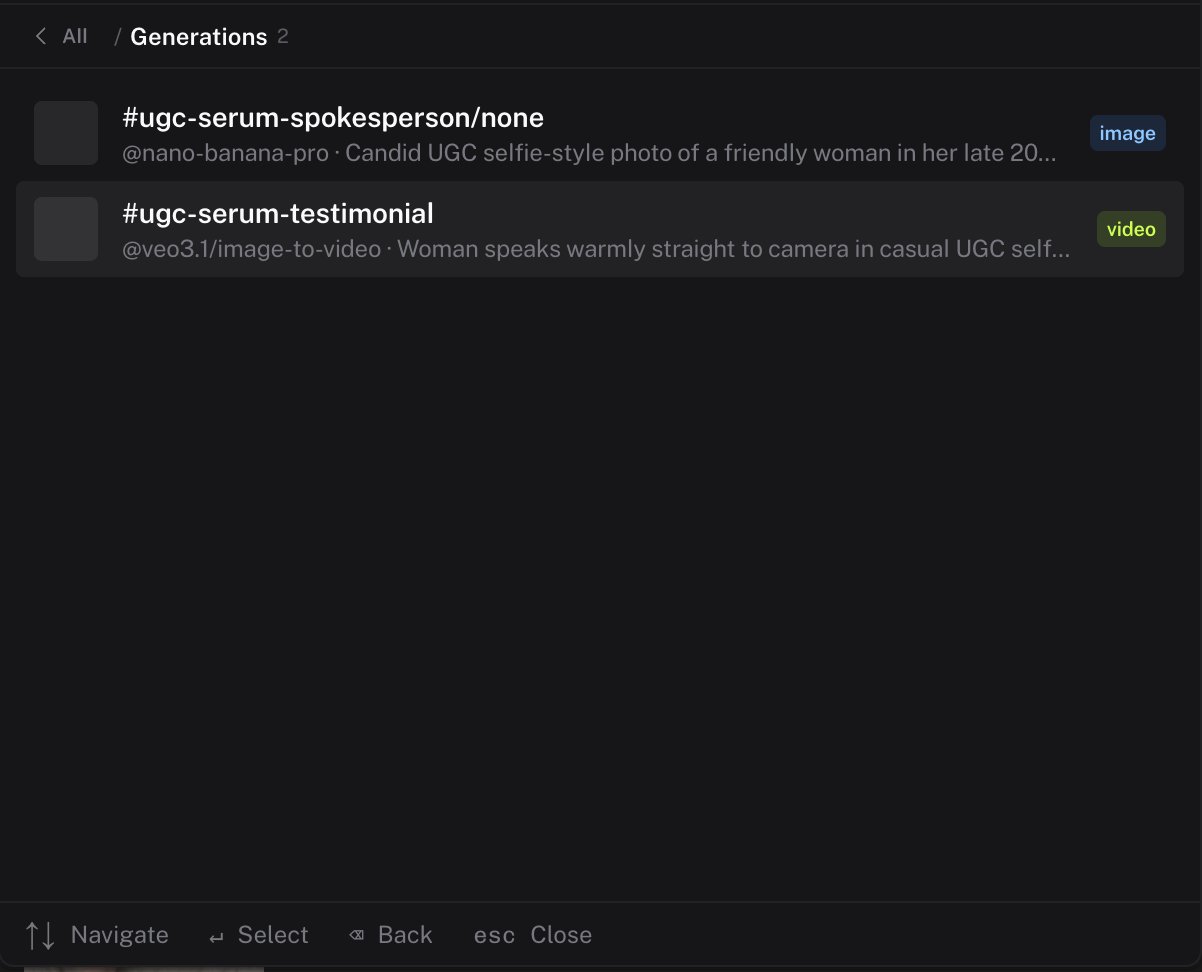
Generation references
Every completed output gets an ordinal in the order it landed. When the agent names a run, it also gets a readable name, such ascdg-bag-environments/open-field. Both appear in the media viewer header. Pick a generation from the palette when you want an output as the input for the next step:
Model pins
The model chip under the composer shows Auto when no model is pinned. Pick a model from the palette to pin it for the message. Remove the chip to return to Auto. See Models and generation.Attachments
Click the attachment button or drag files into the chat. The agent uses attachments as references, edit sources, or context.
A message can carry up to 20 attachments. Uploads retry automatically. Drafts, including attachments, are saved in the browser and survive a reload.
3D files cannot be attached to a chat message. When you drop them on a project, they are saved to the project only.
Drag and drop
Where you drop a file decides where it goes.
In a chat without a project, files always attach to the message. ZIP files always attach to the chat and never enter a project library.
Paste
- A pasted fal media URL becomes an attachment with a link chip.
- Any other pasted URL becomes a link chip. The URL stays in the message so the agent can read the page.
- Pasted text longer than 2,000 characters or 25 lines becomes a document attachment named
Pasted text.txt.
Send or queue
Enter sends the message. If the agent is busy, the message waits and runs next. Alt+Enter adds the message to the queue instead, so it runs after the current work. See Queue and steering.