> ## Documentation Index
> Fetch the complete documentation index at: https://fal.ai/docs/llms.txt
> Use this file to discover all available pages before exploring further.
# Playground
> Test any model with real inputs, see results, and copy working code.
Every model on fal has a Playground where you can try it with real inputs, see outputs instantly, and copy working code in Python, JavaScript, or cURL. When you [deploy your own app](/documentation/serverless), it gets a Playground too, so your teammates and users can test it the same way.
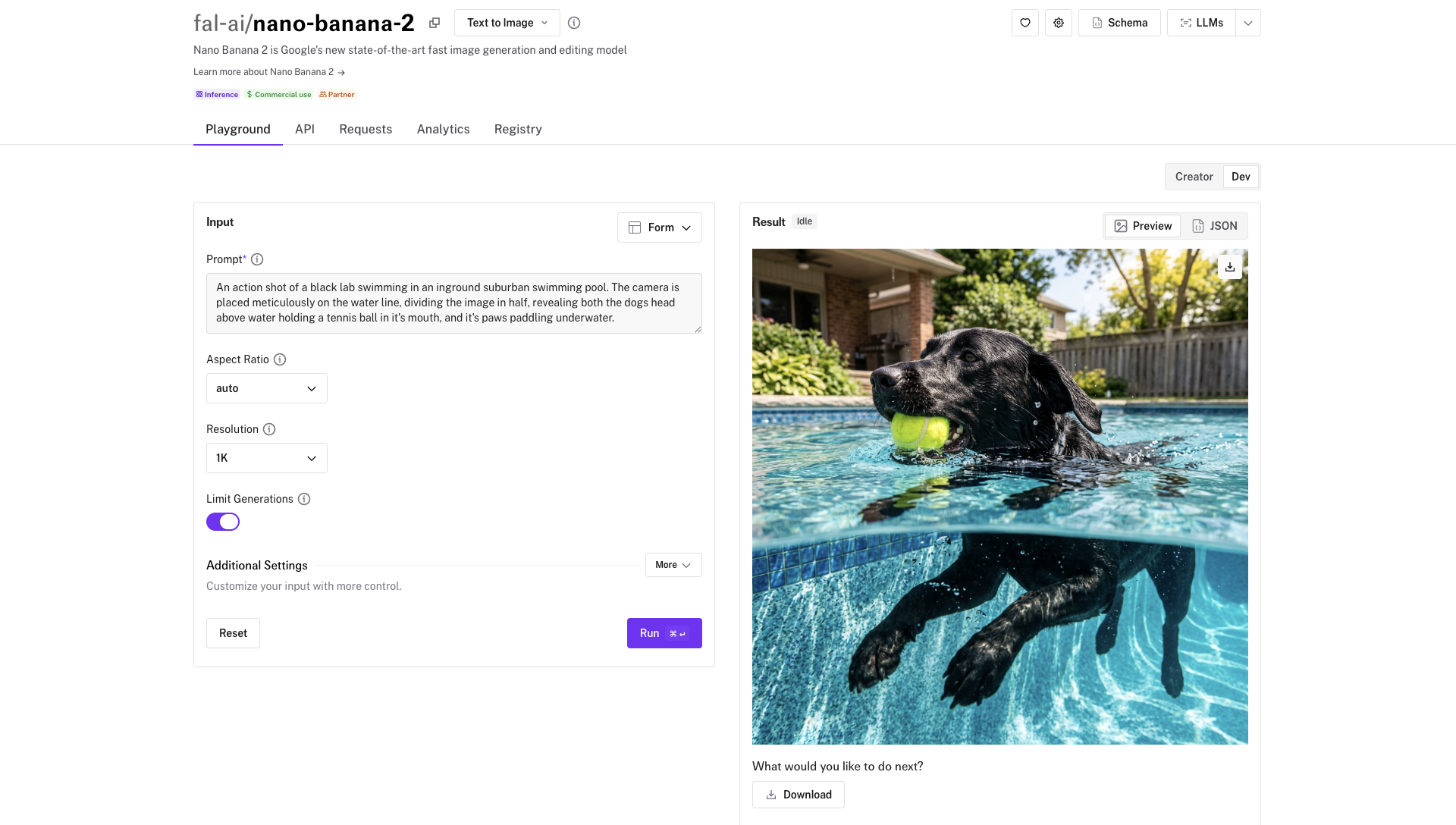 The Playground is the fastest way to validate a model before writing any integration code. Once you have a result you like, copy the generated code into your project and you are ready to go. If you want to compare multiple models side by side, use the [Sandbox](/documentation/model-apis/sandbox) instead. For programmatic access, see [Client Setup](/documentation/model-apis/inference/client-setup).
## Try It
The best way to understand the Playground is to open one. Pick a model and start generating.
Google's fast image generation and editing
Google DeepMind's latest video model with sound
High quality, realistic music generation
## What the Playground Shows
Each model page on fal.ai (for example, [Nano Banana 2](https://fal.ai/models/fal-ai/nano-banana-2)) is organized into tabs. The **Playground** tab lets you fill in inputs and run the model directly in your browser. The **API** tab shows the full input and output schemas with type information, so you know exactly what fields are available and what the response looks like. The page also displays pricing, average latency, and ready-to-copy code examples.
## Testing a Model
Browse the [model gallery](https://fal.ai/models) or search for a specific model. Click on it to open its page.
The Playground form is auto-generated from the model's input schema. Required fields are marked, and optional fields have sensible defaults. For models that accept images, video, or audio, you can upload files directly.
Click **Run** to submit your request. The result appears below the form, typically within a few seconds.
Adjust your inputs and run again. Each result stays visible so you can compare outputs across runs.
## Copying Code
Every Playground result includes generated code that reproduces the exact request you just ran. Click the code tab to see examples in Python, JavaScript, and cURL, then copy them directly into your project.
```python Python theme={null}
import fal_client
result = fal_client.subscribe("fal-ai/nano-banana-2", arguments={
"prompt": "a futuristic cityscape at sunset",
"aspect_ratio": "16:9"
})
print(result["images"][0]["url"])
```
```javascript JavaScript theme={null}
import { fal } from "@fal-ai/client";
const result = await fal.subscribe("fal-ai/nano-banana-2", {
input: {
prompt: "An action shot of a black lab swimming in an inground suburban swimming pool. The camera is placed meticulously on the water line, dividing the image in half, revealing both the dogs head above water holding a tennis ball in it's mouth, and it's paws paddling underwater."
},
logs: true,
onQueueUpdate: (update) => {
if (update.status === "IN_PROGRESS") {
update.logs.map((log) => log.message).forEach(console.log);
}
},
});
console.log(result.data);
console.log(result.requestId);
```
```bash cURL theme={null}
curl -X POST "https://queue.fal.run/fal-ai/nano-banana-2" \
-H "Authorization: Key $FAL_KEY" \
-H "Content-Type: application/json" \
-d '{"prompt": "a futuristic cityscape at sunset", "aspect_ratio": "16:9"}'
```
The generated code includes all the parameters you configured in the form, so there is no gap between what you tested and what you ship.
## Your Own Apps
When you run `fal deploy`, the output includes a Playground URL for your app. This means anyone with access can test your endpoints through the same interface that powers the model gallery.
```bash theme={null}
fal deploy my_app.py::MyApp
# Output includes:
# Playground: https://fal.ai/models/your-username/my-app
```
To control how your app's inputs render in the Playground (image uploaders, hidden fields, field ordering), see [Handle Inputs and Outputs](/documentation/development/handle-inputs-and-outputs). For example, naming a field with an `image_url` suffix renders it as an image upload widget, and wrapping a field in `Hidden()` keeps it accessible via API but hides it from the Playground form.
## Playground vs Sandbox
The Playground and the [Sandbox](https://fal.ai/sandbox) serve different purposes. The Playground is for testing a single model with specific inputs and copying code. The Sandbox is for comparing multiple models at once, with features like model sets, cost estimates, search across past generations, and shareable links.
| | Playground | Sandbox |
| ------------------- | ------------------------- | ---------------------------------------- |
| **Purpose** | Test one model, copy code | Compare multiple models |
| **Where** | Each model's page | [fal.ai/sandbox](https://fal.ai/sandbox) |
| **Your own apps** | Yes, after `fal deploy` | Yes, can be added manually |
| **Code generation** | Python, JS, cURL | Not available |
| **Sharing** | Not available | Shareable links with previews |
## More Models to Try
Intelligent image editing
Cinematic image-to-video
OpenAI's video model with audio
Professional design visuals
Natural text-to-speech
1,000+ models to explore
The Playground is the fastest way to validate a model before writing any integration code. Once you have a result you like, copy the generated code into your project and you are ready to go. If you want to compare multiple models side by side, use the [Sandbox](/documentation/model-apis/sandbox) instead. For programmatic access, see [Client Setup](/documentation/model-apis/inference/client-setup).
## Try It
The best way to understand the Playground is to open one. Pick a model and start generating.
Google's fast image generation and editing
Google DeepMind's latest video model with sound
High quality, realistic music generation
## What the Playground Shows
Each model page on fal.ai (for example, [Nano Banana 2](https://fal.ai/models/fal-ai/nano-banana-2)) is organized into tabs. The **Playground** tab lets you fill in inputs and run the model directly in your browser. The **API** tab shows the full input and output schemas with type information, so you know exactly what fields are available and what the response looks like. The page also displays pricing, average latency, and ready-to-copy code examples.
## Testing a Model
Browse the [model gallery](https://fal.ai/models) or search for a specific model. Click on it to open its page.
The Playground form is auto-generated from the model's input schema. Required fields are marked, and optional fields have sensible defaults. For models that accept images, video, or audio, you can upload files directly.
Click **Run** to submit your request. The result appears below the form, typically within a few seconds.
Adjust your inputs and run again. Each result stays visible so you can compare outputs across runs.
## Copying Code
Every Playground result includes generated code that reproduces the exact request you just ran. Click the code tab to see examples in Python, JavaScript, and cURL, then copy them directly into your project.
```python Python theme={null}
import fal_client
result = fal_client.subscribe("fal-ai/nano-banana-2", arguments={
"prompt": "a futuristic cityscape at sunset",
"aspect_ratio": "16:9"
})
print(result["images"][0]["url"])
```
```javascript JavaScript theme={null}
import { fal } from "@fal-ai/client";
const result = await fal.subscribe("fal-ai/nano-banana-2", {
input: {
prompt: "An action shot of a black lab swimming in an inground suburban swimming pool. The camera is placed meticulously on the water line, dividing the image in half, revealing both the dogs head above water holding a tennis ball in it's mouth, and it's paws paddling underwater."
},
logs: true,
onQueueUpdate: (update) => {
if (update.status === "IN_PROGRESS") {
update.logs.map((log) => log.message).forEach(console.log);
}
},
});
console.log(result.data);
console.log(result.requestId);
```
```bash cURL theme={null}
curl -X POST "https://queue.fal.run/fal-ai/nano-banana-2" \
-H "Authorization: Key $FAL_KEY" \
-H "Content-Type: application/json" \
-d '{"prompt": "a futuristic cityscape at sunset", "aspect_ratio": "16:9"}'
```
The generated code includes all the parameters you configured in the form, so there is no gap between what you tested and what you ship.
## Your Own Apps
When you run `fal deploy`, the output includes a Playground URL for your app. This means anyone with access can test your endpoints through the same interface that powers the model gallery.
```bash theme={null}
fal deploy my_app.py::MyApp
# Output includes:
# Playground: https://fal.ai/models/your-username/my-app
```
To control how your app's inputs render in the Playground (image uploaders, hidden fields, field ordering), see [Handle Inputs and Outputs](/documentation/development/handle-inputs-and-outputs). For example, naming a field with an `image_url` suffix renders it as an image upload widget, and wrapping a field in `Hidden()` keeps it accessible via API but hides it from the Playground form.
## Playground vs Sandbox
The Playground and the [Sandbox](https://fal.ai/sandbox) serve different purposes. The Playground is for testing a single model with specific inputs and copying code. The Sandbox is for comparing multiple models at once, with features like model sets, cost estimates, search across past generations, and shareable links.
| | Playground | Sandbox |
| ------------------- | ------------------------- | ---------------------------------------- |
| **Purpose** | Test one model, copy code | Compare multiple models |
| **Where** | Each model's page | [fal.ai/sandbox](https://fal.ai/sandbox) |
| **Your own apps** | Yes, after `fal deploy` | Yes, can be added manually |
| **Code generation** | Python, JS, cURL | Not available |
| **Sharing** | Not available | Shareable links with previews |
## More Models to Try
Intelligent image editing
Cinematic image-to-video
OpenAI's video model with audio
Professional design visuals
Natural text-to-speech
1,000+ models to explore