> ## Documentation Index
> Fetch the complete documentation index at: https://fal.ai/docs/llms.txt
> Use this file to discover all available pages before exploring further.
# Quickstart
> Start your first fal Agent chat, attach a reference, review the plan, and download the result.
This guide takes you from sign-in to a downloaded generation. It takes about five minutes.
## Before you start
You need a fal account with fal Agent access. Self-serve accounts get access with a **fal Agent Pro** or **fal Agent Max** credit tier. Enterprise accounts get access through their agreement. See [Access and pricing](/docs/documentation/agent/access-and-pricing) for details.
Go to [fal.ai/agent](https://fal.ai/agent) and sign in with Google, GitHub, or SSO. If your account does not have access yet, the page shows the available credit tiers. You can type your first prompt before you subscribe. The agent picks it up after activation.
Type a request in the composer. Be specific about the subject, the format, and the number of outputs. For example:
```text theme={null}
Make three product hero shots of this bottle on a marble surface.
Soft morning light, 4:5 aspect ratio. Then animate the best one.
```
Press `Enter` to send. `Shift+Enter` adds a new line.
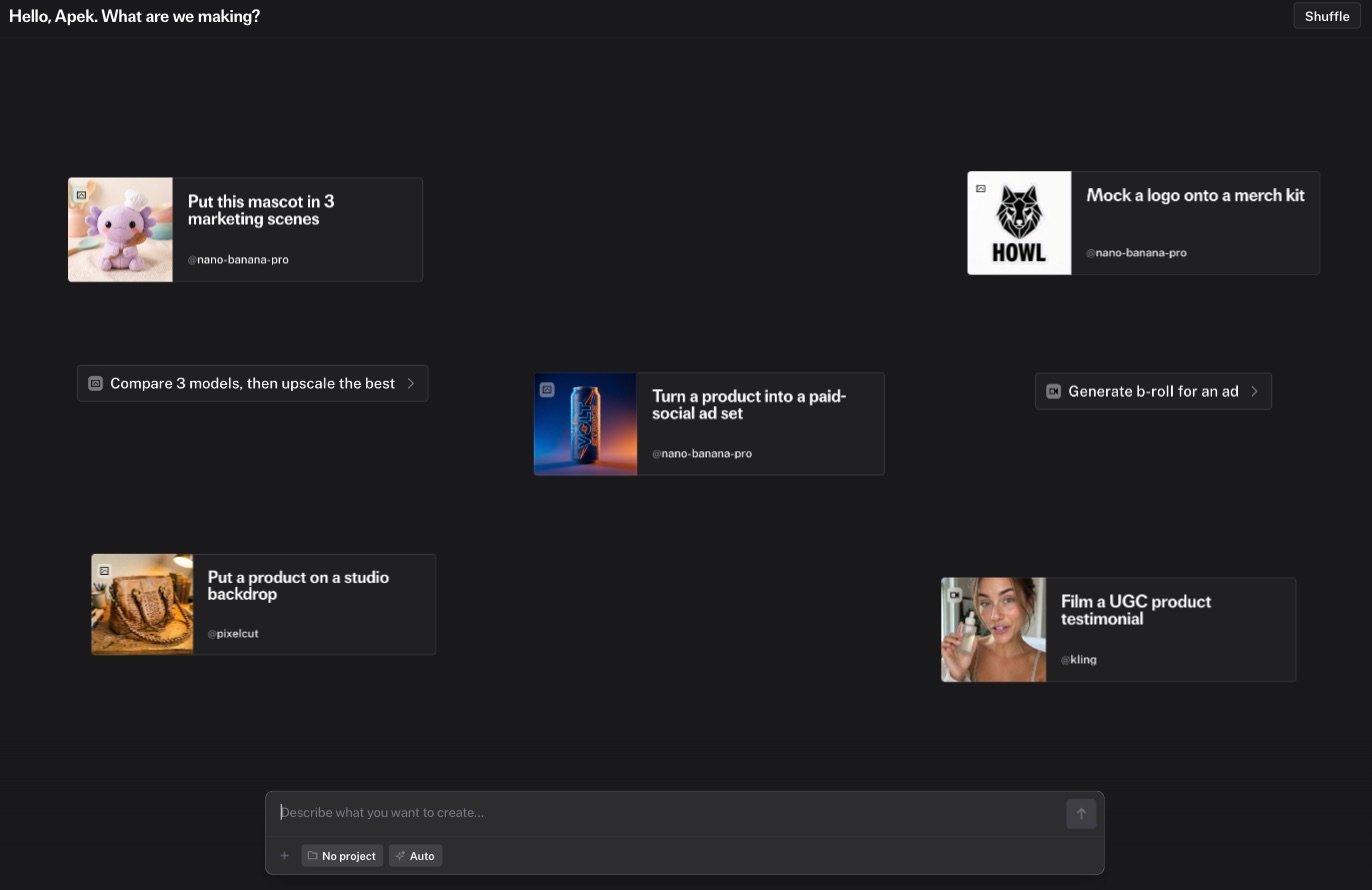 Drag an image, a video, or a document into the chat, or click the attachment button. The agent uses attachments as references, edit sources, or context. See [Composer and references](/docs/documentation/agent/chats/composer) for the supported file types and limits.
For a multi-step request, the agent shows a plan card before it runs anything. Read the steps and the model chips. You can rename a step, reorder steps, pin a different model, or add an approval checkpoint. Click **Run plan** when the plan looks right. Simple requests run directly without a plan card.
Each run appears as a cell in the chat and in the media rail on the right. In-flight cells show a cancel button. When a run finishes, hover the cell for **Retry** and **Download**. Failed runs show a short explanation, and the agent repairs the input and retries when it can.
Type `@` to open the palette. Pick a previous output under **Generations**, or pin a model under **Models**. The agent keeps the chat context, so you can say "make the second one warmer" without repeating the prompt.
Click **Download** on a cell to save one file. Ask the agent to "export everything as a zip" to get one archive with a folder per batch and a manifest. See [Export](/docs/documentation/agent/generations/export).
## Next steps
Sidebar, media rail, history, shortcuts, and notifications
How the agent chooses models and repairs failed runs
Group chats and media under a shared memory
Confirm expensive runs before they start
Drag an image, a video, or a document into the chat, or click the attachment button. The agent uses attachments as references, edit sources, or context. See [Composer and references](/docs/documentation/agent/chats/composer) for the supported file types and limits.
For a multi-step request, the agent shows a plan card before it runs anything. Read the steps and the model chips. You can rename a step, reorder steps, pin a different model, or add an approval checkpoint. Click **Run plan** when the plan looks right. Simple requests run directly without a plan card.
Each run appears as a cell in the chat and in the media rail on the right. In-flight cells show a cancel button. When a run finishes, hover the cell for **Retry** and **Download**. Failed runs show a short explanation, and the agent repairs the input and retries when it can.
Type `@` to open the palette. Pick a previous output under **Generations**, or pin a model under **Models**. The agent keeps the chat context, so you can say "make the second one warmer" without repeating the prompt.
Click **Download** on a cell to save one file. Ask the agent to "export everything as a zip" to get one archive with a folder per batch and a manifest. See [Export](/docs/documentation/agent/generations/export).
## Next steps
Sidebar, media rail, history, shortcuts, and notifications
How the agent chooses models and repairs failed runs
Group chats and media under a shared memory
Confirm expensive runs before they start