> ## Documentation Index
> Fetch the complete documentation index at: https://fal.ai/docs/llms.txt
> Use this file to discover all available pages before exploring further.
# Generations and the media rail
> How generations appear in the chat and the media rail, and what you can do with each tile.
A generation is one model run's output. Generations appear twice: inline in the chat, at the point where the agent submitted them, and in the media rail on the right.
## In the chat
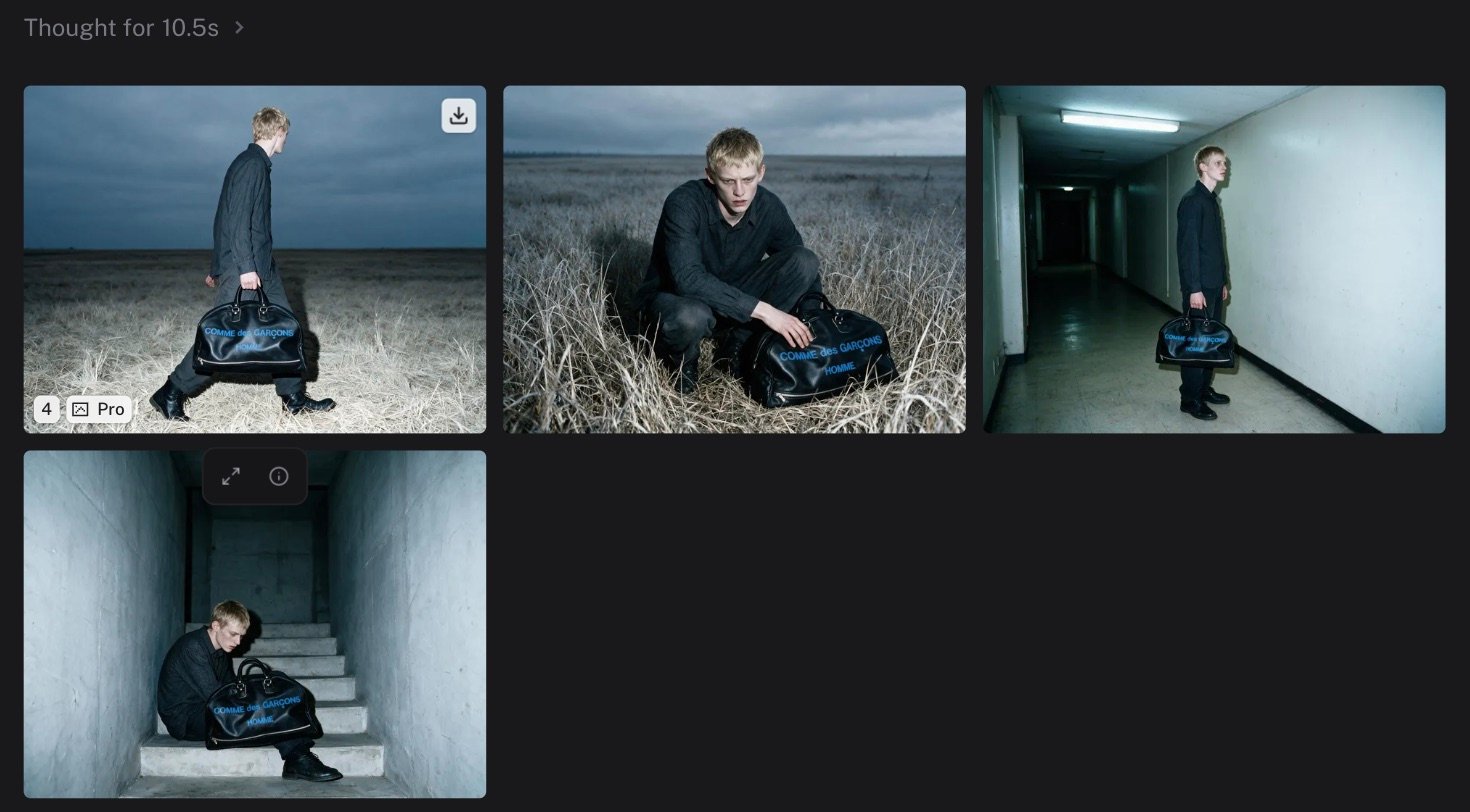
Runs render as cells in a grid. A batch renders as one grid, laid out like a moodboard. In-flight cells show the model name and a cancel button. Completed cells show the media, a media-type badge, and on hover:
| Action | Where |
| :--------------------- | :---------------------------------------- |
| **Retry** | Top left. Runs the same input again |
| **Download** | Top right. 3D outputs offer a format menu |
| **Copy prompt** | Copies the prompt text |
| **Copy input as JSON** | Copies the full model input |
A toolbar also appears under a hovered cell. It offers **Attach**, **Quick animate**, **Upscale**, **Make a variation**, **Edit**, and **Details**.
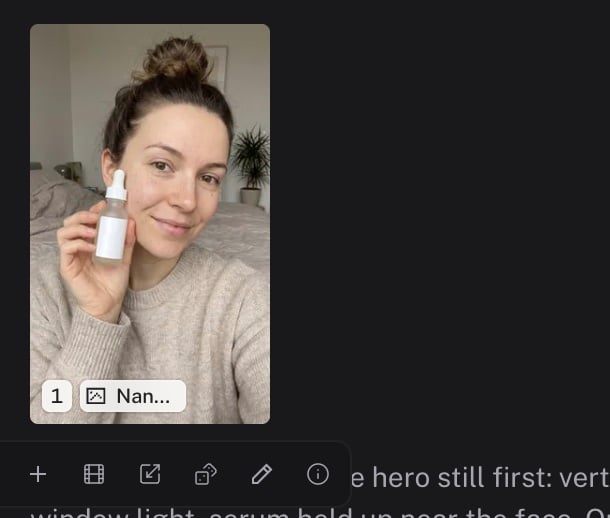 Videos play a preview on hover. Audio renders as a waveform tile. Files that are not media, such as a `.zip` or `.csv`, render as a file card with a download button.
Retries are grouped in the same cell. Use **Previous attempt** and **Next attempt** to compare them.
Videos play a preview on hover. Audio renders as a waveform tile. Files that are not media, such as a `.zip` or `.csv`, render as a file card with a download button.
Retries are grouped in the same cell. Use **Previous attempt** and **Next attempt** to compare them.
 ## Names and ordinals
Each completed output gets an ordinal in the order the runs landed. Your uploads and video sequences do not take an ordinal. When the agent names a batch, each run also gets a readable name, such as `cdg-bag-environments/open-field`. The media viewer header shows both. Use the **Generations** section of the `@` palette to refer to an output in your next message.
## The media rail
The rail shows every tile in the chat, or in the whole project when the scope is **Project**. Filter by media type or **Favorites**, and search by prompt, model, or name.
## Names and ordinals
Each completed output gets an ordinal in the order the runs landed. Your uploads and video sequences do not take an ordinal. When the agent names a batch, each run also gets a readable name, such as `cdg-bag-environments/open-field`. The media viewer header shows both. Use the **Generations** section of the `@` palette to refer to an output in your next message.
## The media rail
The rail shows every tile in the chat, or in the whole project when the scope is **Project**. Filter by media type or **Favorites**, and search by prompt, model, or name.
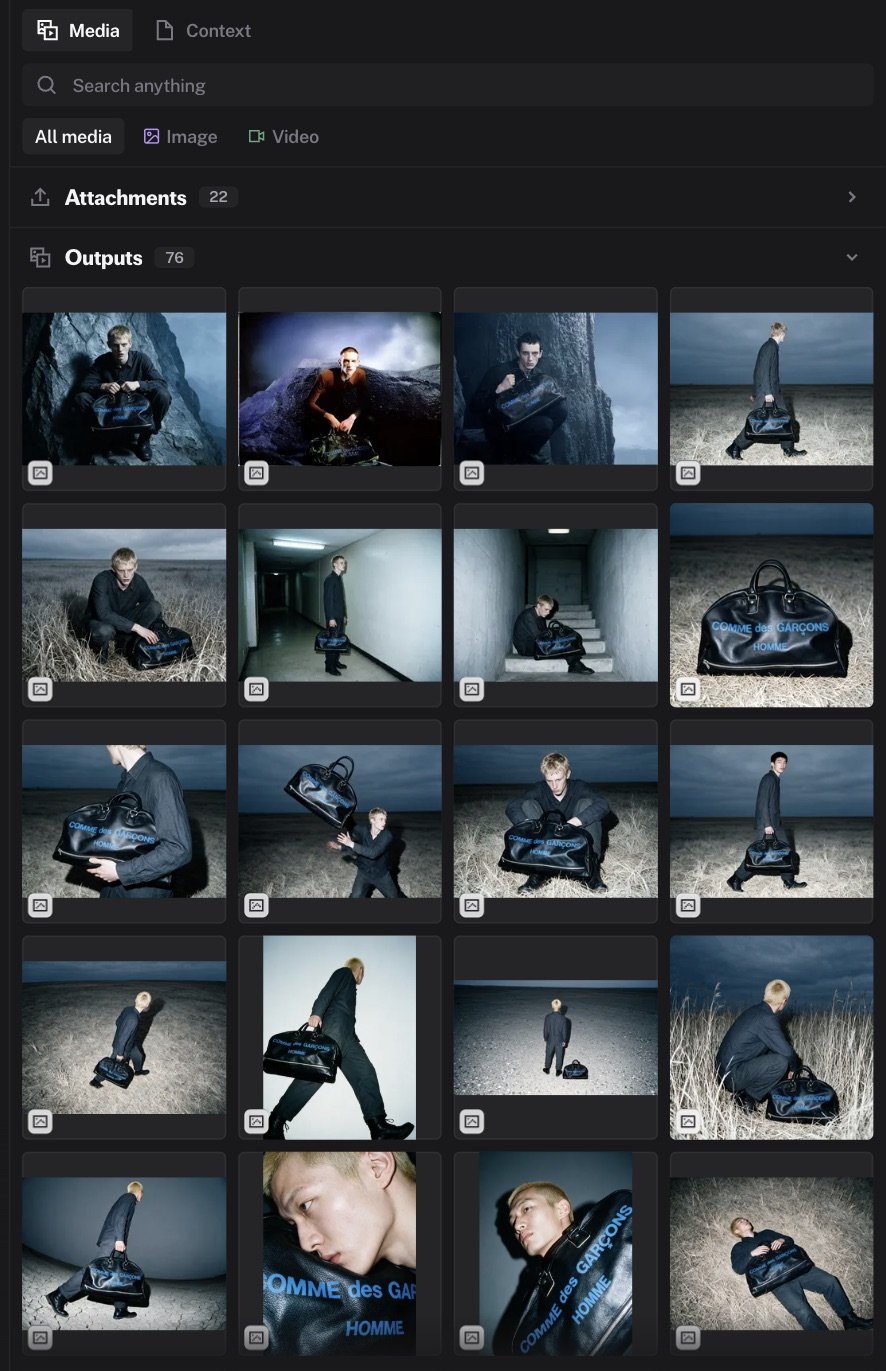 Tile actions, on hover or in the context menu:
| Action | Effect |
| :------------------- | :------------------------------------------------------------------------------- |
| **Attach to chat** | Adds the tile as an attachment on your next message |
| **Favorite** | Pins a heart on the tile. Favorites get their own filter |
| **Preview** | Opens the [media viewer](/docs/documentation/agent/generations/media-viewer) |
| **Jump to chat** | Scrolls the chat to the turn that made it |
| **Remove from chat** | Removes the tile from this chat. This asks for confirmation and cannot be undone |
`Cmd+click` (`Ctrl+click`) selects several tiles. An **Attach N** button then attaches all of them.
## Cost
The spend chip next to the composer shows the number of generations and the total cost of the chat. Hover it for a breakdown by model or by media type. See [Spending caps](/docs/documentation/agent/spending-caps).
## Request details
Open a tile's details to see the model, the endpoint, the request ID, the latency, and the attempt number. Use the request ID when you contact support about a run.
## Errors
A failed cell shows a short explanation. The agent repairs and retries most failures on its own. See [Models and generation](/docs/documentation/agent/models-and-generation#errors-you-can-see) for the messages and what they mean.
Tile actions, on hover or in the context menu:
| Action | Effect |
| :------------------- | :------------------------------------------------------------------------------- |
| **Attach to chat** | Adds the tile as an attachment on your next message |
| **Favorite** | Pins a heart on the tile. Favorites get their own filter |
| **Preview** | Opens the [media viewer](/docs/documentation/agent/generations/media-viewer) |
| **Jump to chat** | Scrolls the chat to the turn that made it |
| **Remove from chat** | Removes the tile from this chat. This asks for confirmation and cannot be undone |
`Cmd+click` (`Ctrl+click`) selects several tiles. An **Attach N** button then attaches all of them.
## Cost
The spend chip next to the composer shows the number of generations and the total cost of the chat. Hover it for a breakdown by model or by media type. See [Spending caps](/docs/documentation/agent/spending-caps).
## Request details
Open a tile's details to see the model, the endpoint, the request ID, the latency, and the attempt number. Use the request ID when you contact support about a run.
## Errors
A failed cell shows a short explanation. The agent repairs and retries most failures on its own. See [Models and generation](/docs/documentation/agent/models-and-generation#errors-you-can-see) for the messages and what they mean.