> ## Documentation Index
> Fetch the complete documentation index at: https://fal.ai/docs/llms.txt
> Use this file to discover all available pages before exploring further.
# Media viewer
> Open any generation full screen, zoom, inspect the request, mark it up, and send an edit straight back to the agent.
Click a tile to open the media viewer. It shows one generation at full size with a filmstrip of the others in the chat. The header shows the ordinal, the name, the format, and the dimensions.
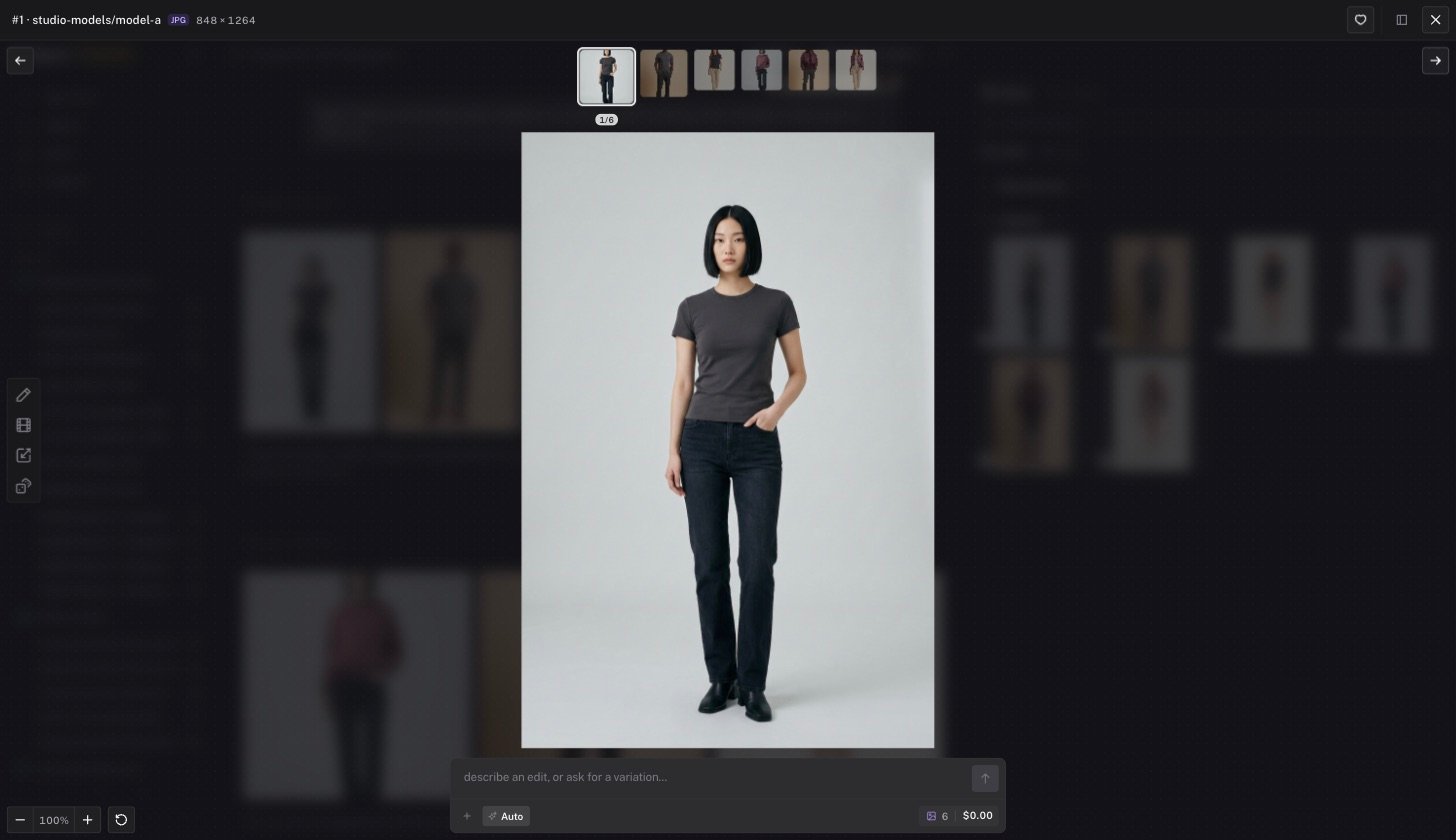 ## Controls
| Control | Action |
| :---------------- | :-------------------------------------------------------------------------------------------------------------------------- |
| Previous and next | Move through the filmstrip |
| Zoom | Zoom in and out on images. The reset control returns to 100% |
| Favorite | Toggle the heart |
| Request details | Open a panel with the endpoint, request ID, status, attempt, and duration. Use **Copy request id** when you contact support |
| Close | Return to the chat. `Escape` also closes |
## Edit from the viewer
The composer at the bottom of the viewer sends an instruction to the agent with the current image attached. Type an edit, or ask for a variation, without leaving the viewer.
The left toolbar offers quick actions for image outputs.
* **Edit** opens the markup canvas. See below.
* **Quick animate** turns the still into a short video.
* **Upscale** runs an upscaler on the image.
* **Make a variation** asks for one or more new takes. A picker sets the count.
## Markup and crop
**Edit** opens a drawing canvas over the image. Use it to point at the region you want changed.
## Controls
| Control | Action |
| :---------------- | :-------------------------------------------------------------------------------------------------------------------------- |
| Previous and next | Move through the filmstrip |
| Zoom | Zoom in and out on images. The reset control returns to 100% |
| Favorite | Toggle the heart |
| Request details | Open a panel with the endpoint, request ID, status, attempt, and duration. Use **Copy request id** when you contact support |
| Close | Return to the chat. `Escape` also closes |
## Edit from the viewer
The composer at the bottom of the viewer sends an instruction to the agent with the current image attached. Type an edit, or ask for a variation, without leaving the viewer.
The left toolbar offers quick actions for image outputs.
* **Edit** opens the markup canvas. See below.
* **Quick animate** turns the still into a short video.
* **Upscale** runs an upscaler on the image.
* **Make a variation** asks for one or more new takes. A picker sets the count.
## Markup and crop
**Edit** opens a drawing canvas over the image. Use it to point at the region you want changed.
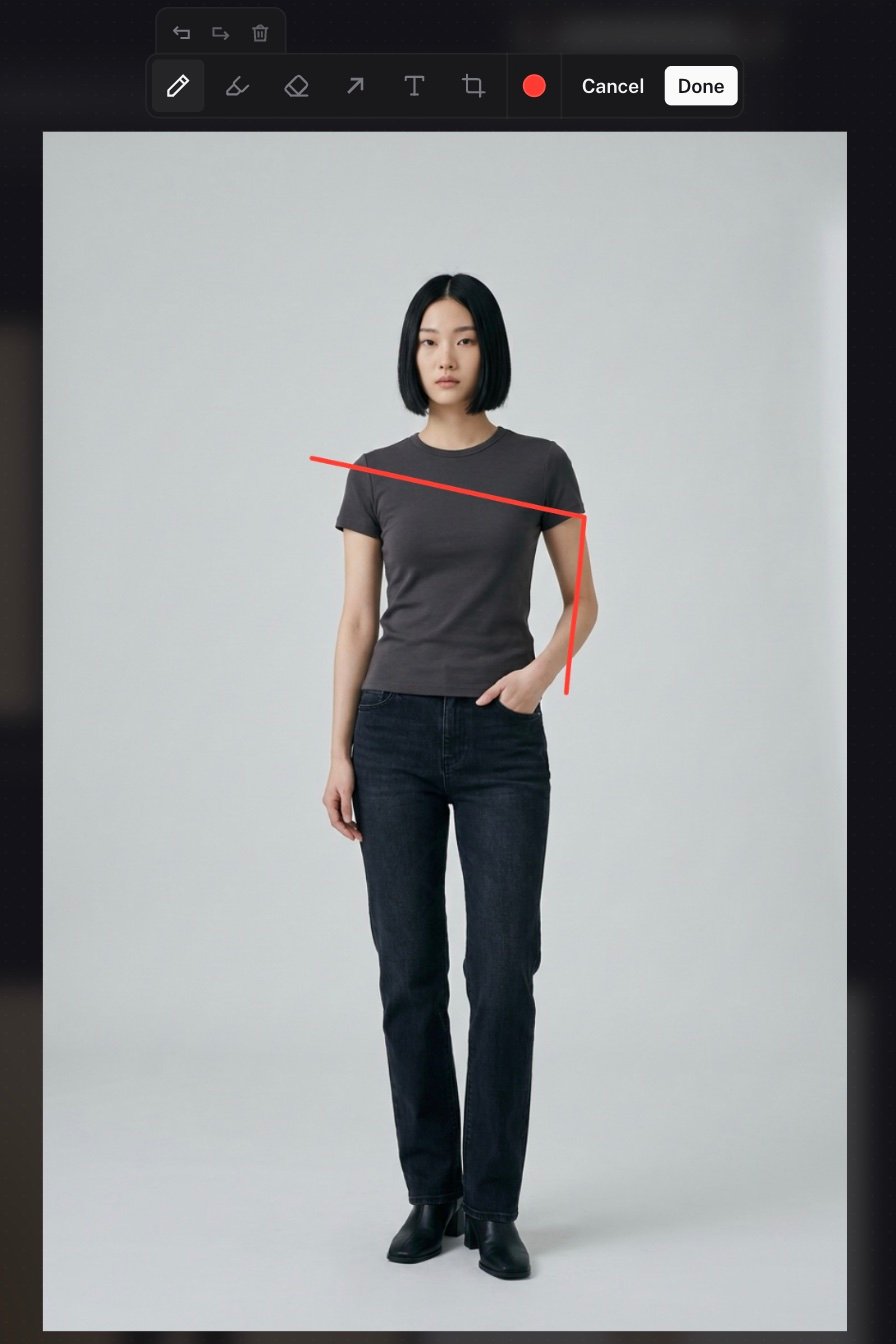 | Tool | Use |
| :------------------ | :---------------------------------------------- |
| Pen and highlighter | Draw on the image. Pick a color from the swatch |
| Eraser | Remove a stroke |
| Arrow | Point at a region |
| Text | Label a region |
| Crop | Keep a region of the image |
| Undo, redo, clear | Step back or start over |
Click **Done**. The canvas is flattened to a PNG and placed in your composer as an attachment. Type what you want changed and send. The agent uses the marked image as the edit source. **Cancel** discards the marks.
| Tool | Use |
| :------------------ | :---------------------------------------------- |
| Pen and highlighter | Draw on the image. Pick a color from the swatch |
| Eraser | Remove a stroke |
| Arrow | Point at a region |
| Text | Label a region |
| Crop | Keep a region of the image |
| Undo, redo, clear | Step back or start over |
Click **Done**. The canvas is flattened to a PNG and placed in your composer as an attachment. Type what you want changed and send. The agent uses the marked image as the edit source. **Cancel** discards the marks.