> ## Documentation Index
> Fetch the complete documentation index at: https://fal.ai/docs/llms.txt
> Use this file to discover all available pages before exploring further.
# Chat interface
> The fal Agent shell: sidebar, chat, media rail, history, turn navigation, keyboard shortcuts, notifications, and the installable app.
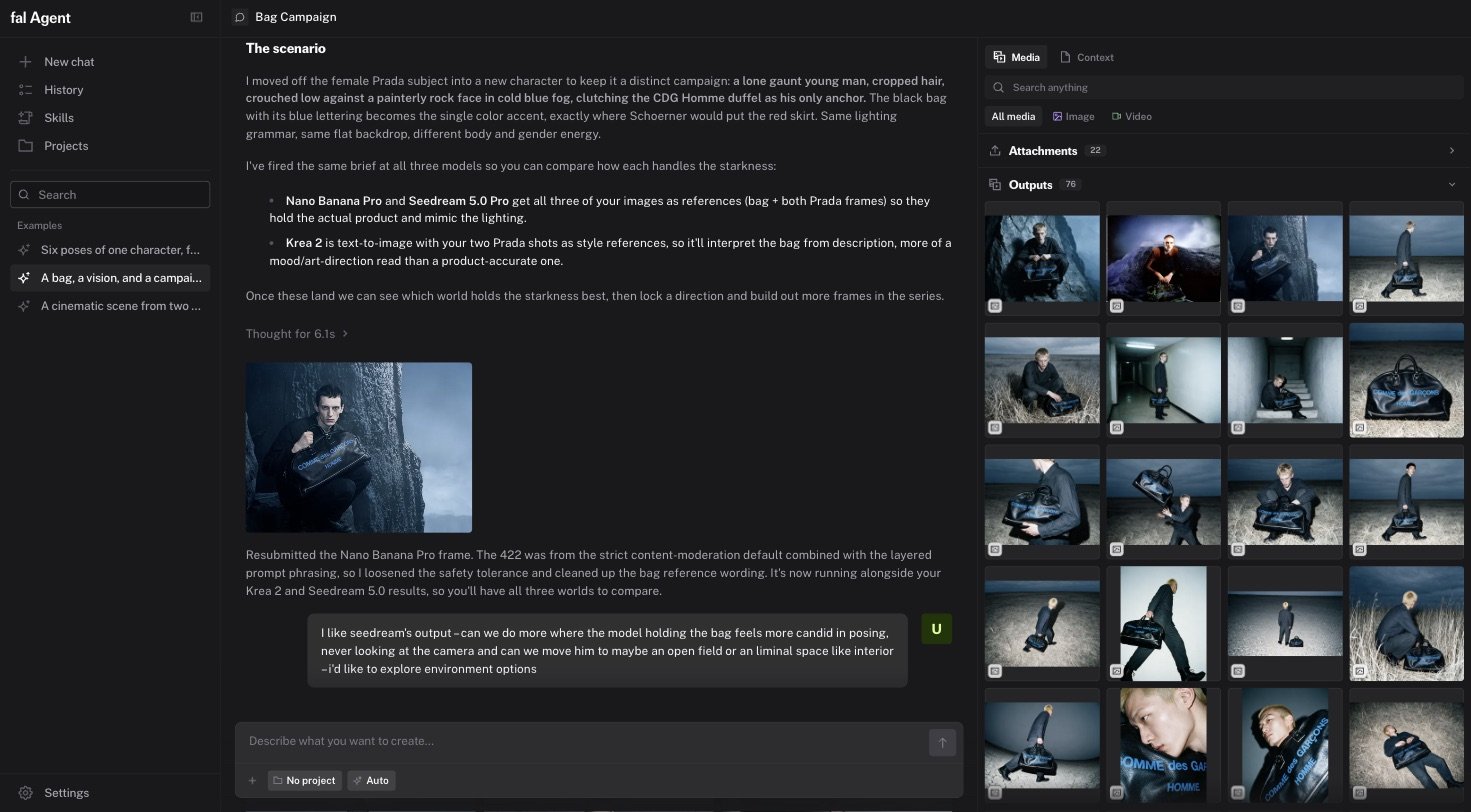
fal Agent uses one shell for everything. Chats, projects, skills, history, and settings all render inside it. The shell has three columns.
| Column | Contents |
| :--------------------- | :----------------------------------------------------------------------------------- |
| **Sidebar** (left) | New chat, History, Skills, Projects, Settings, and your recent chats grouped by date |
| **Chat** (center) | The conversation, generations, plan cards, and the composer |
| **Media rail** (right) | Every input and output of the chat, or of the whole project |
The sidebar can collapse to icons, and the rail can open, close, or expand. Both states are saved to your account.
 ## Start a chat
Click **New chat** or open [fal.ai/agent](https://fal.ai/agent). The empty state greets you by name and shows starter cards. Each card loads a full prompt, and some also load a sample image. Click **Shuffle** for a new set.
The `/agent` URL returns you to the last view you used. Deep links with `?endpoint=` open a chat with a model pinned.
## Chat titles
The agent names each chat from your first message, in your language. To rename a chat, open **History**, click the title, edit it, and press `Enter`.
## History
**History** lists every chat with search. Hover a row to preview its recent media. Rows show **Unread updates** when a run landed while you were away, and **Needs approval** when a plan checkpoint or a cost approval is waiting. Delete a chat from its row. Deletion asks for confirmation.
## Turn navigation
A rail of dots on the right edge of the chat marks each turn. Hover a dot to preview that turn's prompt and up to four output thumbnails. Click it to jump there.
## The media rail
The rail mirrors the chat's media as a grid. Controls at the top:
* **Scope**: **This chat** or **Project**. The project scope is available when the chat belongs to a [project](/docs/documentation/agent/projects).
* **Kind**: **Media** or **Context**. Context shows project memory notes and documents.
* **Filters**: All media, Image, Video, Audio, 3D, and Favorites.
* **Search**: filters tiles by prompt, model, and name.
The media panel separates **Attachments** (your inputs) from **Outputs**. See [Generations and the media rail](/docs/documentation/agent/generations/overview) for tile actions.
## Keyboard shortcuts
| Shortcut | Action |
| :--------------------------- | :-------------------------------------------------- |
| `Enter` | Send. The message runs next |
| `Shift+Enter` | New line |
| `Alt+Enter` (`Option+Enter`) | Add to queue. Runs after the current work |
| `Tab` | Accept the suggested prompt shown as ghost text |
| `Escape` | Stop the running turn. Press twice to confirm |
| `Cmd+Enter` / `Ctrl+Enter` | Submit a plan card revision |
| `@` | Open the composer palette |
| `Cmd+click` / `Ctrl+click` | Add a tile to a multi-selection in the grid or rail |
## Prompt suggestions
After a turn, the composer shows a suggested follow-up as ghost text. Suggestions rotate and are specific to what you just made. Press `Tab` to accept one.
## Start a chat
Click **New chat** or open [fal.ai/agent](https://fal.ai/agent). The empty state greets you by name and shows starter cards. Each card loads a full prompt, and some also load a sample image. Click **Shuffle** for a new set.
The `/agent` URL returns you to the last view you used. Deep links with `?endpoint=` open a chat with a model pinned.
## Chat titles
The agent names each chat from your first message, in your language. To rename a chat, open **History**, click the title, edit it, and press `Enter`.
## History
**History** lists every chat with search. Hover a row to preview its recent media. Rows show **Unread updates** when a run landed while you were away, and **Needs approval** when a plan checkpoint or a cost approval is waiting. Delete a chat from its row. Deletion asks for confirmation.
## Turn navigation
A rail of dots on the right edge of the chat marks each turn. Hover a dot to preview that turn's prompt and up to four output thumbnails. Click it to jump there.
## The media rail
The rail mirrors the chat's media as a grid. Controls at the top:
* **Scope**: **This chat** or **Project**. The project scope is available when the chat belongs to a [project](/docs/documentation/agent/projects).
* **Kind**: **Media** or **Context**. Context shows project memory notes and documents.
* **Filters**: All media, Image, Video, Audio, 3D, and Favorites.
* **Search**: filters tiles by prompt, model, and name.
The media panel separates **Attachments** (your inputs) from **Outputs**. See [Generations and the media rail](/docs/documentation/agent/generations/overview) for tile actions.
## Keyboard shortcuts
| Shortcut | Action |
| :--------------------------- | :-------------------------------------------------- |
| `Enter` | Send. The message runs next |
| `Shift+Enter` | New line |
| `Alt+Enter` (`Option+Enter`) | Add to queue. Runs after the current work |
| `Tab` | Accept the suggested prompt shown as ghost text |
| `Escape` | Stop the running turn. Press twice to confirm |
| `Cmd+Enter` / `Ctrl+Enter` | Submit a plan card revision |
| `@` | Open the composer palette |
| `Cmd+click` / `Ctrl+click` | Add a tile to a multi-selection in the grid or rail |
## Prompt suggestions
After a turn, the composer shows a suggested follow-up as ghost text. Suggestions rotate and are specific to what you just made. Press `Tab` to accept one.
 ## Notifications
When a turn finishes while the tab is in the background, the browser shows a notification. Click it to jump back to the chat. This is on by default. Turn it off in **Settings → Notifications**. The browser asks for permission on your first turn.
## Install as an app
fal Agent is an installable web app. Use your browser's **Install** action to add it to your dock or home screen. The app opens in its own window and offers **New chat**, **Chats**, and **Projects** shortcuts. It works on iOS and Android with a mobile layout. The app needs a network connection. It does not cache chats offline.
## Notifications
When a turn finishes while the tab is in the background, the browser shows a notification. Click it to jump back to the chat. This is on by default. Turn it off in **Settings → Notifications**. The browser asks for permission on your first turn.
## Install as an app
fal Agent is an installable web app. Use your browser's **Install** action to add it to your dock or home screen. The app opens in its own window and offers **New chat**, **Chats**, and **Projects** shortcuts. It works on iOS and Android with a mobile layout. The app needs a network connection. It does not cache chats offline.